The Laser
Connection
The four link modes — virtual, USB, network and shared — and why a USB connection fails, with the CH340 and CP2102 drivers.
Laser panel › link mode:
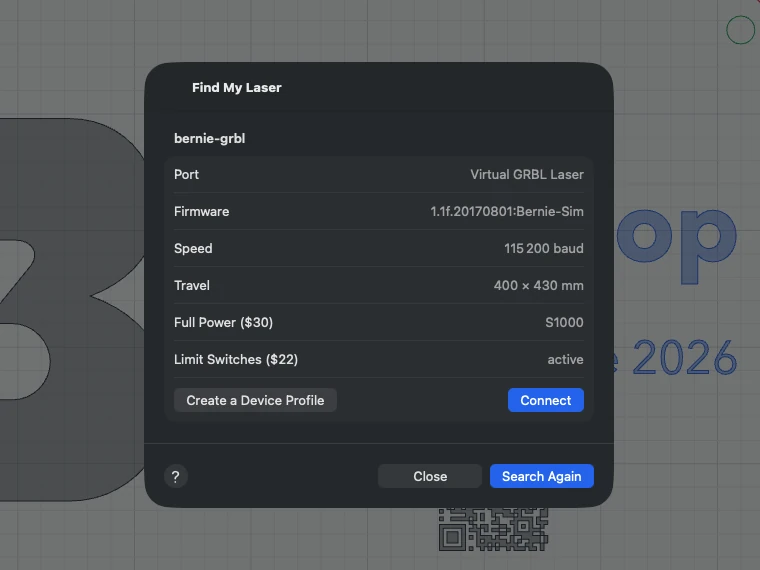
- Virtual (default): a simulated laser that accelerates, brakes and engraves like a real machine, in the Laser › Virtual Laser window. Ideal for trying things safely; simulation speed: real time, × 2, × 5, × 10 or × 50. During a job, the panel’s “Laser on” indicator stays visible between scan lines.
- USB: choose the port (or “Find My Laser”, which tries 115,200, 230,400, 250,000 and 460,800 baud) then Connect.
- Network: IP address and port of a Wi-Fi or Ethernet laser (without a port: 23, then 8080 if the laser refuses 23); Search the Network lists the lasers that announce themselves (Bonjour, Telnet service: grblHAL, FluidNC, serial-to-Wi-Fi bridges) and the GRBL boards that don’t (ports 23 and 8080: MKS DLC32, many ESP32 boards) — a click fills in the address. The network timeout (Settings › Devices, 5 s by default) limits the wait for the connection and the silence allowed before the laser is considered lost; lengthen it on a slow Wi-Fi. MKS DLC32: its address is shown on its screen (192.168.4.1 when it creates its own Wi-Fi network, “MKS_DLC”); it accepts only one connection at a time: close any other software connected to it. On iPhone, iPad and Mac, Bernie needs access to the local network (Settings, or System Settings on Mac › Privacy & Security › Local Network): otherwise the search finds nothing and the connection reports the address as unreachable.
- Shared: a laser connected to Bernie Link (a small computer next to the laser, without a screen) or to a Mac in Hub mode. The shared lasers on the network are listed; choose it, type its pairing code (where to find it), then Connect. The connection is restored at the next launch.
- Server: a laser driven by OctoPrint (API key: OctoPrint Settings › API, or an application key) or by a Duet board in standalone mode (password set by
M551, empty if none). Address, key or password (kept in the keychain on Mac and iPad), then Connect. The job goes as a file, which the server starts after the safety question; Frame (laser off), Pause, Resume, Stop, progress. The server does not tell where the head is: start from absolute coordinates or from the user origin. In Bernie Studio opened in a browser, the page must be in http (served by Bernie Link, or on this computer) and the server must allow it: “Allow Cross Origin Resource Sharing (CORS)” box in OctoPrint,M586 C"*"on Duet; the desktop app has none of these limits.
If the USB connection fails, Bernie gives the reason: port already in use by another program (LightBurn, a serial terminal, another Bernie window) — close it, then reconnect; port not found — check that the laser is plugged in and switched on, and try another cable (some only carry power). Recent versions of macOS recognise the common USB chips; otherwise, install their maker’s driver (WCH for the CH340, Silicon Labs for the CP2102). A GRBL controller set to report in inches ($13=1) is supported: its positions are converted to millimetres.
On connection, Bernie reads the controller settings and reports mismatches with the profile (maximum power $30, laser mode $32, travel), as well as a workpiece offset (G54, G92) left active, which would shift every job in absolute coordinates.
Ports that are not lasers (Bluetooth, modem…) can be hidden from the list (crossed-out eye button next to the port); the same menu shows them again.
This manual is also built into Bernie: press F1, or open the Help menu, to read the topic for what you are doing. A mistake, a missing answer? Tell us
Try it in Bernie, for free.
Free laser engraving and cutting software for diode, CO2, fiber and galvo lasers. Windows, Mac, Linux, iPad, iPhone and in the browser.