Bernie User Guide
Preview and Pre-flight Check
Replay the laser paths, view the engraving on a material, ask “Why this line?”, read the estimated time and fix what the pre-flight check reports.
The eye button (or ⇧⌘P) shows the laser paths: engraving in the layer color, laser-off moves in gray, rapid moves in red. The time slider replays the job; “Shading” darkens the lines according to power; the rendering shows the engraving in the layer colors, inverted (light on a dark background) or on a material — light wood, plywood, cardboard, leather, slate, black acrylic, black or blue anodized aluminum: the surface takes the material’s color, the mark its own, darker or lighter depending on the power, engraved images included (Bernie Studio: list next to the Preview button); “Legend” lists the layers sent with their mode, speed and power. Image saves the preview as a PNG (work area, 10 pixels per mm). Why this line?: a click on a line of the preview highlights it and tells what it is — laser on, laser off move (overscan, gap crossed, lead-in, tab) or rapid —, its layer and mode, its speed, power, length and time in the job; Select Object finds the shape it comes from.
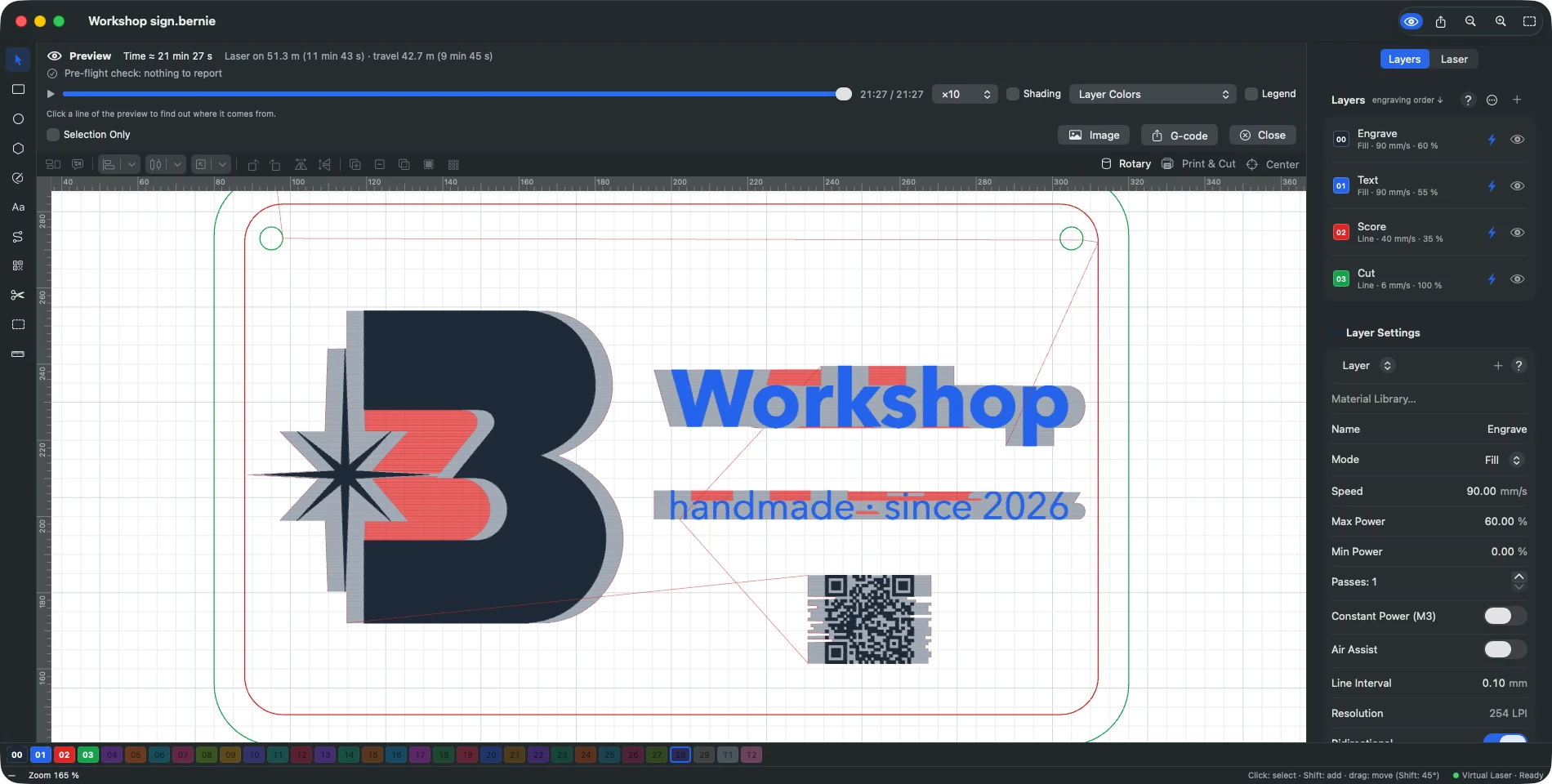
The estimated time takes the device’s maximum speeds and accelerations into account; the banner details the laser-on time and the travel time.
The pre-flight check reports what would prevent the expected result: nothing to engrave, leaving the work area (overscan included), speed beyond the machine, overscan too short, open shapes on a fill layer, duplicates (two identical shapes cancel out when filled), hidden layer still sent, image on a layer not in Image mode, cut planned before the engraving it surrounds… Click the line for the full list; Show selects the objects concerned. Blocking findings prevent starting.
Optimization (Laser menu › Cut Order Optimization…): inner shapes first, reduced travel, groups in one go, shape cut priority (inspector › Cutting), start on a corner, overlapping lines removed; or drawing order. Cut in a set direction takes shapes in order of their position (bottom to top, left to right…) instead of the nearest one: useful when cut parts lift or smoke drifts to one side. Hide backlash approaches every cut from the same side, so slack in the belts doesn’t shift the start of outlines. Reduce direction changes: at a comparable distance, the next shape is the one that best continues the movement, so the head keeps its speed. Choose best direction: a closed shape may be run backwards if its first segment better continues the approach (except shapes with a set start and direction).
In this section
-
3D simulation
The job in 3D: the workpiece carved and darkened over time, the head and its beam, galvo and rotary included, with playback, speed, material and exaggerated relief.
This manual is also built into Bernie: press F1, or open the Help menu, to read the topic for what you are doing. A mistake, a missing answer? Tell us
Try it in Bernie, for free.
Free laser engraving and cutting software for diode, CO2, fiber and galvo lasers. Windows, Mac, Linux, iPad, iPhone and in the browser.