Bernie User Guide
Preferences
Every preference, settings bundles and automatic backups, settings shared between computers and the window layout.
Where to find them
On Mac, Bernie › Settings… (⌘,); on iPad and iPhone, Preferences… in the Document section of the inspector. In Bernie Studio (browser and desktop app), the window takes the look of the system: on Windows, File › Settings (Ctrl+,); on Linux, Edit › Preferences (Ctrl+,); on Mac, Bernie Studio › Settings… (⌘,). Pages General (language, text size, window already running in the desktop app), View (rulers, filled display, fast outlines), Edit (snapping, mouse gestures), Privacy (statistics) and More settings (device, settings bundles, shortcuts). The settings detailed below are those of the Mac and iPad app; in Bernie Studio, the others are in their place in the menus and panels.
Usage statistics
To learn which features are used and which cause trouble, Bernie sends anonymous statistics — tool chosen, format imported or exported, start and end of a job (rounded duration), laser connection (controller, USB or network), panel opened, errors. Never a file name, project content or anything that identifies you; the full list is in the repository (docs/telemetrie.md). To turn them off: Settings › General › Usage Statistics (Bernie Studio: Privacy page of the settings, or checkbox in the manual window). From the App Store (Mac, iPad, iPhone), Bernie asks you once, at launch: nothing is sent before Share.
Updates
Through the App Store (Mac, iPad, iPhone), which announces and installs new versions; the TestFlight version updates through the TestFlight app. In Bernie Studio, a large banner offers to reload the page when a new version is online.
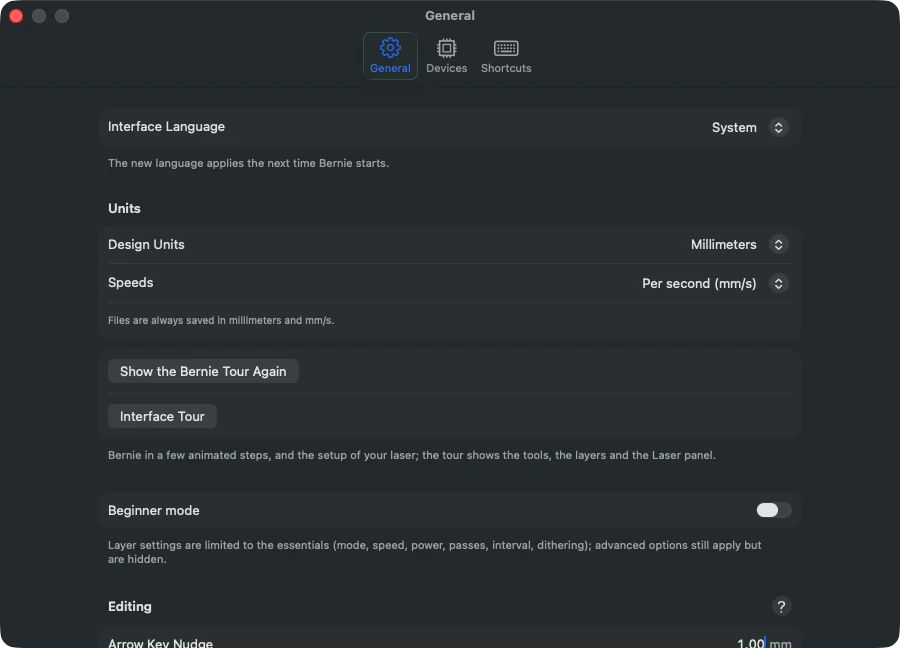
The Settings pages (General, Editing, Display, Laser, Automation, Backup) gather: language, design units (mm or inches), speed units (per second or per minute; Bernie Studio and the desktop app: Preferences › General › Units), arrow-key nudge, click tolerance, snapping distance, return to the Select tool after drawing, import (group, center, select, keep shapes in T1 and T2 colors on the tool layers), ignore shapes outside the work area, “Selection Only” and selection origin when opening and saving them with the project, error sound if sending fails (job refused, controller error or alarm, sending to a Ruida controller), filled display, zoom direction; display: theme (system, light, dark), interface text size (small, normal, large, extra large: window text and controls; Bernie Studio: “Text” list at the top of the page), dark bed, grid contrast, cross at the center of the bed, full-view crosshair cursor, handle and node size, reduce motion (no blinking or animated scrolling; adds to the system setting), fast outline display (less fine, smoother on a very busy design; the engraved path does not change), large tool icons, numbers on the color strip; text: font and height of new texts, typing window on double-click, SHX fonts folder; export and import of preferences; Factory Settings… (after confirmation) resets display, editing, windows, shortcuts, import, sending and tools to their original settings, keeping devices, libraries, presets, calibrations, language, the link to the laser, access codes and your choice for usage statistics. Settings › Shortcuts: see Keyboard Shortcuts.
Settings bundles (Settings › Backup): Export a Bundle… gathers, as you choose, preferences, shortcuts, image presets, devices, macros and material libraries into a .bernielot file — to move to another computer or keep a copy; Import a Bundle… shows its content (devices included) and takes the checked components; items whose name is already taken (devices, macros, presets, libraries) are listed, then replaced, both kept (the imported one gets a numbered name, “Name (2)”) or not imported, as you choose; the rest is added. Automatic backups: Bernie saves these settings at each launch and when quitting, if they have changed (50 backups kept); Automatic Backups… lists them, with the devices of each, and restores one (the current state is backed up first). Open the Settings Folder shows in the Finder the folder of devices, macros, libraries and backups. In Bernie Studio: Device › Settings bundle… exports and imports devices, macros and material libraries (same format: a bundle moves from the app to the browser and back), and Open… also accepts a .bernielot, such as a manufacturer bundle.
Settings shared between computers (Settings › Backup, Mac and iPad): so that several computers or users keep the same devices, material libraries and macros. Choose a Folder… keeps a common folder (network drive, iCloud Drive, synced folder); check what is shared (by default devices, libraries, macros and image presets — not your personal preferences). Publish My Settings writes a bundle there (Bernie-reglages-partages.bernielot); on the other computers, Apply at launch when they have changed applies it on its own when Bernie opens (or Apply Now): items with the same name are replaced, the rest is added, nothing is deleted, and an automatic backup is made first. Stop Sharing forgets the folder; Factory Settings… keeps it. In Bernie Studio and the desktop app: Device › Settings bundle… › Settings Shared Between Computers (devices, macros and material libraries, same bundle as the app: Macs, PCs and browsers share the same folder); in a browser, Chrome or Edge only, and applying at launch requires access to the folder to have been granted already (otherwise Apply Now).
Layout (Window menu): show or hide the tool bar, the side panel (⌃⌘S), the colour strip and the status bar; Positions: tool bar on the right, side panel on the left, editing bars below the canvas, colour strip at the top; Reset Layout puts everything back (also by holding ⇧ at launch). Laser Panel in a Window (Mac): the Laser panel detaches into its own window, to place anywhere (on a second screen, for example); it drives the project in front and the side panel keeps only the layers. Closing it (or unticking the entry) puts it back in the side panel.
Reset Bernie (Settings › Backup; on iPhone, in the project; in Bernie Studio, Other Settings): Bernie goes back to its first launch. Preferences, devices, macros and connections go back to zero, then the assistant opens: the Mac restarts, the browser reloads the page, iPad and iPhone stay open. Reset keeps your material libraries, templates, job log and hour counters (and, on Mac and iPad, a backup of your settings); Erase Everything removes them too. Your project files are never touched; the language and your statistics choice are kept. On Mac, open projects first offer to save their changes; in Bernie Studio, the open project closes without being saved.
This manual is also built into Bernie: press F1, or open the Help menu, to read the topic for what you are doing. A mistake, a missing answer? Tell us
Try it in Bernie, for free.
Free laser engraving and cutting software for diode, CO2, fiber and galvo lasers. Windows, Mac, Linux, iPad, iPhone and in the browser.