Bernie User Guide
Text and Codes
Fonts, text on a path, variable text for serial numbers and CSV merge, single-line fonts, QR codes, barcodes and vision markers.
Text uses the fonts installed on the device; its outline is saved with the project, which therefore opens identically elsewhere. Options: line spacing, welded letters (a single outline), anchoring, text on an arc, capitals (the typed text is kept), maximum width (a longer line is squeezed), right to left (Arabic, Hebrew: words run from right to left; a Hebrew word in an English sentence always reads in its own direction). The star next to the font adds it to the favorite fonts, listed first. Category narrows the font list: sans serif, serif, monospace, script, decorative. Browse Fonts… opens the full list with a search by name and a preview of each font with your text.
Variable text
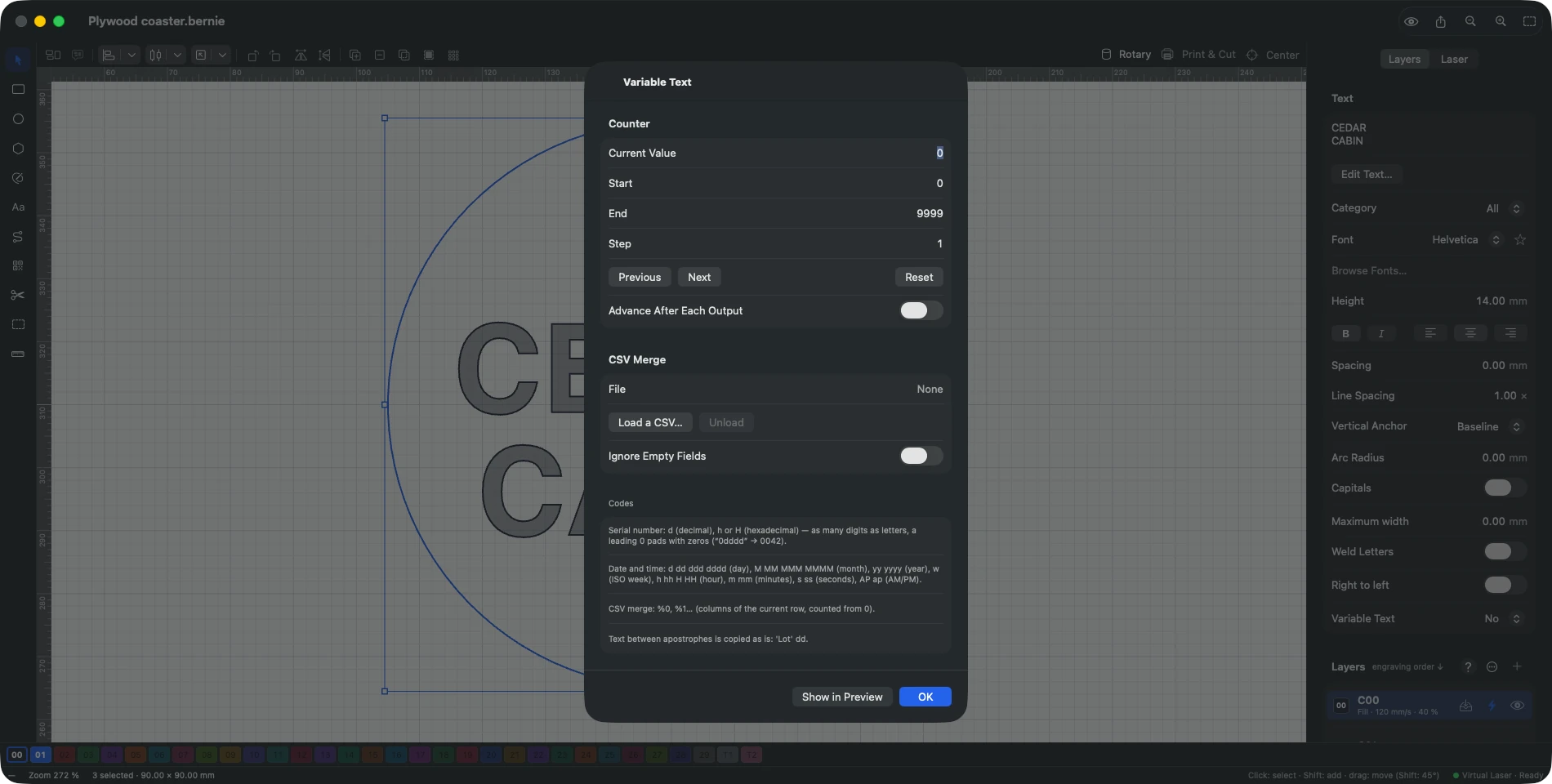
A text whose codes are replaced by values when engraving — the text’s Variable Text list: Serial Number (d decimal, h/H hexadecimal, as many digits as letters, a leading 0 pads with zeros: “No 0ddd” → No 042), Date and Time (dd/MM/yyyy, HH:mm, dddd day name, MMMM month, w ISO week, AP AM/PM…), CSV Merge (%0, %1…: columns of the current row of a CSV file), Cut Settings ({speed}, {power}, {min-power}, {passes}, {interval}, {layer}: the settings of the text’s layer, to label a test grid). A barcode or QR code can be variable too (Code section: mode, offset, encoded data). A grid (Array…) can advance the variable text from one copy to the next (step per copy). Text between apostrophes is copied as is ('Lot' dd). Offset: added to the counter, to number several labels of one template; in a virtual array, each copy takes the next value. Variable Text… sets the project counter (current value, start, end, step; previous, next, reset), its advance after each output (job start, G-code file), the CSV file and “ignore empty fields” (no blank line). The design keeps the codes; Show in Preview shows the values as they will be engraved. Bake Values replaces the codes with the current value: the text (or code) becomes ordinary (undoable).
SHX fonts (single-line)
AutoCAD single-stroke fonts engrave a text in a single pass, without fill (layer in Line mode). Set their folder in Settings › Editing › Text › SHX Fonts (Bernie Studio: SHX Fonts… under the font, files kept in the browser); they appear in a separate section of the font list. Formats read: shapes and unifont (not the Asian bigfont).
Text on a path
Select the text and a path (line, curve, circle…), then Shapes › Apply Path to Text. The text follows the path, which becomes part of the text; on a closed shape it starts on the left side and goes over the top, outside. Alignment places the text at the start, middle or end of the path, Offset along path slides it, vertical anchoring puts it on, under or above the path. With the Nodes tool, the path’s nodes are shown: move, add or delete them and the text follows. Detach Path gives the path back and straightens the text.
Editing text
Double-click it (double tap on iPad). A field opens below the text and the canvas follows your typing; ↩ or Esc finishes, ⌥↩ starts a new line, clicking elsewhere also finishes. The same field opens when you place a new text: just type, your typing replaces “Text”. For a long text, Edit Text… (inspector) opens a large field where Return starts a new line; Settings › Editing › Text can open it on double-click.
Missing fonts
A project opened on a computer that lacks its font keeps the saved outline of its texts. Tools › Replace Missing Fonts… (in Bernie Studio: the link under the font of an affected text) picks an installed font for each one: the texts are redrawn with it and become editable again (a single action to undo).
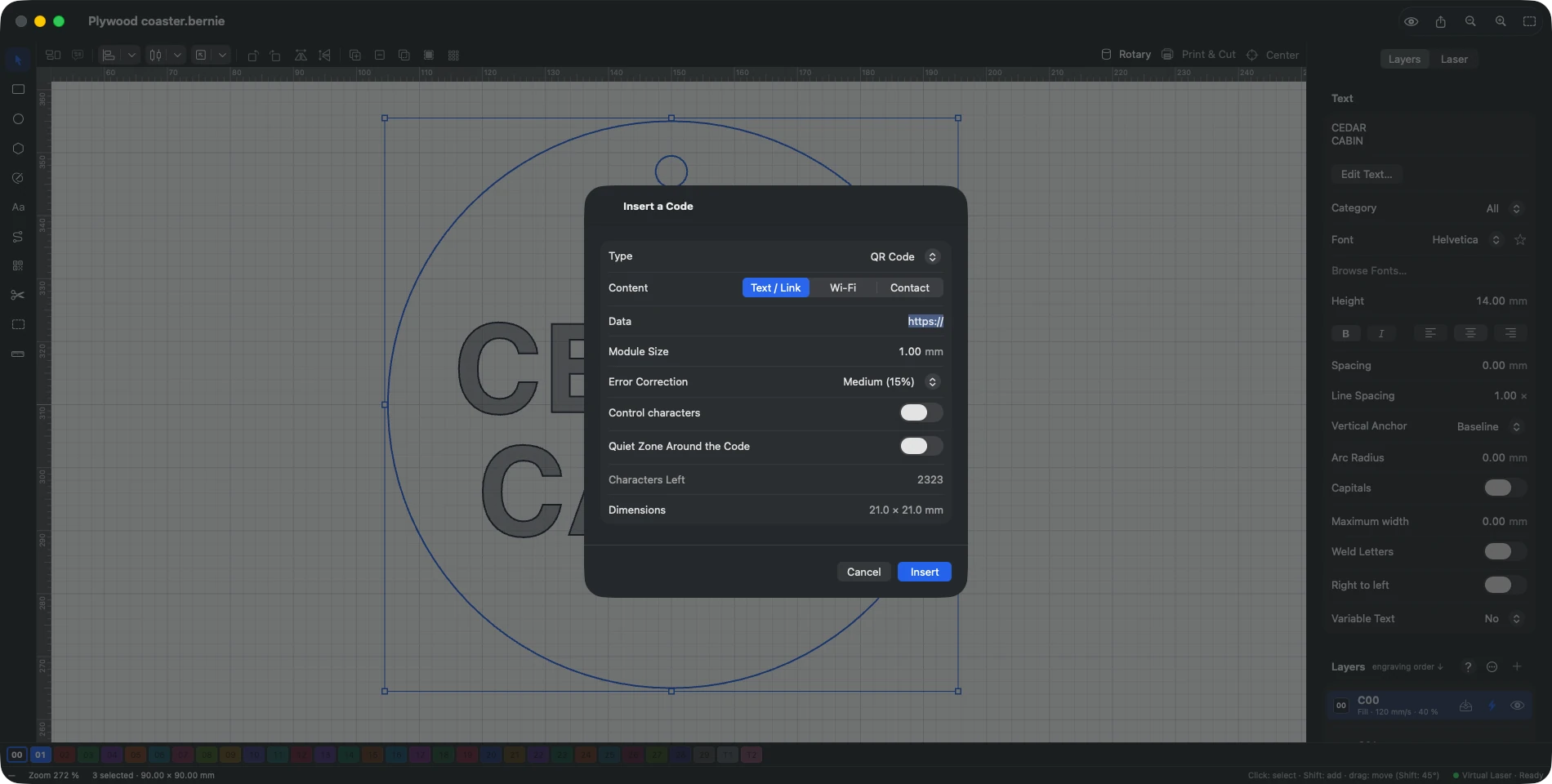
Codes (QR button in the left bar, ⇧⌘K): QR, Data Matrix, Code 128, Code 39, Code 93, EAN-13, EAN-8, UPC-A, UPC-E (6 digits, or 7 with the number system 0 or 1 first), Codabar (start and stop letters A to D added when missing), Interleaved 2 of 5 (ITF; with 13 digits the check digit is added: ITF-14 for cartons), with helpers for a Wi-Fi network or a contact card. The content is checked before insertion; Characters Left shows the room still available. QR code: error correction low, medium, high or maximum (share of the code that can be damaged or covered by a logo; the higher it is, the larger the code). Barcodes: readable text below the code (with the check digit of EAN, UPC and ITF-14). Data Matrix: square by default; otherwise a lower, rectangular format is chosen when it is smaller. Control characters: in the data, \F (leading FNC1: GS1 Data Matrix), \G (GS separator between two GS1 elements), \n, \t, \xHH (hexadecimal code), \\ (backslash). EAN-13 and UPC-A: a 2- or 5-digit add-on code (price, issue number) is typed after a “+” (590123412345+12); its gap to the main code is set in modules (7 to 12 recommended).
Vision markers (same window, AprilTag 16h5, 25h9, 36h10, 36h11, ArUco MIP 36h12, ArUco 4 × 4 to 7 × 7 types): targets for computer vision software (OpenCV, AprilTag), to locate a part or calibrate a camera. Type the marker number (from 0 to the family’s number of markers minus one); the marker is engraved with its black border, in the orientation of OpenCV’s cv2.aruco.generateImageMarker; the quiet zone adds one module around it (the material must stay light around the marker for it to be detected).
This manual is also built into Bernie: press F1, or open the Help menu, to read the topic for what you are doing. A mistake, a missing answer? Tell us
Try it in Bernie, for free.
Free laser engraving and cutting software for diode, CO2, fiber and galvo lasers. Windows, Mac, Linux, iPad, iPhone and in the browser.