The Laser
Device Orientation
A small test “F” tells whether the profile's origin matches the machine; Bernie then fixes the origin corner in one click.
If an engraving comes out mirrored or upside down, the origin chosen in the profile does not match the machine. Laser › Check Device Orientation… (or the Laser panel):
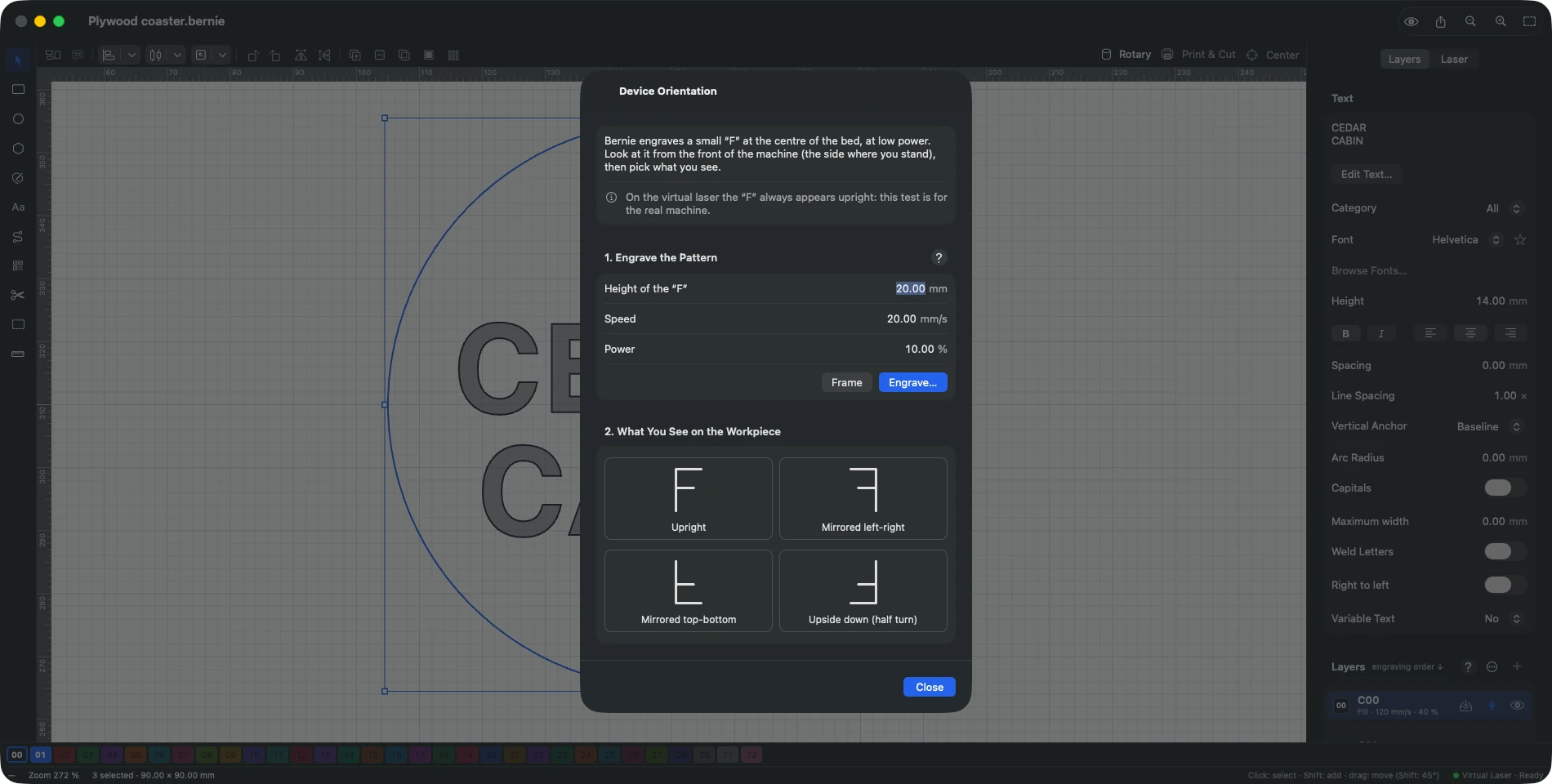
- Engrave: a small “F” at the centre of the bed, at low power (height, speed and power adjustable; Frame shows the location first).
- Look at it from the front of the machine and pick the matching thumbnail: upright, mirrored left-right, mirrored top-bottom, or upside down.
- Bernie tells you the right origin corner and changes it in the profile in one click; engrave again to check.
On the virtual laser the “F” always appears upright: this test is for the real machine.
This manual is also built into Bernie: press F1, or open the Help menu, to read the topic for what you are doing. A mistake, a missing answer? Tell us
Try it in Bernie, for free.
Free laser engraving and cutting software for diode, CO2, fiber and galvo lasers. Windows, Mac, Linux, iPad, iPhone and in the browser.