Bernie User Guide
Troubleshooting
Start from what you see: “My Job Is…” and the symptom table give the likely causes and the tools to fix them; share feedback in seconds.
Share Feedback (Feedback menu, always in the menu bar, ⌃⌘A on Mac; iPad: ⋯ button; iPhone: Help tab, top-right button; Bernie Studio and the desktop app: Feedback menu): pick the type — Suggestion (and where in Bernie), Bug (severity, frequency), Share a success, Other —, sum it up in one sentence, add details if you like, then Send: the Bernie team is notified right away. Optional attachments: Capture the Window (the project window, without the feedback window; in Bernie Studio, the project preview), Add a File… (10 MB at most), the technical details (version, system, laser — shown before sending) and, for a bug, the session log. Your email is optional, only to reply to you. Offline, or if the service does not answer, the feedback waits in Bernie and is sent at the next launch (or with Feedback › Send Waiting Feedback); Send by Email… also lets you send it yourself. Nothing is sent without your click, never your designs unless you attach them, and nothing is used for anything other than improving Bernie. On Mac, iPad and iPhone, I agree to send this feedback must be turned on before sending: the feedback goes to Bernie’s server (bernie.websolutis.com), read only by the team.
Damaged or oversized file
An imported file that is unreadable in places is read as far as possible; items with absurd coordinates (more than a kilometre, infinite values — damaged file or wrong unit) are ignored with a warning (“oversized item(s) ignored”). Very large designs (tens of thousands of shapes) stay smooth: selection, preview and G-code are computed in under a second for a hundred thousand small shapes, and a selection of twenty thousand shapes drags smoothly with the mouse. A shape too large to be filled (more than 200,000 scan lines, i.e. 20 m at a 0.1 mm interval) is not filled, and the pre-flight check reports it.
Debug Drawing (Help menu, at support’s request): bounding box of each shape and technical data at the top left of the workspace (objects, zoom, view, display tolerance, segments, history). Debug log from launch (for a crash at startup): open -a Bernie --args -debug YES turns on the communication log for this session and first writes the version and system into it; Bernie Studio: add ?debug=1 to the address (debug drawing from loading).
Support Data… (Help menu): a text file to attach to a request for help — version, system, device profile, connection state, recent jobs, the end of the console and, if turned on (Settings › Laser), of the laser communication log. No project and no password. In Bernie Studio: Support data… button of the help window (browser, device, connection, recent jobs, end of the console). Convert to Cut (Debug) (Help menu): the paths the laser would follow for the selection become a path on tool layer T2 (never engraved), to understand an unexpected result.
History… (Edit menu): the list of actions done and undone; one click brings the project back to that state. In Bernie Studio: History… button next to Undo and Redo.
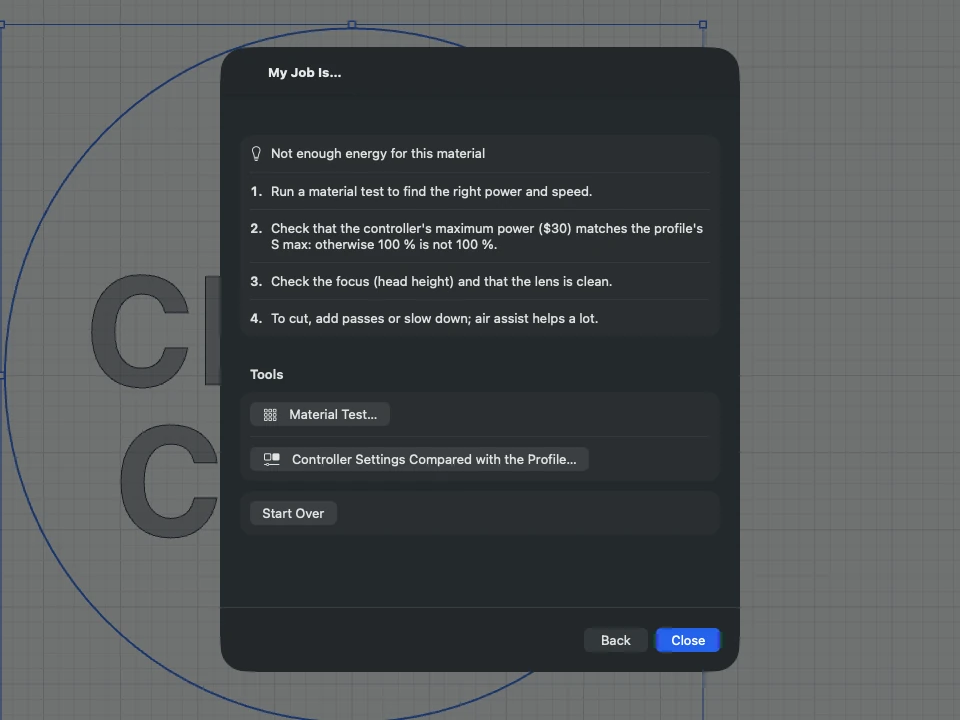
My Job Is… (Help menu, or “Disappointing result?” in the Laser panel): pick the symptom (mirrored, shifted, wrong size, ghost edges, burnt corners, too faint, missing shapes, wrong time…), answer one or two questions, and Bernie gives the likely causes with the tools to fix them: device orientation, scanning offset, controller settings compared with the profile, material test, axis calibration, preview. The laser does not connect, or does not respond: port missing from the list (cable, power, USB-C, driver), port busy with other software or misconfigured, machine in alarm or silent, connection dropping (interference, ground, power supply), network laser not found — the usual causes, from the simplest to the rarest. In Bernie Studio, Help › My job is… offers the same path, with the same tools.
| Symptom | Lead |
|---|---|
| Nothing is engraved | Layer sent to the laser (bolt)? Power not zero? Closed shapes on a fill layer? See the pre-flight check. |
| The job leaves the work area | Absolute coordinates: the design must be on the bed; reduce overscan or speed. |
| Darker edges on fills | Turn on automatic overscan. |
| Every other line shifted | Set the device’s scanning offset. |
| Engraving mirrored or upside down | Laser › Check Device Orientation. |
| Engraving upside down or mirrored | Check the machine origin in the profile. |
| Power too strong or too weak | Profile S max equal to the controller’s $30. |
| The laser stays on between shapes | Turn on laser mode ($32=1) or tick “GRBL without laser mode”. |
| Wrong estimated time | Enter maximum speeds and accelerations (“Read from the connected laser”). |
This manual is also built into Bernie: press F1, or open the Help menu, to read the topic for what you are doing. A mistake, a missing answer? Tell us
Try it in Bernie, for free.
Free laser engraving and cutting software for diode, CO2, fiber and galvo lasers. Windows, Mac, Linux, iPad, iPhone and in the browser.