Bernie User Guide
Images
Image adjustments and masks, tracing to outlines, dithering modes from Stucki to halftone, 3D sliced engraving on a galvo and image presets.
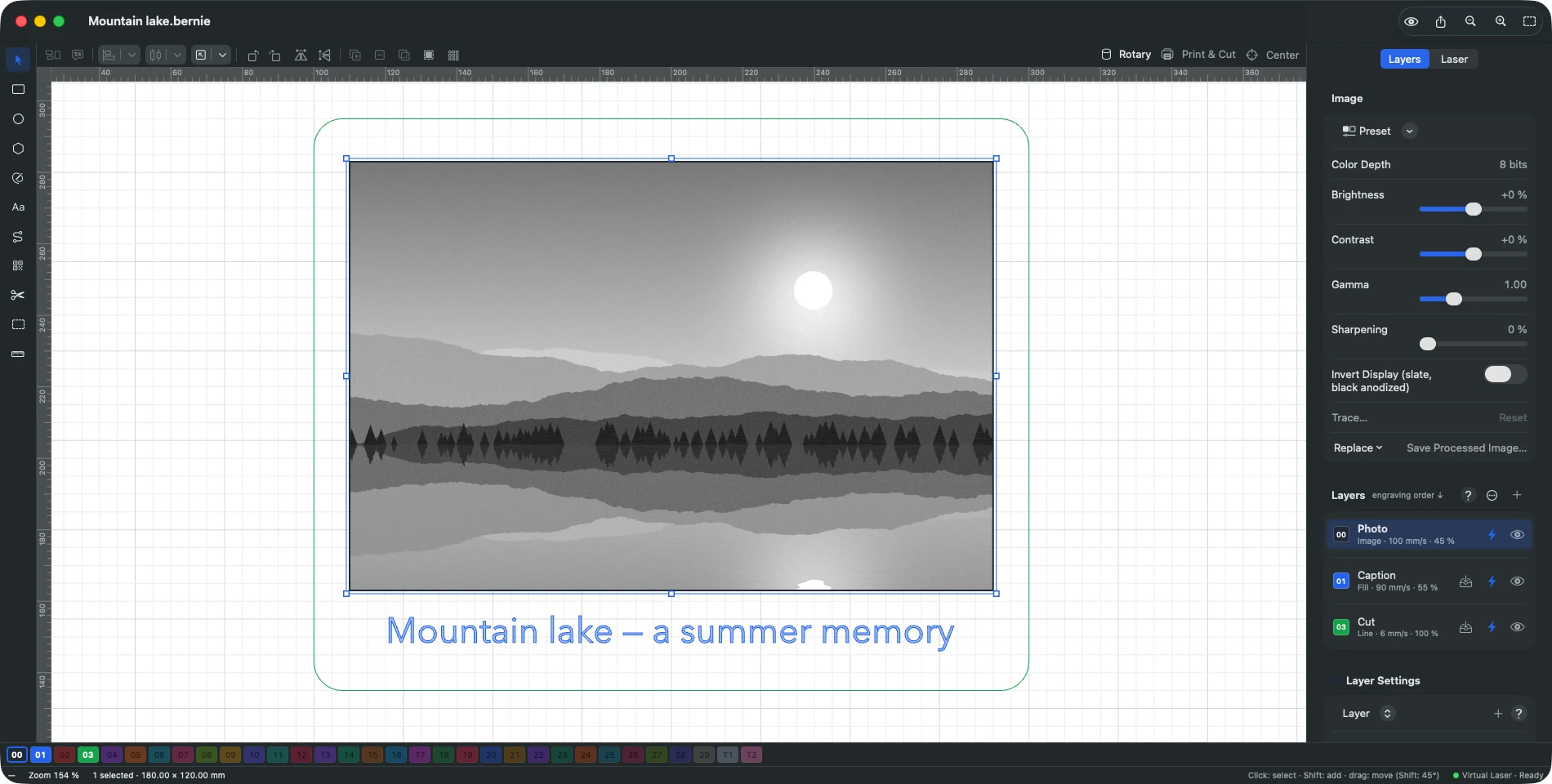
An imported image is engraved on a layer in Image mode. In the inspector: brightness, contrast, gamma, sharpening. Mask (Tools › Apply Mask to Image): a closed shape selected with the image limits the engraving to its inside; a shape placed inside another makes a hole (removing the center of an image); Remove Mask gives it back as a shape, to edit and apply again; Crop Image cuts the image to the mask. In Bernie Studio, these three buttons are in the panel’s Image section.
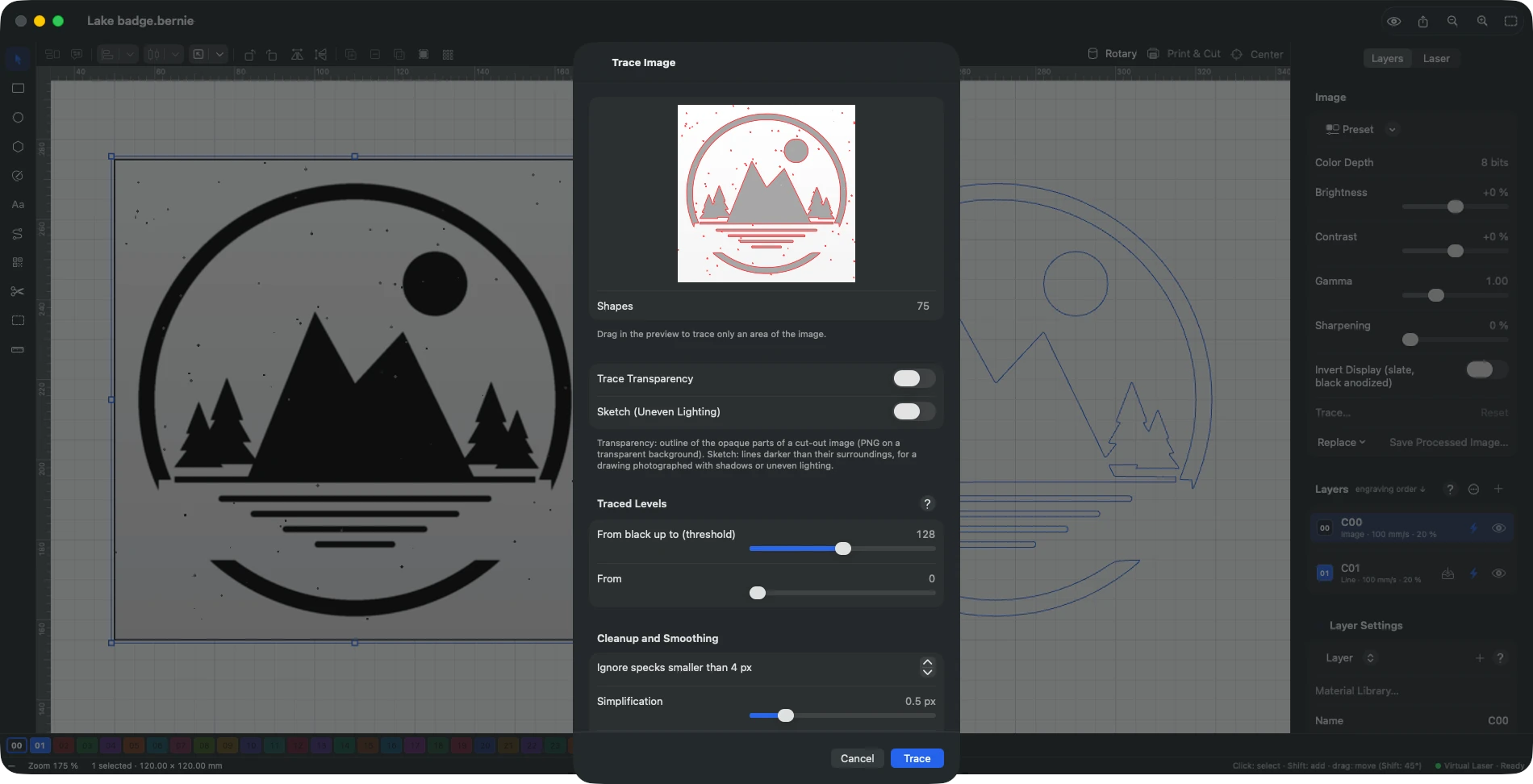
Trace (Tools › Trace Image…, ⌥⌘T): turns an image into outlines, with preview, threshold, smoothing and area. Sketch: for a drawing photographed with shadows or uneven lighting, keeps the lines darker than their surroundings (the threshold becomes a sensitivity). Centerline (Middle of the Strokes): instead of the outline of each stroke, a single open path along its middle — for a line logo, a sketch, handwriting, to engrave or cut as a line (the result goes on a layer in Line mode). The short branches caused by the stroke thickness are removed; “Simplification” and “Smoothing” set how fine the paths are. A solid blob (a dot) has no centerline.
Engraving settings (layer in Image mode): line interval (or DPI), dithering (Stucki, Floyd-Steinberg, Jarvis, Atkinson, ordered, threshold, grayscale, pass-through, halftone — round dots sized by darkness, adjustable cells per inch and angle —, newsprint — fine halftone at 45° —, sketch — only the outlines of the image are engraved), negative, dot width correction.
3D sliced (galvo device): a depth map — grayscale image, dark = deep — engraved in as many slices as passes (often several hundred); each slice engraves what is darker than its level, so a pixel gets more passes the darker it is. A 16-bit map (PNG, TIFF) keeps its precision beyond 256 slices, as long as the image is not adjusted (brightness, contrast…); the Image section shows the color depth of the selected image. Slices between cleanups: a cleanup pass (soot, debris) every N slices, with the settings of the first sub-layer (created if there is none: tighter interval, lower power…), over the slices engraved since the previous cleanup or over the whole image.
Other tools (Image section of the inspector): Replace the image with another file in the same place (same scale, or in the same frame); Save Processed Image… (PNG of the image as it will be engraved); Flatten the mask (masked areas become transparent in the file). Shapes › Convert to Bitmap turns vector shapes into an image (254, 300 or 508 DPI).
Presets (“Preset” menu at the top of the Image section of the inspector): apply the image settings and its layer settings in one step (a single undo). Bernie provides four — Basic, Black Paint on White, Photo on Wood, Slate or Black Anodized — which never change speed or power.
- Save as Preset…: name the settings of the selected image and choose which ones to include (All, None, Invert). Speed, power and passes are left out by default, since they depend on the machine and the material. A setting left out stays unchanged when the preset is applied.
- A preset’s layer settings apply to every image on that layer.
- Manage Presets…: delete yours, import or export them (File menu) to move them to another computer. They are also included when you export your preferences.
This manual is also built into Bernie: press F1, or open the Help menu, to read the topic for what you are doing. A mistake, a missing answer? Tell us
Try it in Bernie, for free.
Free laser engraving and cutting software for diode, CO2, fiber and galvo lasers. Windows, Mac, Linux, iPad, iPhone and in the browser.