Bernie User Guide
Drawing
Every drawing tool with its shortcut, numeric entry, snapping and alignment guides, rulers and guidelines, and live dimensions while you draw.
| Tool | Use |
|---|---|
| Select (V) | Click, or drag a rectangle; Shift adds or removes. Handles: resize, rotate. Shift while moving: 45° directions. Tab / Shift-Tab: next or previous object. |
| Rectangle (R), Ellipse (E) | Drag; Shift for a square or a circle, Option to start from the center. |
| Polygon (P) | Drag; number of sides in the inspector. |
| Path (L) | Click: corner; click-drag: curve; S: smooth nodes on click (or the status bar button); Shift: 15° angle steps; Return: finish; click the first point: close. Started on the end of an open path, it continues it; finished on an open end, it joins it (and closes the path if it comes back to its start). |
| Text (T) | Click then type in the field that opens below the text; font, height, bold, italic, alignment, spacing, arc in the inspector. |
| Nodes (N) | Edit the points of a shape: move (Shift: horizontal, vertical or 45°; arrows: by the keyboard step), insert (I), delete, smooth (S) or corner (C), break (B), close (F). On the segment under the pointer: L straightens it, S turns a straight segment into a smooth curve (joined to its neighbors without a corner, then bent with its handles), A aligns it (horizontal, vertical, 45°), T trims it up to the nearest crossings, E extends the open end to the next outline. |
| Trim (X) | Click: removes the part of a line between two intersections; leftover pieces that touch (two trimmed circles…) are welded into a single path, which is selected. ⌘-click: without welding. Shift-click: the removed segment is kept, copied to the active layer. |
| Tabs | Click a contour: adds a tab (uncut bridge holding the part); click a tab: removes it. |
| Measure (M) | Drag to measure a distance and its X and Y offsets; Shift: 15° steps. |
Numeric entry
The inspector gives the position, the size (in mm, inches or %), the rotation and the mirrors. The 3 × 3 grid chooses the point of the selection that X and Y refer to (corner, middle of an edge, center), the fixed point when resizing and the center of rotation: clicking another point changes the values shown, not where the selection is (as in LightBurn); to move it, type X or Y. X and Y, like the rulers and the pointer position, are measured from the device origin: with a bottom-left origin, Y starts at the bottom of the bed. “Keep proportions” also applies to the corner handles (Shift reverses it for one gesture).
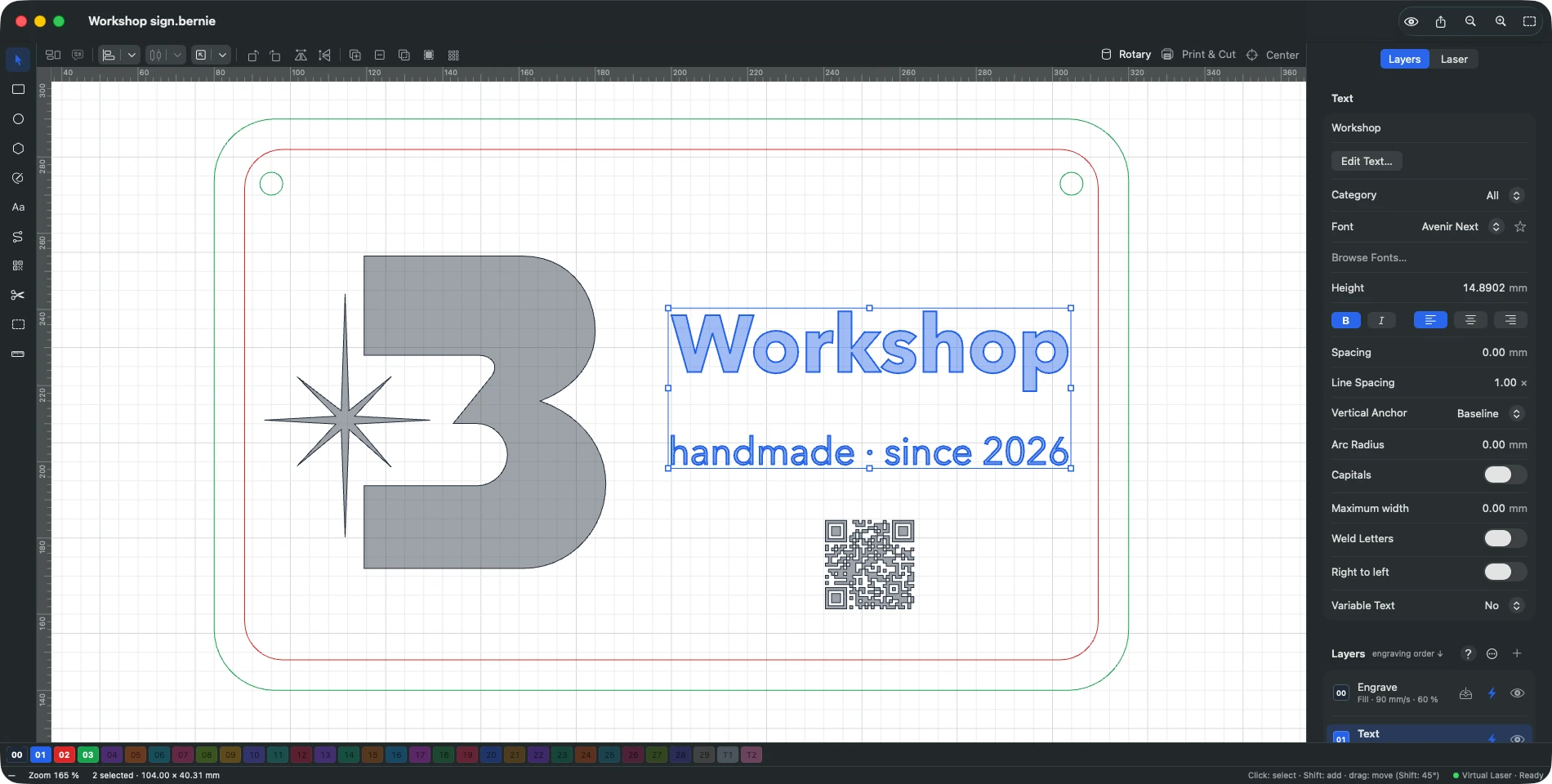
After drawing, Bernie goes back to the Select tool: the shape you drew (or imported) is ready to be moved or resized. To draw several shapes in a row with the same tool, turn off “Return to the Select tool after drawing” in Settings. Even with a drawing tool active, the selection handles stay usable: the cursor changes when you hover them.
Snapping
To object nodes, segment midpoints, intersections and centers (⌘’) or to the grid (⇧⌘’), View menu (in Bernie Studio: two checkboxes in the status bar); Ctrl suspends it for one gesture. While moving a shape, alignment guides (magenta) appear when its edges or center line up with another shape’s. The grid spacing is set in the preferences (automatic by default). A rectangle’s corner radius is set in the inspector.
Rulers and guidelines
Graduated rulers (design unit) border the canvas (View › Rulers, ⌘R). Drag from the top ruler to place a horizontal guideline, from the left one for a vertical one; shapes and points snap to them. With the Select tool, drag a guideline to move it; dropped back on its ruler, it disappears. They are saved with the project; View › Clear Guidelines removes them all. In Bernie Studio: rulers in millimetres (Rulers checkbox in the status bar); the rulers’ “×” corner clears the guidelines.
Live dimensions
While drawing, next to the pointer — shape size, length and angle of the current segment, selection offset. Measurements (inspector, collapsible section): perimeter, area (holes are subtracted), extent, closed or open paths, nodes, straight and curved segments of the selection.
Keyboard
Arrows move the selection, Shift for a large step, Option for a fine step (adjustable in the preferences).
In this section
-
Parametric Sketches
Shapes defined by constraints and dimensions instead of coordinates: change a dimension or a project parameter, such as the material thickness, and the shape recomputes.
This manual is also built into Bernie: press F1, or open the Help menu, to read the topic for what you are doing. A mistake, a missing answer? Tell us
Try it in Bernie, for free.
Free laser engraving and cutting software for diode, CO2, fiber and galvo lasers. Windows, Mac, Linux, iPad, iPhone and in the browser.