Bernie User Guide
The Window
The tool bar, the canvas, the Layers and Laser tabs, the bars above the canvas and the status bar — and how it all fits on iPad and iPhone.
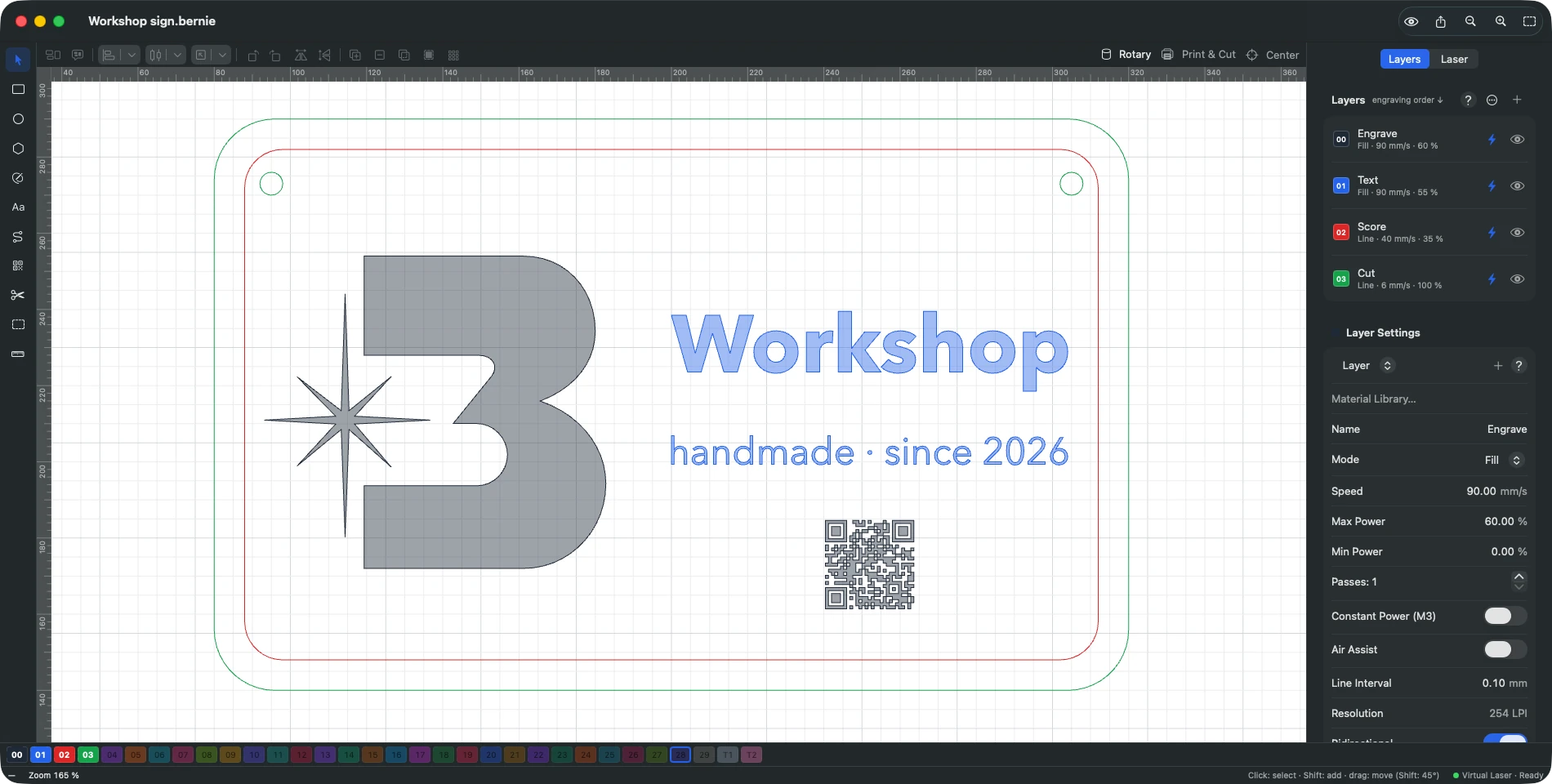
- Left bar: drawing and editing tools (letter in parentheses: keyboard shortcut).
- Canvas: the machine bed, with a grid. Scroll wheel or pinch to zoom, space bar (or two fingers) to pan. The green crosshair marks the head position when a laser is connected.
- Right panel, Layers tab: selection properties, layer list and settings of the chosen layer; Laser tab: connection, machine state, job, manual controls, console.
- Bars above the canvas: arrange (group, ungroup, align, distribute, place on the bed, rotate, mirrors) and modifiers (union, subtraction, intersection, offset, array). Buttons with an arrow (align, distribute, place) remember the last choice: a click repeats it, the arrow opens the list. On the right, the modes bar: Rotary (highlighted when the rotary is enabled; opens its settings), Print & Cut, Center of a round piece. Each bar can be hidden in the Window menu.
- Status bar (bottom): cursor position, zoom, selection (number of objects and extent), help for the active tool, connected laser and its state (click: Laser panel), last machine alert (click: clear it).
- Right-click (or Control-click) on the canvas: context menu for the selection.
- On iPad: the app’s menu bar (File, Tools, Help) comes with a keyboard; by touch, the ⋯ (More) button of the top bar gathers Import, Export (G-code, Ruida, SVG, DXF, PDF), Save as Template, Project Notes, the material and art libraries, the material test, cut order optimization, the camera, history, My Job Is…, the user guide and Share Feedback. Preferences are at the bottom of the Layers tab (Preferences…). When space runs short in portrait, the arrange bar scrolls with a finger.
- On iPhone (companion): Bernie starts and follows your jobs; the drawing is prepared on iPad or Mac. Open a project (iCloud Drive, Files…): the Project tab shows the preview of what will be engraved, the estimated time, the footprint and the chosen device; the Laser tab is the full Laser panel — network laser (Wi-Fi, Ethernet), laser shared by a Mac or by Bernie Link, virtual laser, framing, Start with the same checks and confirmations, Pause, STOP; the Help tab opens this guide.
This manual is also built into Bernie: press F1, or open the Help menu, to read the topic for what you are doing. A mistake, a missing answer? Tell us
Try it in Bernie, for free.
Free laser engraving and cutting software for diode, CO2, fiber and galvo lasers. Windows, Mac, Linux, iPad, iPhone and in the browser.