The Laser
No-Go Zones
Parts of the bed where the laser never fires, or where the head never goes: clamps, stops, the rotary, the edge of the honeycomb. Jobs and framings that would enter them are refused.
Parts of the bed where the laser must not fire: a clamp, a stop, the rotary sitting in a corner, the edge of the honeycomb… Each device has its own (device settings, No-go zones section; not for a galvo).
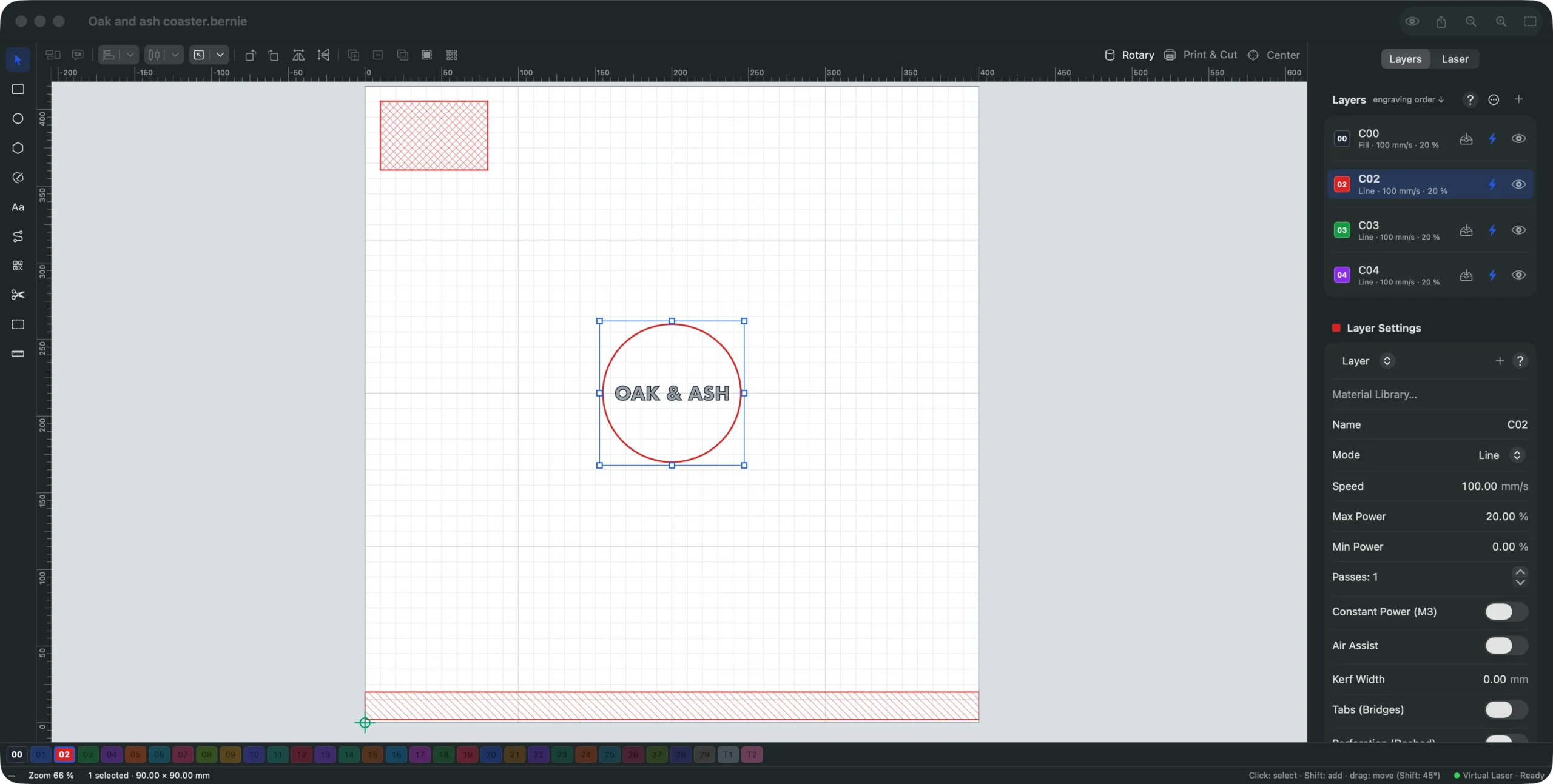
- Create a zone: draw it on the workspace — rectangle, circle or any closed outline, placed to the millimeter with the inspector —, select it, then Add the Selection in the device settings. The drawn shape can then be deleted: the zone stays, hatched in red on the bed.
- Name, Active (a disabled zone stays in the list without being checked) and Moves forbidden too: without this box, only firing is forbidden (the head may fly over the zone with the laser off); with it, the head does not go there at all, framing included — for a tall clamp or a stop it would hit. Zones forbidding moves are cross-hatched.
- Checking: before each job, material test and framing, on the path actually sent (placement at the head or at the user origin included); a job that would fire in a zone, or pass through a zone forbidding moves, is refused with the name of the zone. A G-code file run as is is checked too (if it uses absolute coordinates). The K40 respects them the same way.
- Shared laser: Bernie Link checks the jobs and framings it receives against the zones of the device it keeps (Send Device), and refuses them if they enter one.
- With the rotary on, the height of the design becomes a rotation: the zones are not checked.
This manual is also built into Bernie: press F1, or open the Help menu, to read the topic for what you are doing. A mistake, a missing answer? Tell us
Try it in Bernie, for free.
Free laser engraving and cutting software for diode, CO2, fiber and galvo lasers. Windows, Mac, Linux, iPad, iPhone and in the browser.