Laser engraving & cutting software · 100% free
Your laser deserves great software.
From idea to finished piece, Bernie takes care of everything: the design, the settings, sending the job to the laser. Diode, CO2, fiber or galvo, on Mac as well as iPad, Windows, Linux or in the browser — no account, no subscription, funded by donations.
Mac · iPad · iPhone · Windows · Linux · browser
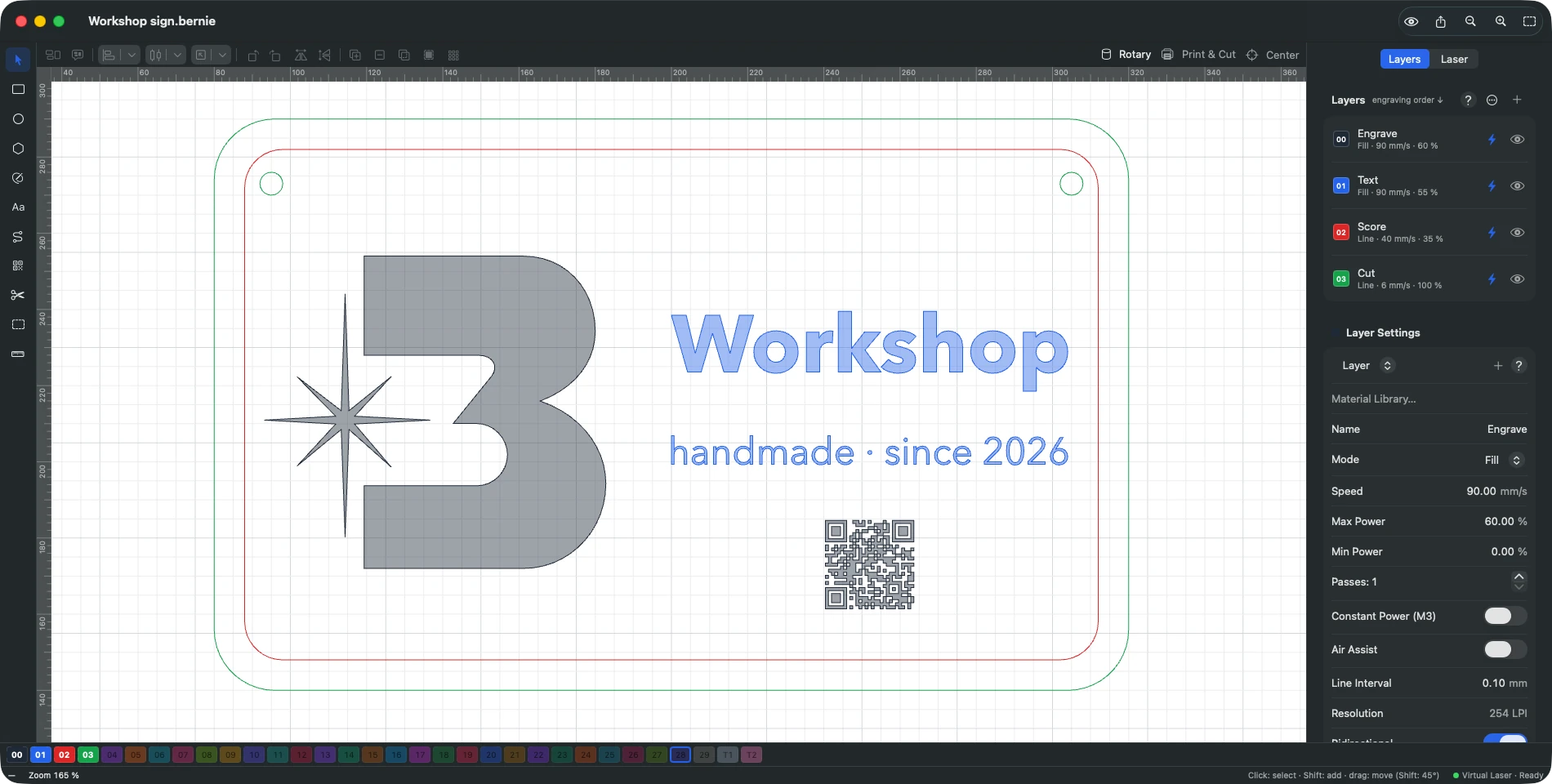
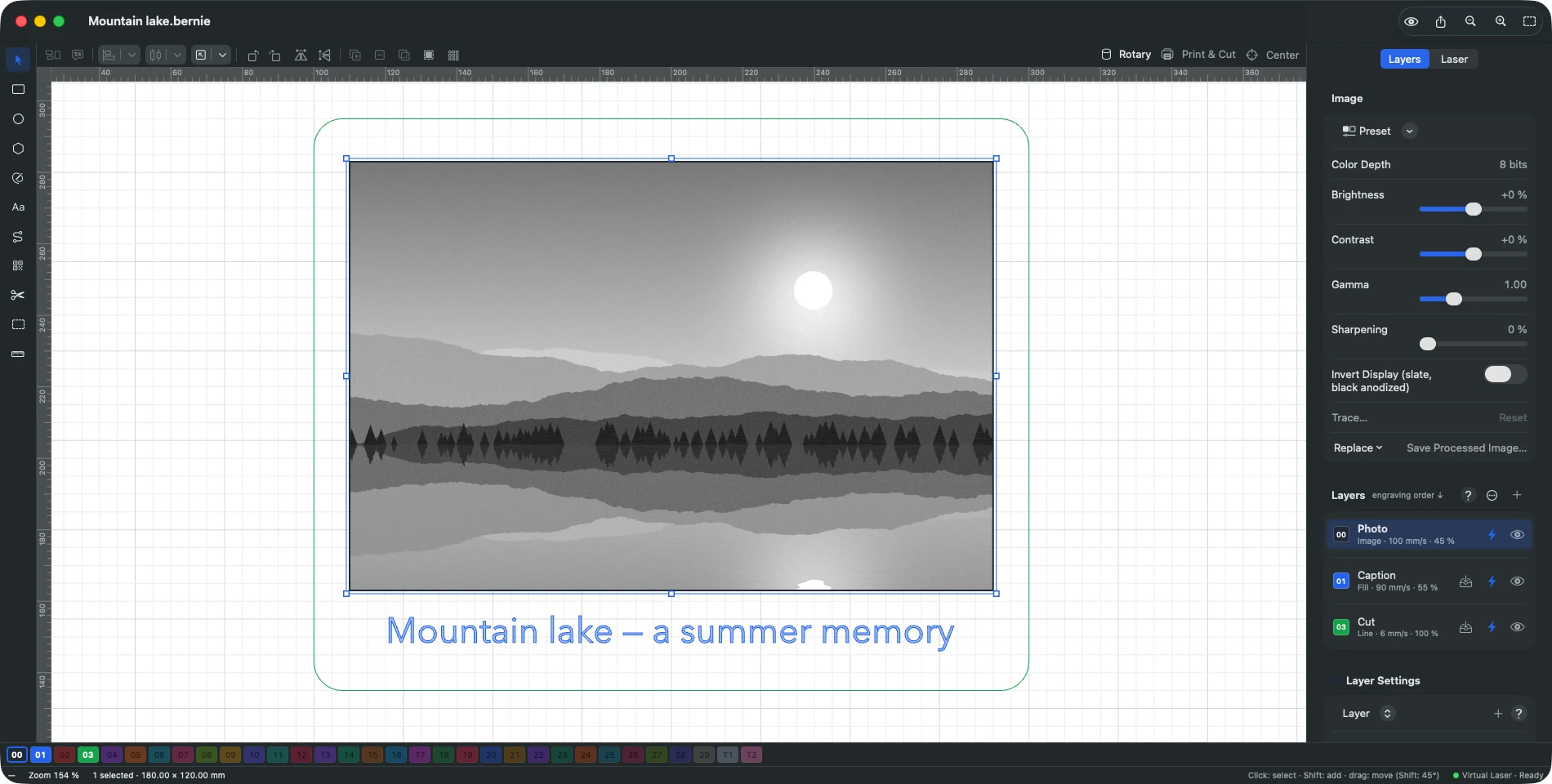
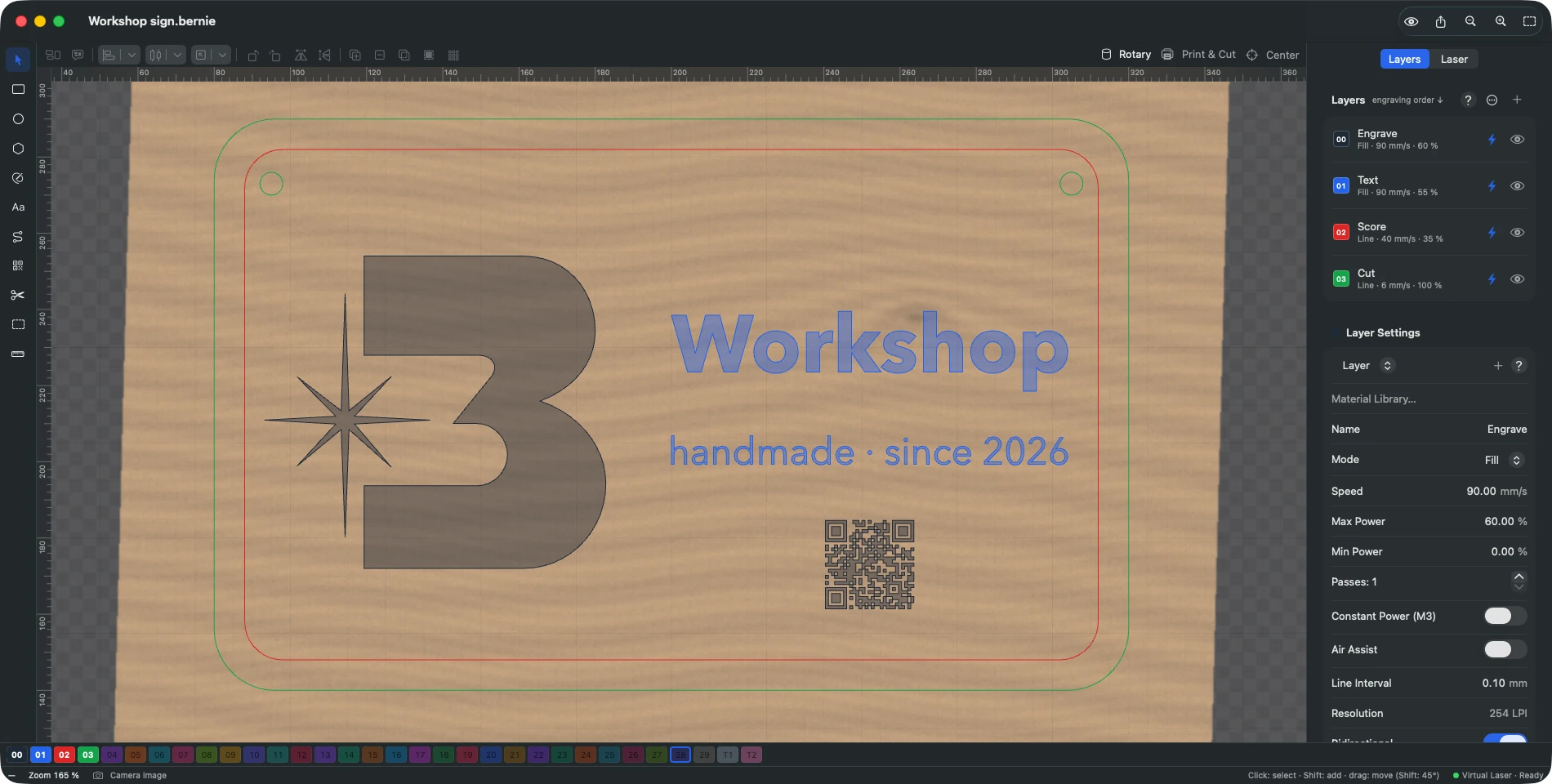
Draw, write, add a QR code: your design on layers, each with its own settings. Turn a photo into an engraving: brightness, contrast and dithering, seen before you burn. Every path and the job time before you send, with a pre-flight check that catches mistakes. Over USB or the network: frame, start and follow the job live. Place your design right on the material, seen through the camera. Fiber and galvo lasers too: mark metal with the same tools.
6
platforms, one Rust core
1,800+
material settings included
125
machines in the catalog
€0
no subscription, no license
From first test to finished product.
Draw or import
A real vector editor, not just a viewer: boolean operations, node editing, text on a path. And your existing files — SVG, DXF, PDF, AI, LightBurn, G-code — open straight away.
Dial it in without guessing
More than 1,800 material settings ship with the app, along with grid tests and calibration patterns: you find the right setting in one click, not after an evening of wasted offcuts.
Engrave with confidence
A pre-flight check that blocks mistakes, a confirmation before every job, a camera that checks the result — and a STOP button that never goes away.
Preview & safety
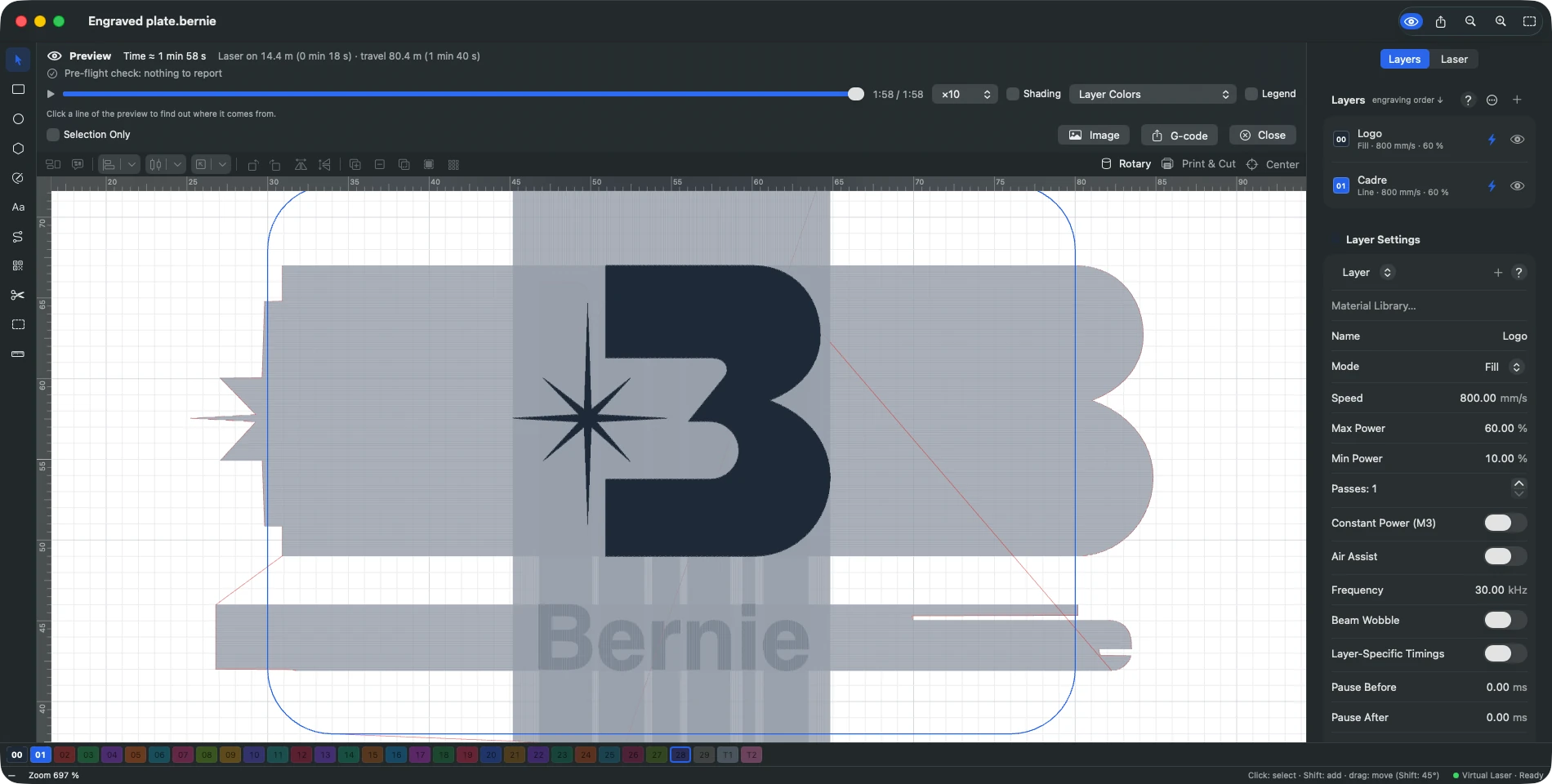
See the engraving before you engrave.
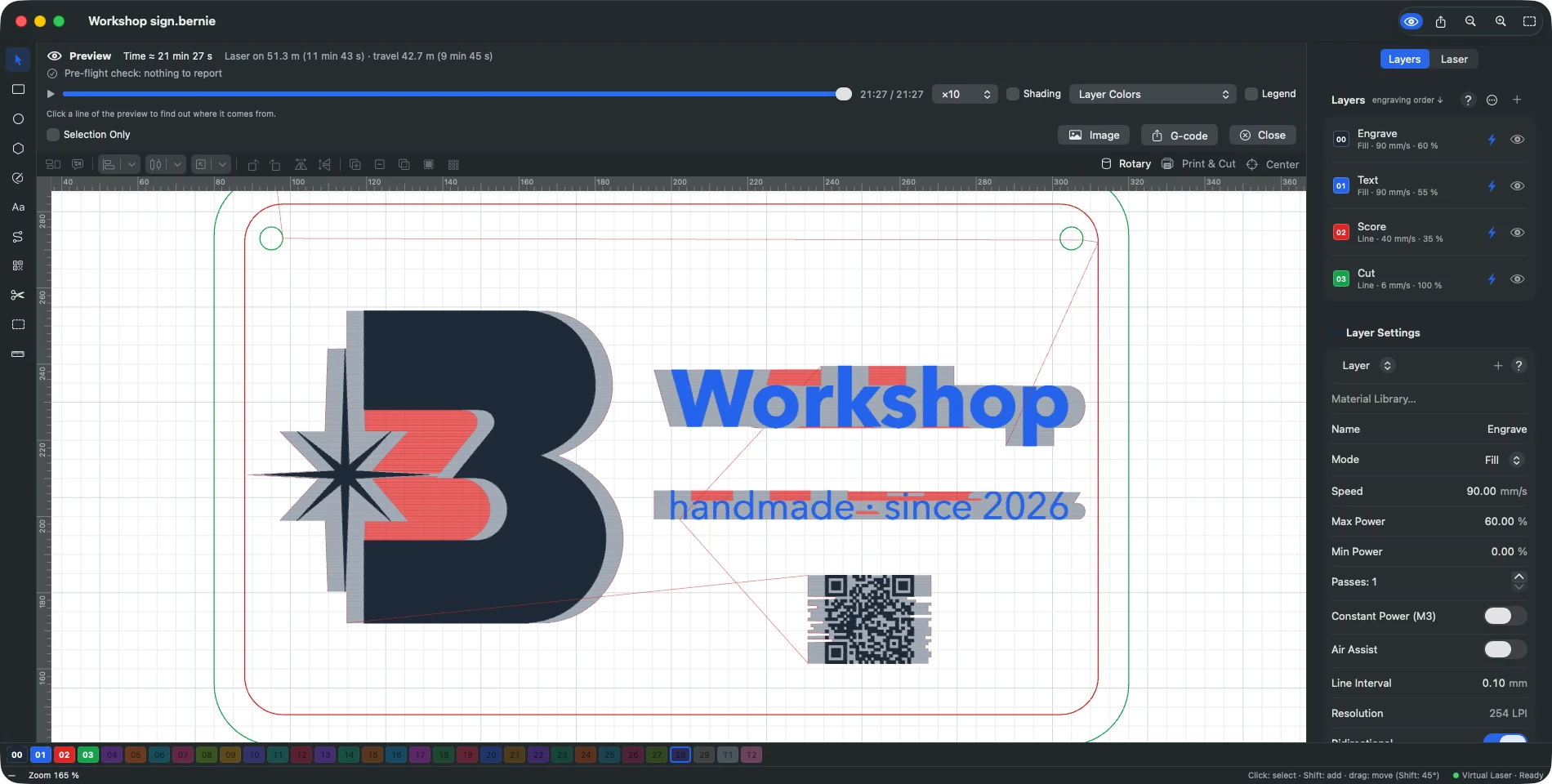
This is the feature that changes everything: the preview replays the job line by line, tells you how long it will take and simulates the result on wood or slate. Not sure about something? Click a line and Bernie answers “Why this line?” — layer, speed, power, the moment it runs.
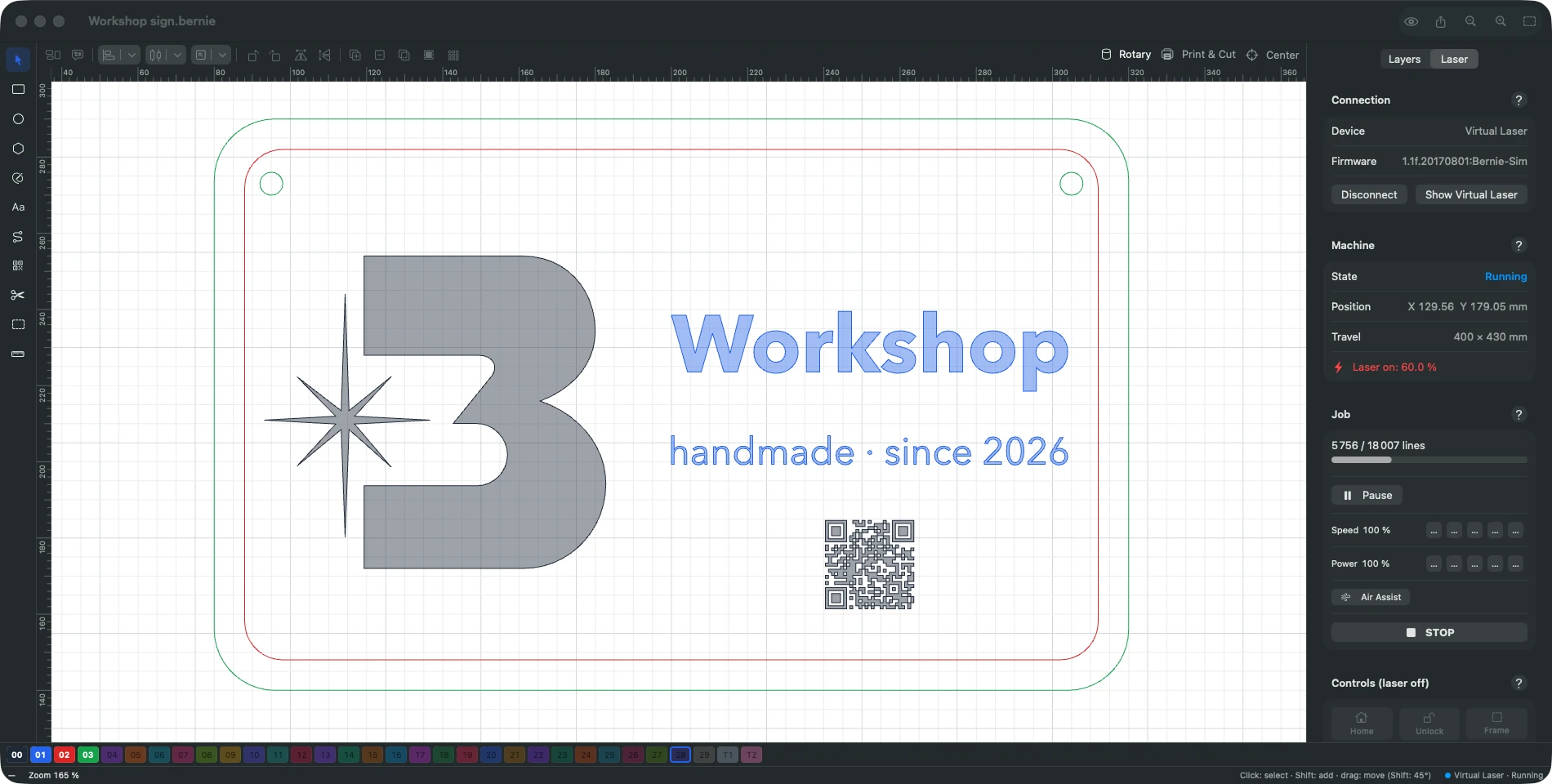
And if you don’t have a machine yet, the virtual laser behaves just like a real one, accelerations included, from real speed up to fifty times faster.
Connection
Bernie finds your laser on its own.
Plug in the USB cable or stay on Wi-Fi: Bernie recognizes the machine, reads its profile straight from the controller and pairs it with the right material library. GRBL, grblHAL, FluidNC, Marlin, Smoothieware, Ruida, xTool or galvo — nearly the whole market is covered, and vinyl cutters too.
Better still: with Hub mode or Bernie Link on a Raspberry Pi, one laser can be shared by every device in the house — and, to be safe, every job is confirmed next to the machine.
Camera
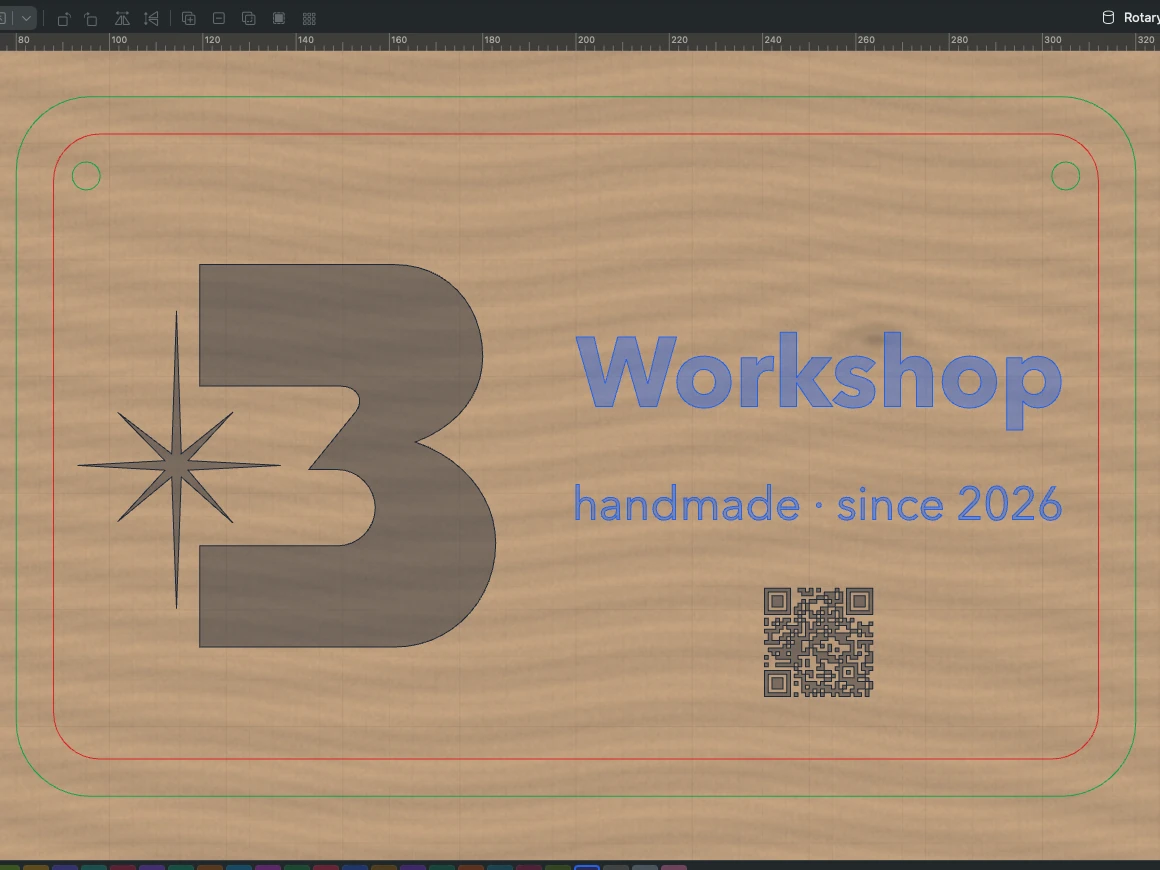
The camera sees your work area.
The image of the bed slides in under your design, right where it really is, after automatic alignment on engraved markers. You position to the millimetre on the object and engrave on offcuts without wasting a board.
And once the job is done, Bernie photographs the result, compares it with what was planned and explains any differences.
Materials
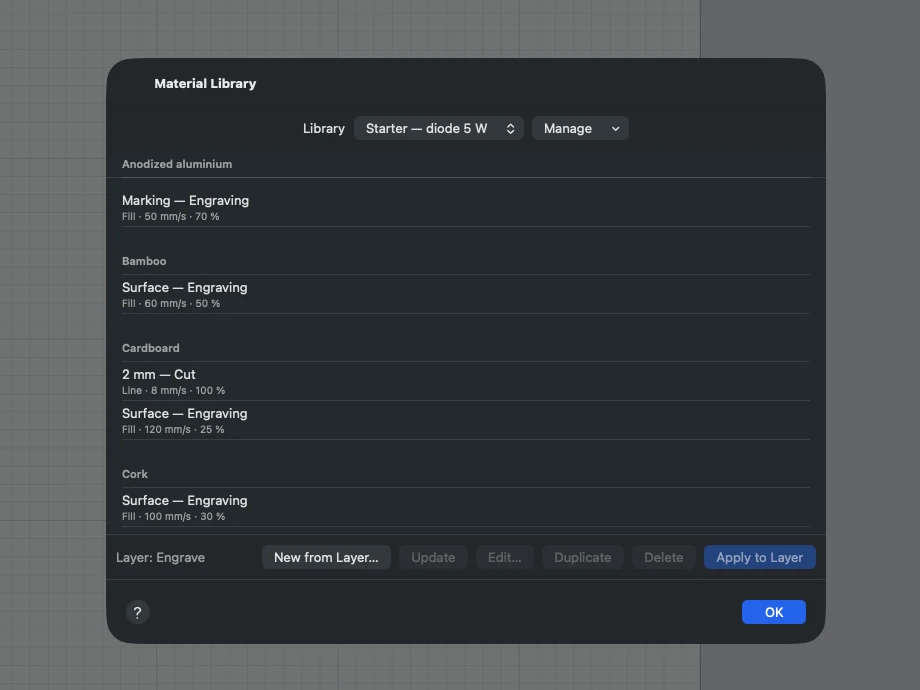
1,800 settings already found for you.
Seventeen libraries, sorted by machine and by material — wood, plywood, acrylic, leather, slate, metal. One click applies the setting to the layer; your LightBurn libraries (.clb) import as they are.
A material nobody has heard of? Run a speed × power grid test, spot the perfect square — “keep this square” saves it for next time.
On all your devices. Really, all of them.
Under the hood, a single engine written in Rust: the same design, the same layers and the same preview follow you from Mac to iPad, from Windows to Linux, all the way into the browser.
Mac
USB, network, Ruida, Hub mode
iPad
every feature, at your fingertips
iPhone
start, follow, stop
Windows
Microsoft Store
Linux
APT, Flatpak, AppImage, Raspberry Pi
Browser
works offline, USB via WebSerial
Frequently asked questions
Is Bernie really free laser engraving software?
Yes, with no asterisk: no license, no subscription, no hidden “Pro” version. Tips — through the App Store or the donation page — are optional and unlock absolutely nothing.
Which lasers and controllers are supported?
GRBL, grblHAL, FluidNC, Marlin, Smoothieware, custom G-code and Ruida controllers, xTool machines over the network, lasers behind OctoPrint or a Duet board, JCZ galvo boards and stock K40 M2 Nano boards (the last two driven directly over USB) — in other words most diode, CO2 and fiber lasers on the market: xTool, Creality, Sculpfun, Ortur, Atomstack, Gweike, Snapmaker, LaserPecker, Emblaser, Acmer, Longer and many more. Bernie also drives vinyl cutters (HPGL, Silhouette) and pen plotters.
Can I open my LightBurn projects?
Yes: Bernie opens your .lbrn and .lbrn2 projects and imports your .clb material libraries and .lbdev machine profiles — on top of SVG, DXF, PDF, AI, xTool, EZCad and G-code files.
Does it work without a machine?
Yes, and it’s even a great way to learn: the virtual laser simulates a complete GRBL machine — moves, accelerations, engraving — so you can test your files and estimate job times before you buy.
Do my files go to the cloud?
No, never. No account to create, nothing you have to upload: your designs never leave your devices. All that remains are anonymous usage statistics — and a single switch turns them off.
The blog
Learn to engrave, one article at a time.
Free today, free tomorrow.
Bernie lives only on tips from the people it has helped. They unlock nothing — everyone gets everything, from day one. It’s a choice, and we stand by it.