Preview and Pre-flight Check
3D simulation
The job in 3D: the workpiece carved and darkened over time, the head and its beam, galvo and rotary included, with playback, speed, material and exaggerated relief.
The job in 3D, to see where, in what order and roughly how deep the laser works: the workpiece (the job and a margin) on the bed is carved and darkened over time, the head follows the job and its beam lights up with the laser; on a galvo, the head stays still and the beam is deflected; with the rotary, the cylindrical object turns under the head. Open it with Laser › 3D Simulation… (Mac, in its own window), the 3D button of the preview banner (Mac, iPad), More › 3D Simulation… (iPad, full screen), 3D Simulation in the Job section (iPhone), or View › 3D Simulation… and the button of the Job preview card (Bernie Studio, Windows, Linux).
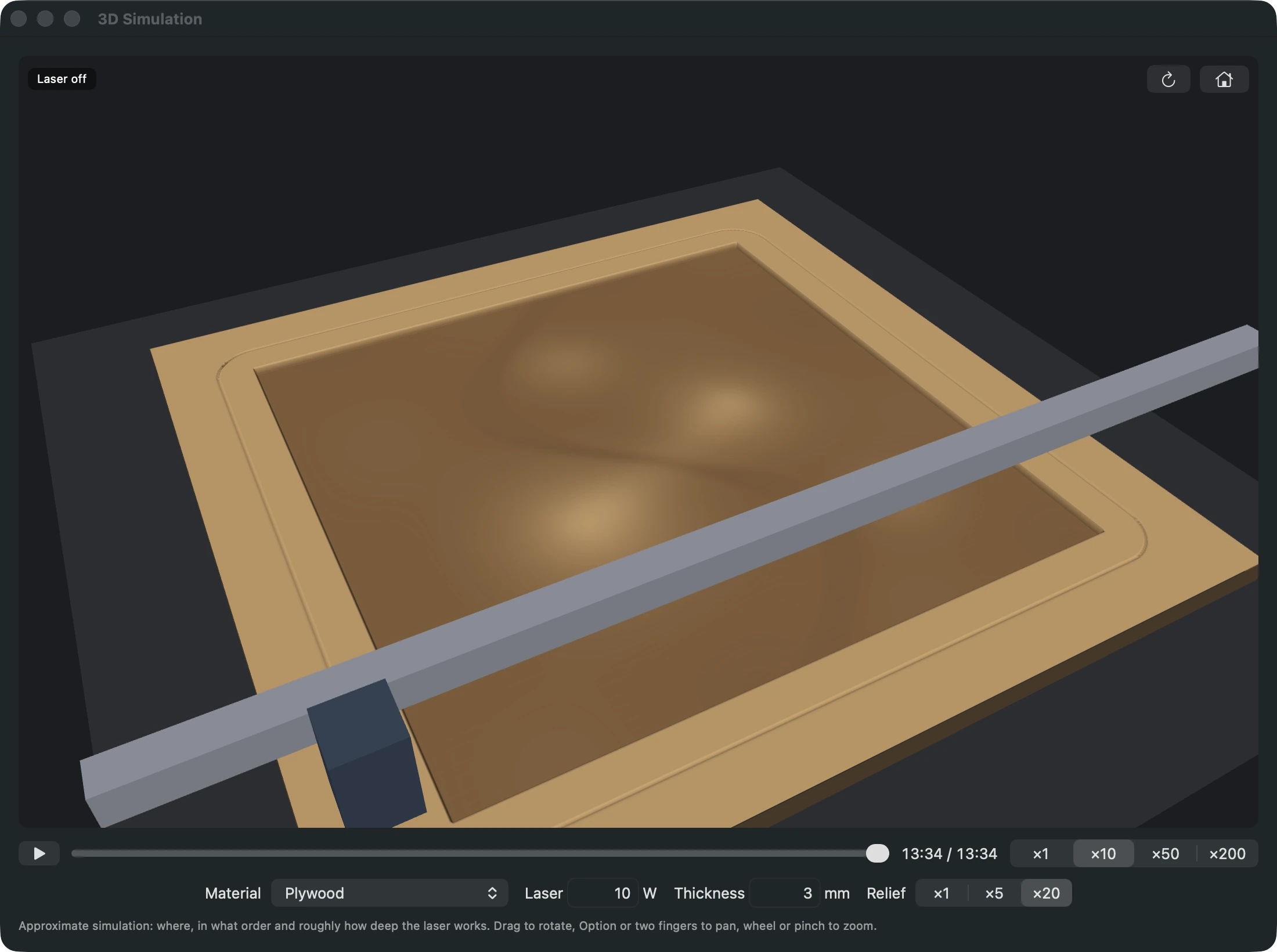
- Play (Space) and time slider, speed ×1 to ×200;
- Material (those of the preview: surface and mark color, material more or less easy to carve), Laser (laser power at 100 %, in watts) and Thickness: beyond it, the workpiece is cut through and the cut opens;
- Relief ×1, ×5, ×20: depth exaggerated on screen, to see an engraving a few tenths of a millimeter deep;
- View: drag to rotate, Option, Shift, the right button or two fingers to pan, wheel or pinch to zoom; the house goes back to the initial view; Refresh (Mac, iPad) recalculates after a change to the project.
It is an approximate simulation — the energy of each move (power and actual duration, accelerations included) spread over the width of the spot —, not a prediction: the actual depth depends on the material, the focus and the machine; a material test remains the reference.
A 3D button also opens it from the top bar, next to the preview’s eye (Mac, iPad, Bernie Studio, Windows, Linux). On Mac, the simulation follows the project: change a layer’s speed or power, move a shape, and it updates by itself, at the same point in the job, with the same view and settings. The Laser and Thickness fields apply without confirming.
This manual is also built into Bernie: press F1, or open the Help menu, to read the topic for what you are doing. A mistake, a missing answer? Tell us
Try it in Bernie, for free.
Free laser engraving and cutting software for diode, CO2, fiber and galvo lasers. Windows, Mac, Linux, iPad, iPhone and in the browser.