Getting Started
Step by step
Choose your device, draw or import, set up the layers, check the preview, connect and engrave — or try everything on the virtual laser.
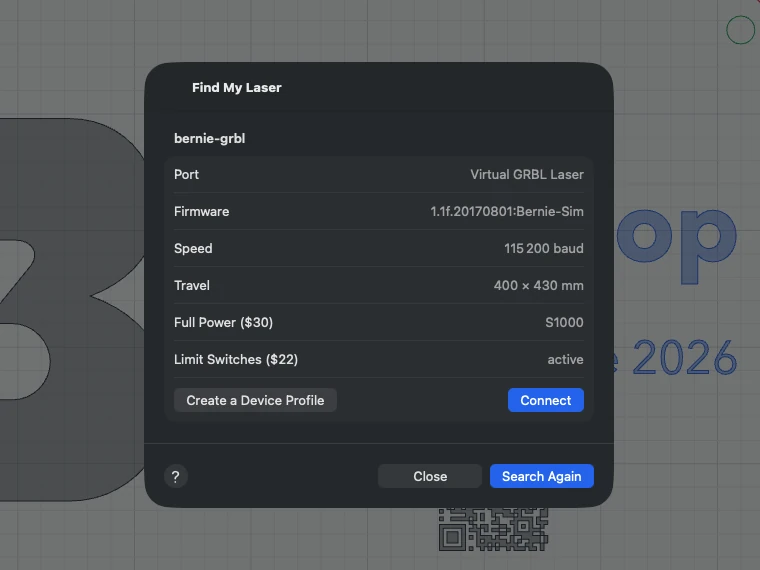
- Choose your device: Settings › Devices. Bernie offers the Ortur Laser Master 2 and GRBL, Marlin and Smoothieware templates; “Find My Laser” queries the USB ports and creates the profile from the connected machine.
- Draw or import: tools in the left bar, or File › Import… (⌘I: SVG, DXF, PDF, Illustrator, images). You can also drop a file on the window or paste from another application.
- Set up the layers: each layer has its color, its mode (Line, Fill, Image), its speed and its power. See Layers.
- Check the preview (eye button): paths, estimated time, pre-flight check.
- Connect and engrave: Laser panel. Without a machine, the virtual laser shows the job as if it were engraved.
Support Bernie
Bernie is free. Help › Support Bernie… (on iPad, also in the Help menu, the question mark at the top right; on iPhone, the heart in the Help tab) offers three tips through the App Store; they unlock nothing — everything is already included.
Rate Bernie
In the App Store version, Help › Rate Bernie… (on iPad, the Help menu; on iPhone, the star in the Help tab) opens the App Store review page. After a few successful jobs on your laser, Bernie may also show Apple’s small rating window — never during a job, at most once per version; dismissing it changes nothing. In Bernie Studio, a Support Bernie button leads to the donation page.
This manual is also built into Bernie: press F1, or open the Help menu, to read the topic for what you are doing. A mistake, a missing answer? Tell us
Try it in Bernie, for free.
Free laser engraving and cutting software for diode, CO2, fiber and galvo lasers. Windows, Mac, Linux, iPad, iPhone and in the browser.