In short: the best laser engraving software for Mac depends on your controller and your budget. For a free app that covers most machines, try Bernie. For a mature paid tool with a large community, LightBurn starts at $99. On an xTool, start with xTool’s own software. If you were hoping to use LaserGRBL, it is a Windows program with no Mac version.
Below: six options compared side by side, how to check that an app will drive your laser, the pitfalls that are specific to macOS, and a complete setup on a Mac, from download to first job.
Laser engraving software for Mac: the comparison
Everything here runs on macOS. Check the row for your controller first, because that decides more than any feature list. Prices and versions were checked on each publisher’s site at the time of writing.
| Software | Price | Controllers | Mac notes |
|---|---|---|---|
| Bernie | Free (donations) | GRBL, grblHAL, FluidNC, Marlin, Smoothieware, Ruida; JCZ galvo and stock K40 M2 Nano | macOS 14 or later, Apple silicon and Intel |
| LightBurn | Core $99, Pro $199, one-time; updates $40 a year after the first | G-code (Core); DSP and galvo too (Pro) | macOS 13 or later; native on Apple silicon since 2.2 |
| xTool Studio | See xTool | xTool machines | macOS 10.15 or later; some older models stay on xTool Creative Space |
| Rayforge | Free, open source (MIT) | GRBL, Smoothieware, Marlin, Ruida, OctoPrint | Builds for Mac, Windows and Linux |
| MeerK40t | Free, open source (MIT) | K40 M2 and M3 Nano, GRBL, Ruida, JCZ galvo, Moshiboard | Mac build; in low-maintenance mode |
| Lùmen | Paid, one-time | GRBL diode lasers over USB | Mac only; no CO2 or Ruida |
The six options, one by one
Bernie: free, and its Mac version is its most complete
Bernie is free laser engraving and cutting software, funded by optional donations that unlock nothing. It has no account, no subscription and no feature tiers. The Mac is its most complete version: USB, network, Ruida, Hub mode, an MCP server for assistants and UDP commands, with the Laser panel in its own window if you want it.
It draws, traces, dithers photos and ships more than 1,800 material settings. It also opens LightBurn and xTool Creative Space projects, so you can try it on real work. And the virtual laser lets you test everything before you plug anything in.
LightBurn: the mature, paid reference
LightBurn is the usual reference, and for good reason: it is mature, widely documented and backed by a large community. Licenses are perpetual, with a 30-day trial. Core costs $99 for G-code lasers, Pro costs $199 and adds DSP and galvo controllers. Updates are included for a year, then cost $40 a year if you want to keep receiving them.
Since version 2.2, LightBurn runs natively on Apple silicon, without Rosetta 2. It now needs macOS 13 or later. We compare the two in more detail in our free LightBurn alternative guide.
If your laser runs GRBL, our comparison of GRBL laser software covers the options on every platform and the controller settings to check.
xTool Studio: for xTool machines
xTool Studio follows xTool Creative Space as the maker’s own software. It is built around xTool machines, so it is the natural first stop if that is what you own, though some older models remain on Creative Space. The Mac version needs macOS 10.15 or later. If you also own a laser from another brand, plan on a second app for it.
Rayforge and MeerK40t: free and open source
Rayforge is an MIT-licensed app with Mac, Windows and Linux builds and a device list that includes GRBL, Smoothieware, Marlin, Ruida and OctoPrint. MeerK40t, also MIT-licensed, comes from the K40 world and reaches further than its name: M2 and M3 Nano boards, GRBL, Ruida, JCZ galvo and Moshiboard. Its own project page says it is now in a low-maintenance phase, so weigh that for a long-term choice.
Lùmen: a small Mac-only app for GRBL diodes
Lùmen is a paid, one-time purchase built only for the Mac. Its scope is deliberately narrow: GRBL diode lasers over USB, with no CO2 or Ruida support. If that describes your whole setup and you like a small dedicated app, it is worth a look.
What about LaserGRBL on a Mac?
LaserGRBL is free, open source and well liked, but its publisher describes it as Windows software and ships a Windows installer. There is no Mac version. Some owners run it in a Windows virtual machine, which adds a Windows license to pay for and a USB connection to pass through to the guest. A native app avoids both.
How to choose laser software for your Mac
Four questions settle it, in this order.
- Which controller is in your laser? Not the brand: the board. Look at its documentation or its label, then read our compatible machines page for what each controller allows. Most hobby diode lasers run GRBL; most large CO2 machines run a Ruida or similar DSP.
- Does the app run natively on your Mac? On Apple silicon, prefer a native app. Apple is phasing out Rosetta 2, the layer that runs Intel apps. If you still have an Intel Mac, check that the app’s newest version still supports it.
- Which macOS do you run? Requirements differ: macOS 14 for Bernie, macOS 13 for LightBurn 2.2. On an older Mac, an older app version may be your only choice.
- How will you connect? USB, Wi-Fi or Ethernet, or through a small computer next to the laser. If your Mac is in the house and the laser is in the garage, a network link changes everything.
Try before you decide
Free apps cost you nothing but an afternoon, and LightBurn’s trial is 30 days. Run the same small job through two of them on your own machine: the same file, the same material. That tells you more than any comparison table, including this one.
Mac-specific problems and how to fix them
The Mac does not see the laser over USB
Start with the cable: some USB cables only carry power, which is a very common cause. Recent versions of macOS recognise the usual USB chips on their own. If yours does not, install the driver from the chip’s maker: WCH for the CH340, Silicon Labs for the CP2102. Skip driver sites you do not recognise.
The port is busy
Only one program can hold a serial port at a time. If the connection fails, close any other laser app or serial terminal, then try again. Bernie names this reason in its error message, as it does when the port is not found.
The Mac goes to sleep during a job
A sleeping Mac stops sending, and a job sent line by line stops with it. Bernie keeps the Mac awake during a job. With other apps, check their behaviour, and in every case keep your Mac on power for long jobs.
The camera does not appear
macOS asks for permission the first time an app uses a camera. If you refused, change it in System Settings under Privacy & Security. Plug the camera directly into the Mac rather than through a hub if it still does not show up. Our camera and rotary page shows what aligning a design on the bed looks like.
Safety
Whatever the software, the rules stay the same. Never leave a laser running unattended, keep a fire extinguisher within reach, extract the fumes, wear glasses rated for your laser’s wavelength, and never engrave PVC or vinyl, which release chlorine.
How to set up your laser on a Mac with Bernie
This takes about ten minutes. You can follow it without a laser too: pick the virtual laser in step 3 and everything else works the same.
- Download Bernie. On the download page, choose Download (DMG). The app is signed and notarized by Apple, and needs macOS 14 or later, on Apple silicon or Intel.
- Install it. Open the DMG and drag Bernie onto the Applications shortcut, then launch it from there.
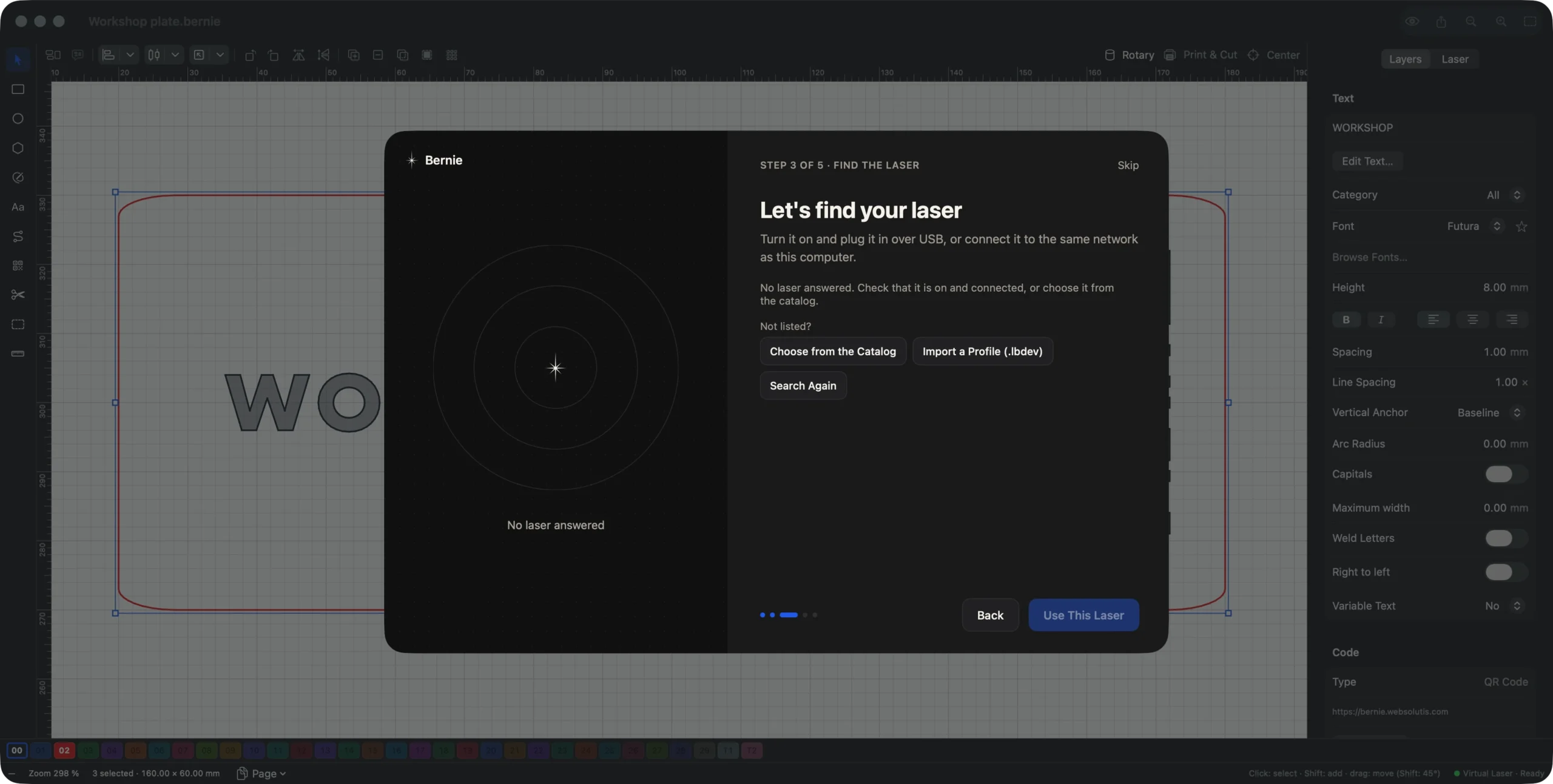
- Follow the Bernie tour. With no device set up, Bernie opens on an animated tour of about two minutes. Under Your laser, choose diode, CO2, fiber / galvo, or no laser yet for the virtual laser.
- Find the laser. Plug in the laser, switch it on and close any other laser app. Bernie queries the USB ports without moving anything, and looks for lasers announced on the network. If yours does not show up, use Choose from the Catalog.
- Check your machine. Under Your machine, confirm the work area, the origin and homing at startup. Bernie links the machine’s material library when the catalog has one, or a starter library for your type of laser. The tour never moves the head and never fires the laser.
- Draw or import. Use the tools in the left bar, or File › Import… (⌘I) for SVG, DXF, PDF, Illustrator and images. You can also drop a file on the window. LightBurn projects (.lbrn, .lbrn2) come across too.
- Set up the layers. Each color is a layer, with its mode (Line, Fill or Image), speed and power. Start from the material library rather than from a blank value.
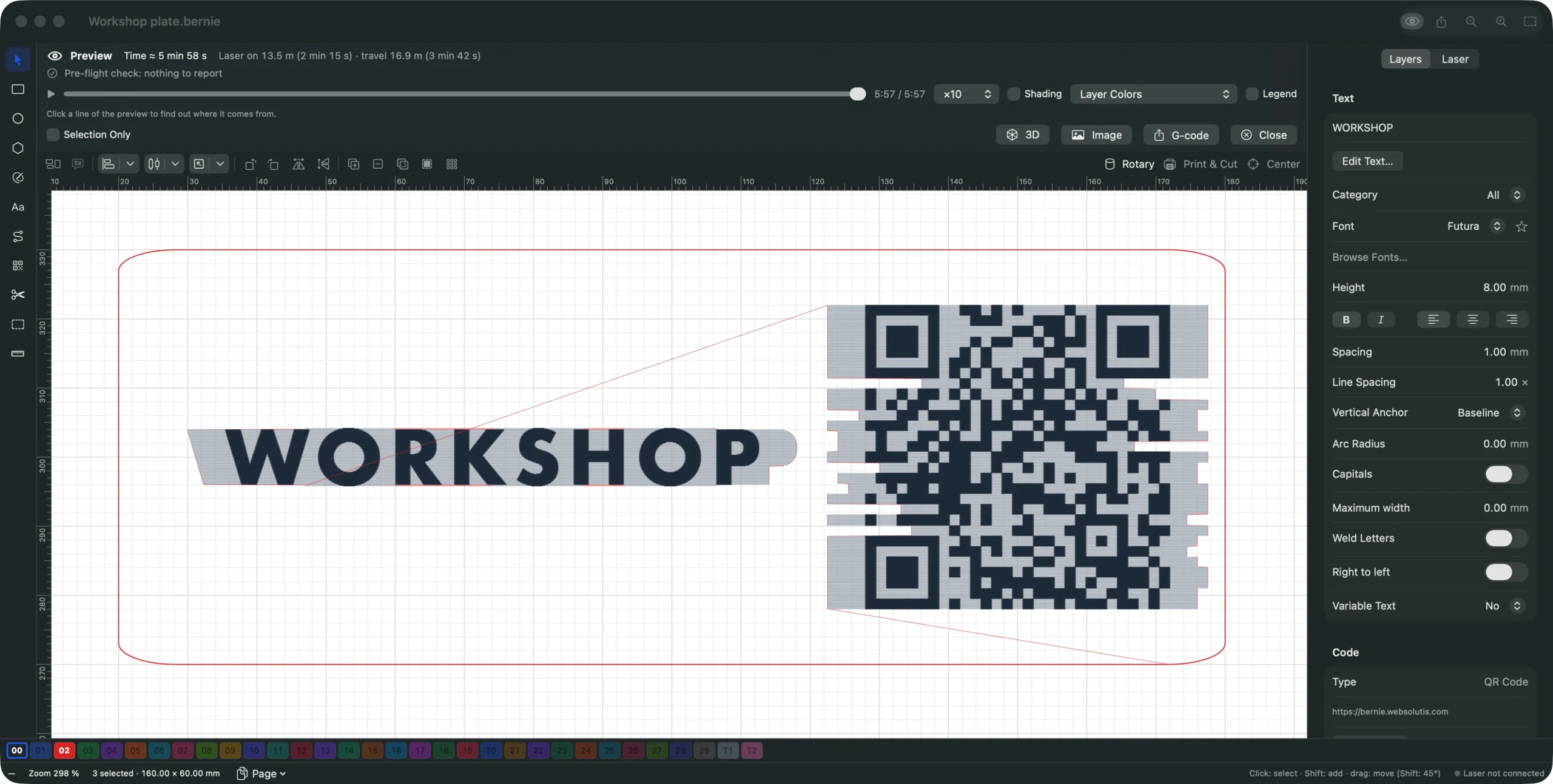
- Check the preview. Click the eye button to see the paths, the estimated time and the pre-flight check.
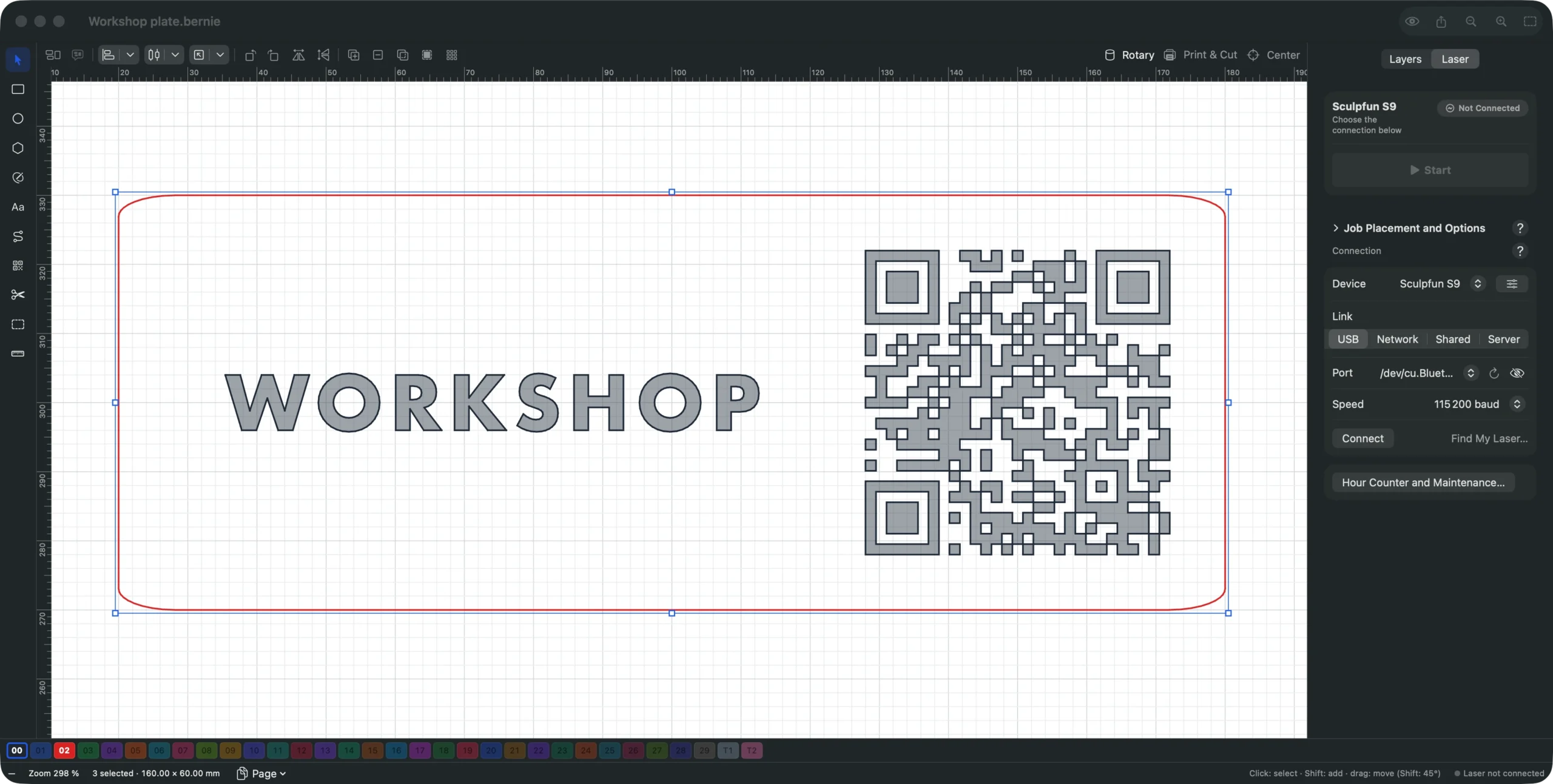
- Connect. In the Laser panel, choose the USB link and the port, or Find My Laser, then Connect. For a Wi-Fi or Ethernet laser, choose Network and Search the Network.
- Frame and start. Press Frame to see where the job lands, then Start, which runs the checks and asks you to confirm. Stop, or ⌘., stays within reach. If the result comes out mirrored, run Laser › Check Device Orientation….
Set up your laser on your Mac today
Follow these steps with Bernie, free, with no account and no subscription. Download the DMG for your Mac; it also runs on Windows, Linux and in your browser with Bernie Studio.
Going further: extras for your Mac workshop
Once the first job has run, these features are worth a look. The MCP server and the UDP commands are only in the Mac version.
- Share the laser (Hub mode). Under Settings › Automation › Laser Sharing (Hub Mode), turn on Share Laser on Local Network. Other devices on your local network can then send it a job, using a pairing code. Every start is confirmed on the Mac, and nothing starts remotely.
- Keep the Mac away from the laser. A Bernie Link on a Raspberry Pi next to the laser does the same job without a screen, so your Mac can stay in the house.
- Work with an assistant. The local MCP server, which you turn on in Settings, lets an assistant such as Claude prepare a project. The assistant never controls the laser: you start the job yourself.
- Script it. UDP commands let other programs drive Bernie, and custom keyboard shortcuts and macros (⌥⌘1 to ⌥⌘9) save time on repetitive jobs.
If you run your laser through OctoPrint or a Duet board, Bernie for Mac can send to those too: see our guide to OctoPrint laser engraving. And if you are still choosing a machine, read diode vs CO2 vs fiber vs galvo first.
Frequently asked questions
What is the best free laser engraving software for Mac?
Bernie is a good first try: it is free with no feature tiers, and drives GRBL, Marlin, Smoothieware and Ruida. Rayforge and MeerK40t are free and open source too; MeerK40t suits K40 owners, although it is now in a low-maintenance phase. Try two on the same small job and keep the one you prefer.
Does LaserGRBL work on a Mac?
No. LaserGRBL is Windows software, and there is no Mac version. Some owners run it in a Windows virtual machine, but that adds a Windows license and a USB connection to set up. A native Mac app is usually simpler.
Does LightBurn work on a Mac?
Yes. LightBurn needs macOS 13 or later, and since version 2.2 it runs natively on Apple silicon without Rosetta 2. It is paid software, from $99 for Core, with a 30-day trial.
Why does my Mac not detect my laser engraver?
Try another USB cable first, as some only carry power. Check that the laser is on and that no other program holds the port. Recent macOS versions recognise the common chips; otherwise install the driver from the chip’s maker, WCH for the CH340 or Silicon Labs for the CP2102.
Can I run a laser from a MacBook over Wi-Fi?
Yes, if the laser or its controller offers a network link and your software supports it. In Bernie, choose the Network link and Search the Network, which lists lasers that announce themselves. A laser with USB only can be shared on the network with a Bernie Link on a Raspberry Pi.
Is Bernie for Mac really free?
Yes. Every feature is included, with no account and no subscription. Bernie lives on optional donations that unlock nothing. It needs macOS 14 or later, on Apple silicon or Intel.
Pick the option that matches your controller, then test it on a scrap. To start with a free one, download Bernie for Mac.