OctoPrint laser engraving works, with a few conditions. OctoPrint is a host for 3D printers: it streams G-code to the machine on its USB port, line by line, and does not care whether the tool is a hot end or a laser. A Marlin machine with its laser feature turned on works as it is; a GRBL laser needs a plugin; a Duet board does the same job without OctoPrint. You prepare the G-code in laser software, send it to the server and start it, and some laser software, Bernie among them, can do all of that for you.
Below: what OctoPrint supports, the limits to know before you engrave a photo through it, how to set up OctoPrint or a Duet for a laser, a complete tutorial to frame and engrave from Bernie, and the same thing from the command line.
Can OctoPrint run a laser engraver?
OctoPrint is free and open-source software (AGPL-3.0), created and maintained by Gina Häußge and funded by donations. The current stable version is 1.11.8, released in June 2026; version 2.0 is in testing. Most people run it on a Raspberry Pi with OctoPi, a ready-made SD card image: the project recommends a Pi 3B, 3B+, 4B or Zero 2.
OctoPrint presents itself as an interface for 3D printers and has no built-in laser or GRBL support. What decides whether your laser works behind it is the firmware on the machine:
| Firmware | Behind OctoPrint | What you need |
|---|---|---|
| Marlin with a laser | Yes: it is a printer firmware | LASER_FEATURE enabled; laser power through M3, M4 and M5 |
| GRBL (most diode lasers) | With a plugin | The Better Grbl Support plugin, which adapts the handshake and the G-code OctoPrint sends |
| RepRapFirmware (Duet) | Not needed | The board runs jobs from its own SD card, through Duet Web Control or its HTTP API; laser mode set with M452 |
Marlin’s laser documentation describes an inline mode (M3 I), where the power travels with each move instead of stopping the head to change it. On a Duet, M452 sets the laser output, the PWM frequency and the S value that means full power.
Limits to know before you engrave through OctoPrint
- Streaming speed. By default OctoPrint sends one line and waits for the machine’s “ok” before sending the next. GRBL’s own documentation calls this simple send-response the slowest way to stream, and recommends character counting for fast machines such as lasers. Vector cuts and outlines are fine; a photo made of thousands of tiny moves can stutter, so lower the speed or the resolution, or prefer a direct USB connection for rasters.
- A Duet avoids the problem. It runs the whole file from its SD card, so nothing is streamed during the job.
- Security. OctoPrint’s documentation warns against making a machine with motors and heaters reachable from the internet, even with access control: use a VPN. A laser deserves the same care.
- OctoPrint 2.0. The next major version changes how printers are connected, and the project has asked plugin authors to check their plugins. If you rely on Better Grbl Support, check that it supports your OctoPrint version before you upgrade.
Set up OctoPrint or a Duet for a laser
OctoPrint
- Write OctoPi to a microSD card with Raspberry Pi Imager (Other specific-purpose OS › 3D printing), start the Pi and finish the setup wizard in your browser at
http://octopi.local. - Plug the laser into the Pi over USB. For a GRBL laser, install Better Grbl Support from the Plugin Manager: it sets the handshake, turns off checksums and accepts
.ncfiles. - Create a key for the laser software. OctoPrint’s documentation recommends application keys (Settings › Application Keys); the older global key in Settings › API is deprecated.
- Only if you will drive OctoPrint from a web page: tick Allow Cross Origin Resource Sharing (CORS) in Settings › API, then restart OctoPrint.
Duet (RepRapFirmware)
Configure laser mode with M452 in config.g, with the output pin and the power scale of your board. Since RepRapFirmware 3.7, HTTP is no longer on by default: add M586 P0 S1. A password set with M551 protects access, although the Duet documentation notes it is sent unencrypted. For a web page, M586 C"*" allows cross-origin requests. Bernie talks to a Duet in standalone mode, the board connected to the network on its own.
How to engrave through OctoPrint from Bernie
Bernie, the free laser software, can send the job straight to OctoPrint or to a Duet board: it prepares the G-code for your machine, uploads it as a file, starts it after a safety question and follows its progress. Here, an 80 × 30 mm plywood name tag on a Sculpfun S9, a GRBL diode laser behind OctoPrint.
- Install Bernie. Use the Mac app, the Windows app or the desktop app for Linux from the download page. Bernie Studio also works in a browser, but only when the page is served over http, by Bernie Link or on your computer: the online version, in https, cannot reach a server in http.
- Pick your machine. Choose it in the catalog, here the Sculpfun S9, so that the G-code matches its firmware, work area and speeds. The compatible machines page lists the 125 models.
- Choose the Server link. In the Laser panel, set Link to Server, then OctoPrint. Type the Address (
http://octopi.local) and the API Key, then click Connect. On Mac and iPad, the key is kept in the keychain. - Place the design. The server does not report where the head is, so start from absolute coordinates or from your user origin.
- Frame. Click Frame: the head traces the job with the laser off. Adjust the plywood until the outline is where you want it.
- Engrave. Click Start and answer the safety question: Bernie uploads the job as a file, OctoPrint starts it, and the panel shows the progress. Pause, Resume and Stop stay available.
- Keep an eye on maintenance. These jobs count in the hour counter like any other; see our laser maintenance schedule.
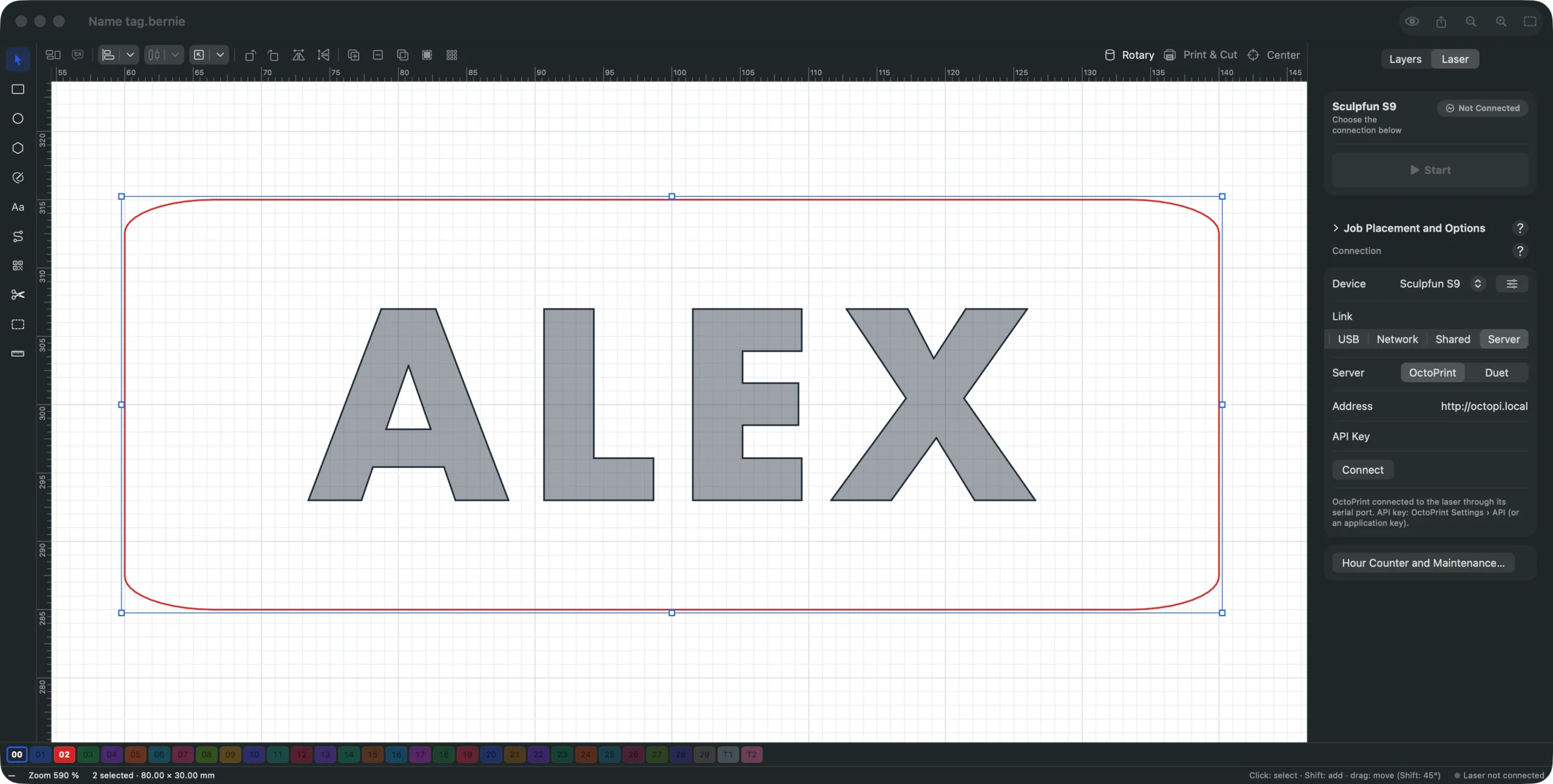
For a Duet, choose Duet instead of OctoPrint and type the Password set with M551, or leave it empty if there is none. The manual’s connection section covers every link mode, and connection and control sums them up.
Engrave through OctoPrint for free
Repeat these steps with your own laser: Bernie is free, with no account and no subscription, on Mac, Windows, Linux and in your browser with Bernie Studio.
From the command line
The bernie command does the same without a window, from a terminal or a script. It ships with Bernie Link: on a Raspberry Pi or a Linux PC after the one-line install, and as bernie.exe in the Windows archive. On the name tag above, it gives:
$ bernie verifier name-tag.bernie --appareil sculpfun-s9Device : Sculpfun S9✓ Ready to engrave.$ bernie estimer name-tag.bernie --appareil sculpfun-s9Estimated duration : 1 min 39 sLaser on : 39 sLength engraved : 3914 mm
To engrave through OctoPrint, add the server and its key: bernie graver name-tag.bernie --appareil sculpfun-s9 --octoprint http://octopi.local --cle YOUR_KEY --oui. For a Duet, use --duet http://duet.local --mot-de-passe PASSWORD. Without --oui, nothing is sent: the command answers that engraving turns the laser on and asks you to confirm, with the lid closed and the extraction running. It then follows the job to the end, and Ctrl-C stops it.
For small runs, --serie 42 fills a serial number into a variable text, and --csv names.csv takes the values from a spreadsheet export; --json gives results a script can read, with exit code 0 when the job is done, 1 when it is refused. The manual’s bernie command section lists every option, and the files and automation page shows the other ways to drive Bernie from another program.
Stay safe when the laser is out of sight
A print server makes it tempting to start a job from another room. Don’t: a laser must never run unattended. Start jobs only when you are next to the machine, with goggles rated for its wavelength, the extraction running and an extinguisher at hand. Bernie asks a safety question before every job, but it cannot see the machine; you can. Never engrave PVC or vinyl, which release chlorine.
Before a job through OctoPrint or a Duet
- You are at the machine, goggles on, extraction running.
- The machine is homed and the design starts from absolute coordinates or your user origin.
- The job was framed with the laser off.
- OctoPrint is reachable only on your local network or through a VPN.
Frequently asked questions
Does OctoPrint support laser engravers?
Not officially: OctoPrint is built for 3D printers. But it streams any G-code, so a Marlin machine with its laser feature works, and a GRBL laser works with the Better Grbl Support plugin. Prepare the G-code in laser software, or let software such as Bernie upload and start it for you.
Can OctoPrint control a GRBL laser?
Yes, with the Better Grbl Support plugin, which adapts the handshake, turns off checksums and accepts .nc files. Without it, OctoPrint’s default handshake is a printer command that GRBL does not understand.
How do I get an OctoPrint API key?
Create an application key in Settings › Application Keys, or let the software request one. The older global key in Settings › API still works but is deprecated. Send the key with each request; in Bernie, type it in the API Key field of the Server link.
Is OctoPrint good for photo engraving?
It can stutter. OctoPrint sends one line at a time and waits for an answer, and a photo is thousands of tiny moves. Lower the speed or the resolution, or use a direct USB connection or a Duet, which runs the file from its SD card. Our guide to engraving a photo helps you pick the settings.
Can I use a Duet board for laser engraving?
Yes. RepRapFirmware has a laser mode, set with M452, and a Duet runs the job from its own SD card. Bernie sends the job to a Duet in standalone mode, with framing, pause, resume and stop; since RepRapFirmware 3.7, turn on HTTP with M586 P0 S1.
OctoPrint or a Duet can drive a laser well, as long as you know their limits. Bernie adds the laser side: material settings, a pre-flight check and a safety question before every job. Download Bernie, choose the Server link, and frame your first job.