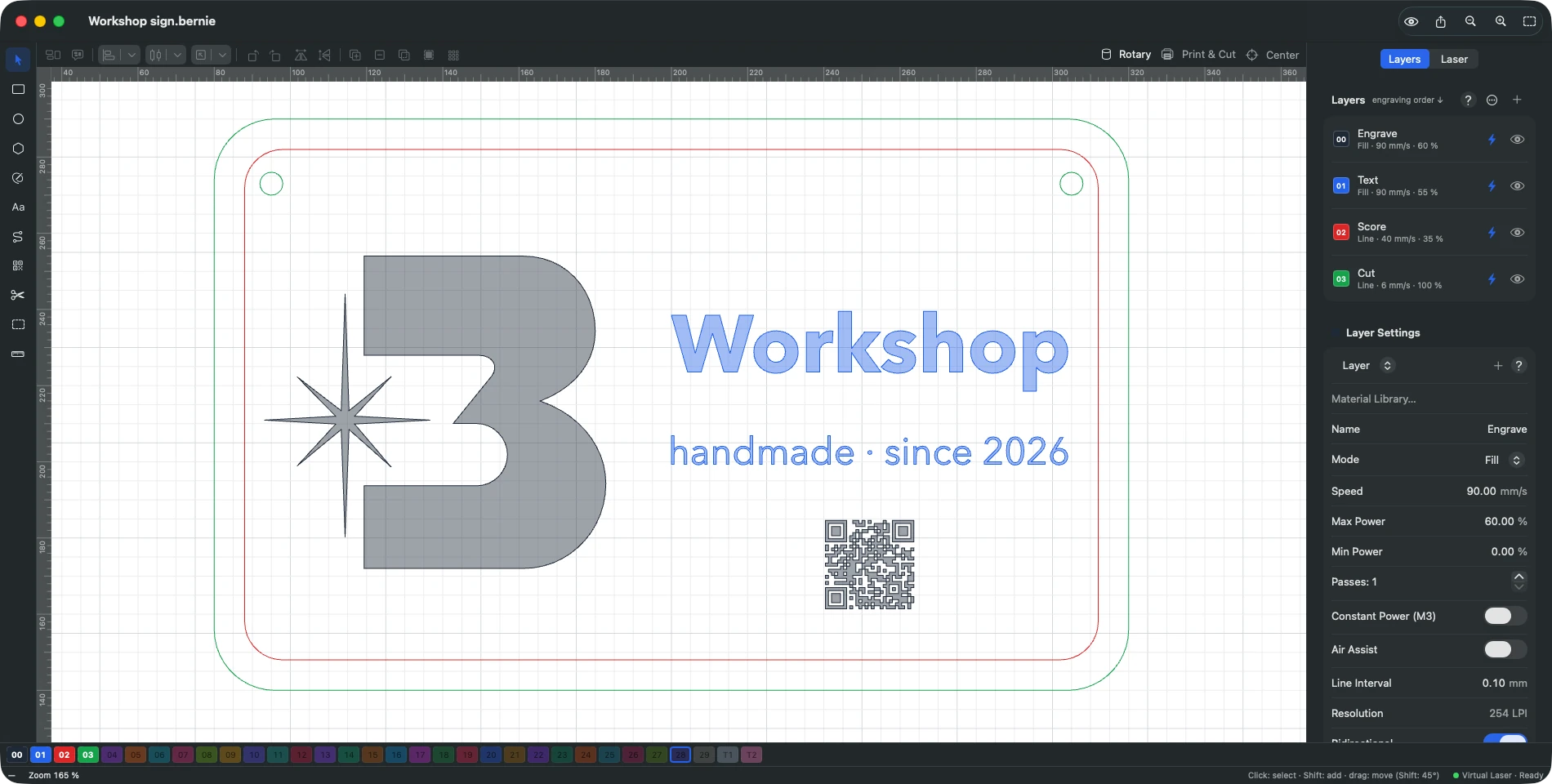
Looking for a free LightBurn alternative? Meet Bernie. It opens your .lbrn and .lbrn2 projects, imports your .clb material libraries, ships with more than 1,800 ready-made material settings and runs on Mac, iPad, iPhone, Windows, Linux and the browser. No license, no subscription, no paid updates, no account: every feature, for everyone, for free.
If your laser runs GRBL, Marlin or Smoothieware, as most diode lasers do, Bernie drives it directly, from the first sketch to the last pass. Below: what Bernie brings, what LightBurn costs, a side-by-side table, and the steps to move your files across in an afternoon.
Why Bernie is the free LightBurn alternative to try first
- Free, really. No trial that runs out, no Core or Pro tier, no yearly update fee. Bernie lives on optional donations that unlock nothing: everyone gets everything.
- Your LightBurn work comes with you. Projects, material libraries and device profiles open in Bernie, so switching does not mean starting over.
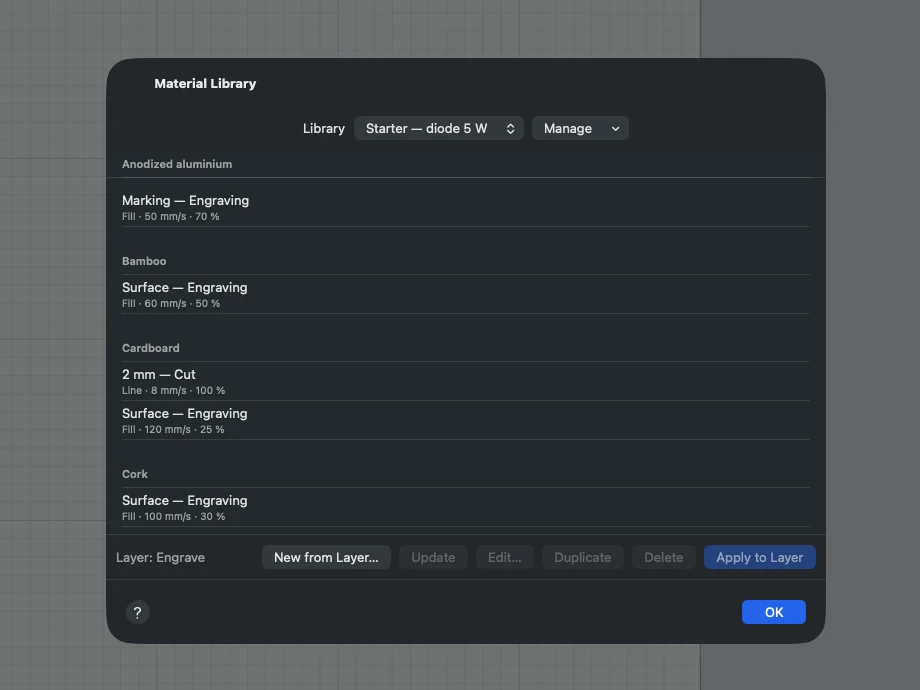
- Settings from day one. More than 1,800 material settings in 17 libraries, plus a grid test that saves the winning square for next time.
- Every device you own. Design on a Mac, a PC, a Linux box or an iPad, follow the job on your iPhone, or open Bernie Studio in a browser.
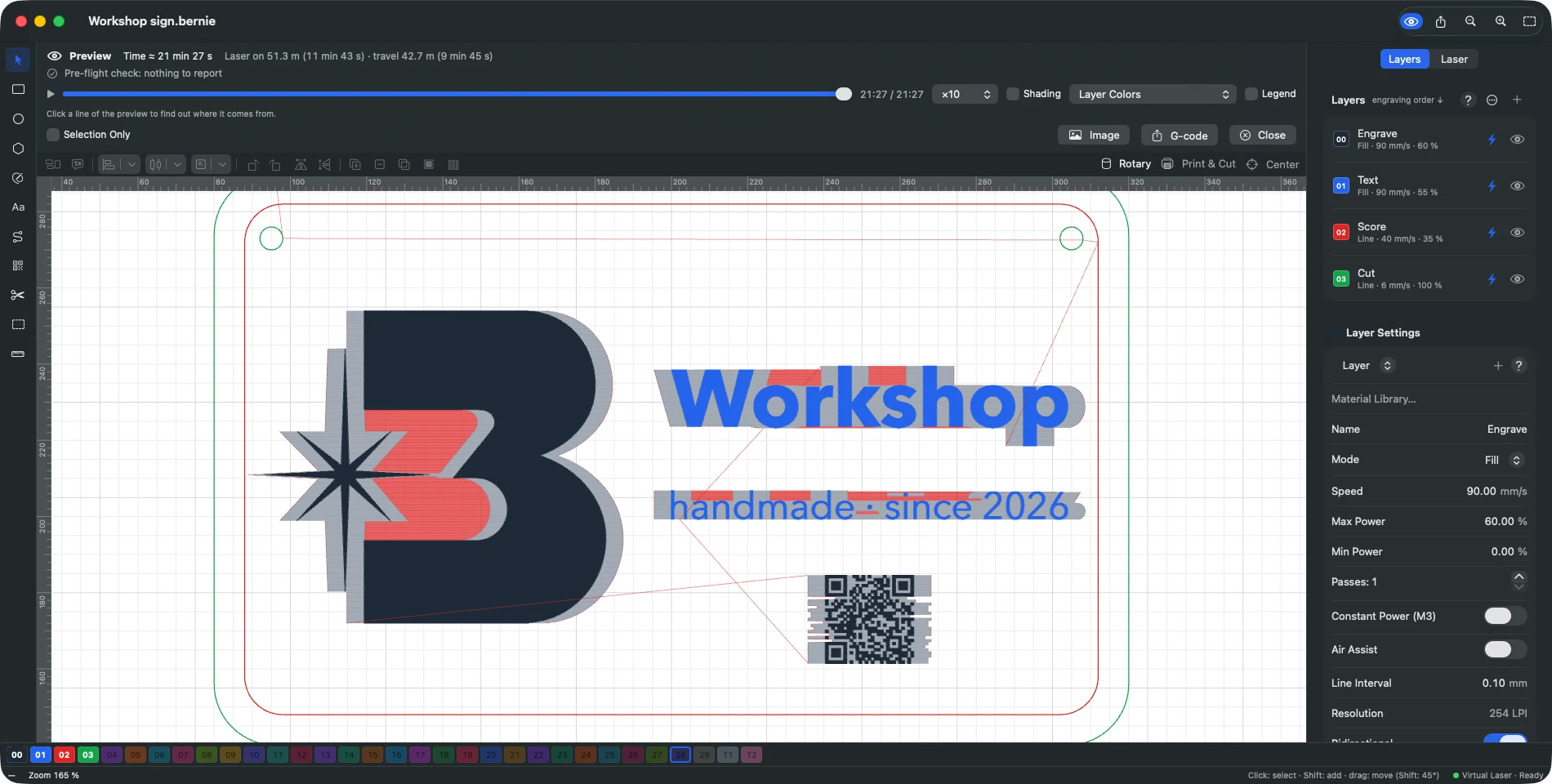
- A preview you can trust. Real paths, a time estimate from your machine’s accelerations, “Why this line?” on any line, and a pre-flight check that stops mistakes before the laser fires.
- Try it without a laser. A built-in virtual laser lets you learn, prepare and time jobs before you even own a machine.
Is LightBurn free? What it really costs
No. LightBurn is paid software with a 30-day trial that has no restrictions and no watermark, so you can test it on your own machine first. After that, you buy a license. Which one depends on the controller inside your laser, not on the features you want.
| License | Price (USD) | Lasers covered | What you get |
|---|---|---|---|
| LightBurn Core | $99, one-time | G-code controllers: GRBL, Marlin, Smoothieware… | 3 seats, 1 year of updates |
| LightBurn Pro | $199, one-time | Everything in Core + DSP (Ruida, Trocen, TopWisdom) + galvo (EZCad2, EZCad3, BSL) | 3 seats, 1 year of updates, Pro-only tools |
| Core to Pro upgrade | $100 | Adds DSP and galvo support | — |
| Year of updates | $40 per year | Core or Pro | Same price whatever the number of seats |
The license is perpetual. When your year of updates ends, LightBurn keeps working: you simply cannot use versions released after that date. Renewing before it expires adds two extra months. These are the prices of the official LightBurn store at the time of writing, before local taxes.
LightBurn over three years
A quick sum helps. Core with updates for three years comes to $99 + 2 × $40 = $179. Pro on the same terms comes to $199 + 2 × $40 = $279. That is fair for a tool you use every day to earn money. For a hobbyist with a 10 W diode laser used twice a month, it is often the first reason to look elsewhere.
LightBurn is mature software with a large community, and its Pro license covers DSP and galvo controllers over USB. But for a GRBL diode laser, you pay for a license and then for every year of updates, and you stay on Windows or macOS.
Why people look for a LightBurn alternative
The same reasons come up again and again: the cost of what is often a hobby, paid updates after the first year, and above all the platforms LightBurn runs on.
LightBurn for Linux
LightBurn 1.7 is the last version compatible with Linux, and its last Linux build is 1.7.08. The current version (2.1) needs 64-bit Windows 10 or 11, or macOS 12 or later. On a Linux workshop PC or a Raspberry Pi, you are left with an ageing version or another program.
LightBurn for iPad and iPhone
There is no LightBurn for iPad, iPhone or the browser: the official requirements list Windows and macOS only. If you want to prepare a job on a tablet and send it to the laser in the garage, you need something else.
Bernie, the free LightBurn alternative, feature by feature
Bernie is laser engraving and cutting software for diode, CO2, fiber and galvo machines. It is free with no asterisk: no license, no subscription, no hidden “Pro” version and no account to create. Everything below is included, for everyone.
Your LightBurn files come with you
This is what makes switching realistic. Bernie opens LightBurn projects (.lbrn and .lbrn2), imports and exports .clb material libraries, frequency, Z and ramps included, and imports .lbdev device profiles with their macros, pointing out anything that has no equivalent. It also reads SVG, DXF, PDF, Illustrator, EPS, HPGL, xTool .xcs, EZCad2 .ezd, Ruida .rd and G-code. The full list is on the files and automation page, along with LightBurn-compatible UDP commands (on Mac, authenticated with a token).
Materials, preview and a laser you do not need to own
- More than 1,800 material settings in 17 libraries, sorted by machine and material, applied to a layer in one click. For anything new, a speed × power grid test, and “keep this square” saves the winner. See layers and material libraries.
- A preview that explains itself. It replays every path, estimates the time from your machine’s real accelerations and answers “Why this line?” when you click a line. The pre-flight check blocks mistakes such as a job out of bounds or a hidden layer still being sent.
- A virtual laser that simulates a complete GRBL machine, with a virtual galvo, Ruida and JCZ board too: learn, prepare and time your jobs before you buy anything.
- “Find My Laser” detects a USB laser at 115,200, 250,000 and 460,800 baud and builds the profile from the controller. Wi-Fi and Ethernet lasers (grblHAL, FluidNC) show up on their own. Details on the connection and control page.
- Fine nesting by the real outline of the parts, with rotations and small parts fitted into holes, is part of the vector editor for everyone.
One engine on six platforms
Bernie runs on a single engine written in Rust, so the drawing, the layers, the preview and the G-code are identical everywhere. Only the connection to the laser changes. On Mac, Windows and Linux (Raspberry Pi included), you connect over USB or the network. The iPad works with network, shared or virtual lasers, and the iPhone opens a project, shows the preview and the time, then starts, pauses and stops the job. Bernie Studio runs in the browser, with USB lasers through WebSerial in Chrome and Edge.
Good to know before you switch
- Bernie is young and moving fast. It runs today on Windows (Microsoft Store), Linux and in the browser with Bernie Studio; the Mac, iPad and iPhone versions are on their way to the App Store (see the download page).
- Ruida support is in validation (network, .rd file and Bernie Link relay): on a CO2 laser that earns its keep, run a few jobs side by side first.
- Galvo works with EZCad. Bernie prepares, simulates and exports .ezd files for JCZ boards (see galvo and fiber).
- The interface speaks English and French for now.
LightBurn vs Bernie: side-by-side comparison
| LightBurn | Bernie | |
|---|---|---|
| Price | Core $99, Pro $199, one-time; 30-day trial | Free: no license, no subscription |
| Updates | 1 year included, then $40 per year | Free, for everyone |
| Platforms | Windows 10/11, macOS 12+ (Linux up to 1.7) | Windows, Linux, browser; Mac, iPad, iPhone soon |
| GRBL, Marlin, Smoothieware | Core and Pro | Direct control |
| Ruida (DSP) | Pro, direct control | Being validated |
| Trocen, TopWisdom | Pro | File preparation |
| Galvo (EZCad2, EZCad3) | Pro, direct control over USB | .ezd export for EZCad, virtual galvo |
| LightBurn projects | Native .lbrn, .lbrn2 | Opens .lbrn and .lbrn2, imports .lbdev |
| Material libraries | .clb files | 1,800+ settings in 17 libraries, .clb import and export |
| Contour nesting | True Nest, Pro only (2.2, early access) | Fine nesting, included |
| Activation | 3 seats per key | Unlimited: install it everywhere |
| Account | License key | None: your designs stay on your devices |
In short: Bernie costs nothing, runs on more devices, ships ready-made material settings and reads the work you already did in LightBurn. LightBurn Pro remains the reference for driving Ruida DSP and galvo boards directly over USB.
Who Bernie is for
- Diode laser owners (xTool D1 Pro, Ortur, Sculpfun, Atomstack, Creality Falcon…) who want a complete, modern tool without paying for a license or for updates.
- Makers on more than one device: design on an iPad, follow the job on an iPhone, work on Linux or a Raspberry Pi, or simply open a browser.
- Beginners who want ready-made settings, a preview that explains itself and a virtual laser before buying a machine. Our guide to choosing between diode, CO2, fiber and galvo helps with that decision.
- LightBurn users who want a second tool at no cost: Bernie opens your .lbrn files, and SVG, DXF or PDF export takes you the other way.
Running a Ruida or galvo machine for paying customers every day? Keep LightBurn Pro alongside while you try Bernie on your own jobs: nothing forces you to choose on day one.
Other free options
LaserGRBL is free and open source, but runs on Windows only and is a simple G-code sender for GRBL 0.9 and 1.1. Manufacturer software, such as xTool Studio (formerly xTool Creative Space), is free but tuned for that brand’s machines. Bernie works across brands, devices and platforms.
Try Bernie with your LightBurn files
Free, no account, no credit card. Open Bernie Studio in your browser or pick your platform, then open a .lbrn2 project.
Switching from LightBurn to Bernie, step by step
- Check your controller. Look it up on the compatible machines page: GRBL, grblHAL, FluidNC, Marlin and Smoothieware are under direct control; Ruida is being validated.
- Install Bernie from the download page, or open Bernie Studio in Chrome or Edge to use a USB laser from the browser.
- Add your machine. At first launch, choose your type of laser. “Find My Laser” searches USB and the network, or you pick your model from the catalog of 17 machines. Already set up in LightBurn? Import your .lbdev profile: your devices and macros come back, and Bernie flags anything without an equivalent.
- Import your .clb libraries. Speeds, powers, passes, frequency, Z and ramps come with them, next to the settings Bernie already ships.
- Open your .lbrn or .lbrn2 projects and check each layer: mode (line, fill, offset fill or image), speed, power and passes. Missing fonts are flagged when a file opens and can be replaced in one move.
- Run the preview and the pre-flight check. Compare the estimated time with what you are used to, and click any doubtful line for “Why this line?”.
- Frame, then engrave a test on an offcut before the real piece. If something looks off, the built-in “My job is…” help goes from the symptom (offset, burnt corners, too faint) to the fixes.
- Save a .bernielot settings bundle once everything works: preferences, shortcuts, devices, macros and libraries in one file, ready for your next computer.
Pitfalls to avoid when you switch
- Speed units: Bernie works per second or per minute. Check which one your old settings used before you type a value by hand.
- Maximum power: if the controller’s settings differ from the profile, power percentages change meaning. Bernie flags differences in max power, laser mode, travel and accelerations.
- Origin and work area: confirm them once, then frame before the first job.
- New software, new test: run a small grid test on each material rather than trusting a single number. Our guide to laser settings by material gives starting values.
- Safety does not change: goggles rated for your laser’s wavelength, extraction running, never PVC or vinyl, and never leave the laser running unattended.
Keep LightBurn during the switch
Your LightBurn license is perpetual, so nothing forces you to choose on day one. Run both for a few weeks, compare the results on the same material, and keep whatever suits your workshop.
Frequently asked questions
Is there a free version of LightBurn?
No. LightBurn offers a 30-day trial with no restrictions and no watermark, then you buy a perpetual license: Core at $99 for G-code lasers, or Pro at $199 to add DSP and galvo controllers. Updates after the first year cost $40 per year.
Is LightBurn a subscription?
No. You pay once and can keep using your version forever. What you pay for each year, if you want it, is access to the versions released after your first year.
Can Bernie open LightBurn files?
Yes. Bernie opens .lbrn and .lbrn2 projects, imports and exports .clb material libraries, and imports .lbdev device profiles with their macros. Check each layer after the first import, as you would after any change of software.
Is Bernie really free?
Yes. Bernie has no license, no subscription, no paid updates and no locked features. It is funded by optional donations, which unlock nothing: everyone gets every feature.
Is Bernie a good LightBurn alternative for a diode laser?
Yes. For GRBL, Marlin and Smoothieware lasers, Bernie covers the whole workflow, from drawing and material settings to the preview and sending the job, opens your LightBurn files and runs on more devices, including iPad, iPhone and the browser.
Does Bernie work with Ruida controllers?
Ruida support, dual tube included, is in validation: over the network, by .rd file or through a Bernie Link relay. On a Ruida laser that runs paying jobs, try Bernie side by side with your current software first.
Is there LightBurn for iPad or Linux?
Not in current versions. LightBurn 2.x runs on Windows and macOS, version 1.7 was the last one for Linux, and there is no iPad app. Bernie is built for Mac, iPad, iPhone, Windows, Linux (Raspberry Pi included) and the browser: Windows, Linux and the browser today, Mac, iPad and iPhone soon.
Do I need an account or an internet connection to use Bernie?
No account, ever, and your designs never leave your devices. Bernie Studio, the browser version, can be installed and used offline.