In short, here is how to laser engrave a photo: start with a sharp, well-lit picture with a clear subject. Crop it to its final size, brighten the midtones and add a little contrast, then convert it with a dithering mode such as Stucki or Jarvis at a line interval close to your laser’s spot: about 0.1 mm (254 DPI) for most diode lasers. Engrave a small test on an offcut of the same material, adjust, and only then engrave the real piece.
Below, each step comes with numbers you can use, from choosing the photo to the mistakes that waste the most wood. The method works with any laser software.
How to laser engrave a photo in 7 steps
- Pick a strong photo: sharp, well lit, a clear subject.
- Crop and size it to the final engraving size.
- Adjust it: brighter midtones, more contrast, light sharpening, a simpler background.
- Choose the mode: dithering (Stucki, Jarvis, Floyd-Steinberg, Atkinson, halftone) or grayscale.
- Match the resolution to your laser’s spot: 254 DPI (0.1 mm) on most diodes.
- Test on a scrap of the same material.
- Engrave and finish: clean, seal or oil, and note your settings.
Choose a photo that will engrave well
The laser can’t add what the photo doesn’t have. Wood shows fewer shades than a screen, so a picture that already looks flat will engrave flat.
- Sharp focus on the subject, especially the eyes in a portrait.
- Light with real highlights and shadows. Soft side light gives faces depth; backlit or underexposed photos turn into dark patches.
- A clear subject on a simple background: a face, a pet, a building against the sky.
- The original file, not a screenshot or a picture compressed by a messaging app.
- A subject that fills the frame. A face smaller than about 25 mm (1 in) across loses its features.
How to prepare a photo for laser engraving
Crop and size it first
Crop tightly around the subject and set the final size before anything else, because every other setting depends on it. You need at least one pixel per scan line: 150 × 100 mm (about 6 × 4 in) at a 0.1 mm interval needs 1,500 × 1,000 pixels. Upscaling adds pixels, not detail; if the photo is too small, engrave it smaller.
Brightness, contrast and gamma
Wood darkens as it burns, and each dot spreads a little beyond the beam, so an engraving almost always comes out darker than the screen. Compensate first: lift the midtones with gamma or brightness, add contrast so the subject stands out, and let the brightest areas go close to white. If the shadows already look black on screen, they will be a solid burnt patch on wood.
Sharpen and simplify the background
Engraving softens edges, so moderate sharpening helps eyes and hair; too much, and the halos get engraved too. Then lighten the background, replace it with plain white, or remove it and frame the subject in an oval. Less engraved area also means a shorter job. And if you only need the subject’s outline, to cut it out rather than engrave its tones, convert the image to vector instead.
Grayscale vs dithering: which mode to choose
Grayscale varies the power pixel by pixel: dark pixels burn darker or deeper. It gives smooth tones on materials that darken gradually, such as maple, alder or leather, and it is the basis of 3D relief. But it needs a laser whose power responds predictably across its range, which isn’t true of every machine.
Dithering fires at one power and turns grey into patterns of dots: more dots where the photo is dark, fewer where it is light. The result depends far less on how the material reacts to partial power, so for most diode lasers and most woods, start here.
Dithering for laser engraving: Floyd-Steinberg, Jarvis, Stucki, Atkinson
These error diffusion methods round each grey pixel to black or white and pass the difference on to nearby pixels, so the average tone survives. They differ in how far it travels.
- Floyd-Steinberg shares it with 4 neighbours: fine, crisp grain, but worm-like patterns can appear in flat skies.
- Jarvis spreads it over 12 neighbours: smoother gradients, slightly softer detail.
- Stucki uses the same 12 neighbours, weighted towards the closest: a touch sharper than Jarvis, and a popular first choice for portraits.
- Atkinson passes on only three quarters of it: brighter and punchier, but delicate highlights disappear.
- Halftone groups dots into cells of varying size along an angled grid, like newspaper print. Coarser, but it survives materials that spread or chip.
Jarvis vs Stucki is mostly a matter of taste: Stucki for crisp detail, Jarvis for the smoothest skin and skies. Engrave both side by side on one offcut and keep your favourite.
Which dithering for which material
| Material | Start with | Invert? | Why |
|---|---|---|---|
| Maple, alder, birch plywood | Stucki or Jarvis; grayscale on CO2 | No | Light, even colour, fine grain |
| Cherry, walnut, dark woods | Atkinson or Stucki | No | Less contrast: choose bold photos |
| Vegetable-tanned leather | Jarvis or grayscale | No | Darkens quickly: keep power low |
| Slate | Stucki or Jarvis | Yes | Engraved areas turn light grey |
| Black anodized aluminium | Stucki or Floyd-Steinberg | Yes | The laser removes the dye |
| White tile, painted | Jarvis | No | The paint fuses into dark marks |
| Glass (CO2) | Halftone or Atkinson, lower DPI | Usually | Frosted marks look white |
Best DPI for laser engraving a photo
DPI (dots per inch) and line interval say the same thing: DPI = 25.4 ÷ interval in mm, so 254 DPI is 0.1 mm and 318 DPI is 0.08 mm. Higher is not better. The right value is the one where neighbouring dots just touch, and that depends on your laser’s spot.
Go finer than the spot and dots overlap: each area burns two or three times, midtones fill in, the photo turns muddy and the job takes longer. Wood also chars around each dot, so it wants a slightly coarser interval than slate or anodized aluminium.
| Laser | Typical spot | Starting interval | Starting DPI |
|---|---|---|---|
| Diode 5–10 W, fine-spot module | ≈ 0.08–0.1 mm | 0.1 mm, then 0.08 | 254, then 318 |
| Diode 20–40 W | ≈ 0.1–0.2 mm, often oblong | 0.1–0.13 mm | 200–254 |
| CO2, 2 in (50.8 mm) lens | ≈ 0.1–0.2 mm | 0.085–0.1 mm on wood | 254–300 |
| Fiber galvo | ≈ 0.03–0.05 mm | 0.03–0.05 mm | 500–850 |
Spots vary between modules and lenses, so treat these as starting points. For halftone, think in cells: 30 to 60 cells per inch at 45° is a reasonable first try on wood. And if your software offers dot correction, use it: it compensates for the real width of the beam so midtones keep their tone. Find the value with a calibration pattern, not by guessing.
Laser engrave a photo on wood, slate, metal, tile or glass
Wood: light colour, fine grain
For a photo on wood, pick hard maple, alder, basswood or a birch plywood with an even, light face veneer. Avoid pine, fir and oak: their soft and hard grain bands burn differently and stripe the image. Sand lightly and remove the dust before engraving.
Slate, anodized aluminium and glass: invert the image
On wood, laser marks are darker than the surface. On slate, black anodized aluminium and glass it is the opposite: slate turns light grey, the dye vanishes to bright metal and glass frosts white. Engrave the photo as it is and you get a negative, so invert it.
Glass calls for a CO2 laser, because a diode’s blue light passes through clear glass. Use a coarse halftone or around 200–250 DPI to limit chipping.
Ceramic tile: the painted tile method
A white glazed tile coated with a thin layer of white paint rich in titanium dioxide can hold a permanent photo: the laser fuses the paint into the glaze as dark marks, then the rest is wiped off with acetone. No inversion is needed. Test on a spare tile: with too little energy, the image comes off with the paint.
Photo engraving settings: start low and test on a scrap
There is no universal speed and power for photos: two 10 W diodes can differ, and so can two boards of maple. What works everywhere is a method.
- Focus precisely. An out-of-focus spot is wider, and every dot grows with it.
- Start from your material’s engraving setting at the chosen interval. Aim for the lowest energy that still gives a clean, dark dot.
- Run a speed × power grid on an offcut, with your dithering mode. As a first range, try 60–250 mm/s and 20–80 % on a 10 W diode, or 150–400 mm/s and 12–35 % on a 40–60 W CO2.
- Engrave a 40 × 40 mm (1.5 in) crop of the photo with its darkest and lightest areas. Change gamma or power, not both at once.
- Write the result down: material, interval, mode, speed and power.
Overscan lets the head reach full speed before it fires, which avoids darker strips at the edges. If edges look doubled at speed, calibrate the scanning offset for bidirectional engraving. For values material by material, see our guide to laser engraving settings by material.
Safety first
Photo engravings run for a long time: never leave the laser unattended, and keep a fire extinguisher within reach. Extract the fumes, wear goggles rated for your laser’s wavelength, and never engrave PVC or vinyl, which release chlorine.
Finishing the engraved photo
- Wood: brush off the dust, dab away smoke haze with a cloth lightly dampened with denatured alcohol, then protect with a clear matte spray. Test oils first: they darken the wood.
- Slate: a thin coat of mineral oil darkens the bare stone and makes the image stand out.
- Tile: remove the unfused paint with acetone in a ventilated area.
- Anodized aluminium: a wipe is enough.
Common mistakes when engraving a photo
- Too dark. The photo wasn’t brightened, the interval is too fine or the power too high. Fix them in that order.
- DPI too high. 500 DPI on a 0.1 mm spot adds no detail: overlapping dots burn and slow the job.
- A strong grain. Pine and oak stripe the image, whatever the setting.
- A negative by accident. Slate, anodized aluminium and glass need an inverted image.
- Banding. Often a loose belt, a wobbling head or a warped board out of focus at one end.
- No test. Ten minutes on an offcut saves the board.
How to engrave a photo in Bernie
Bernie is free laser engraving software, funded by donations. Its Images & photos tools follow the same workflow as this guide.
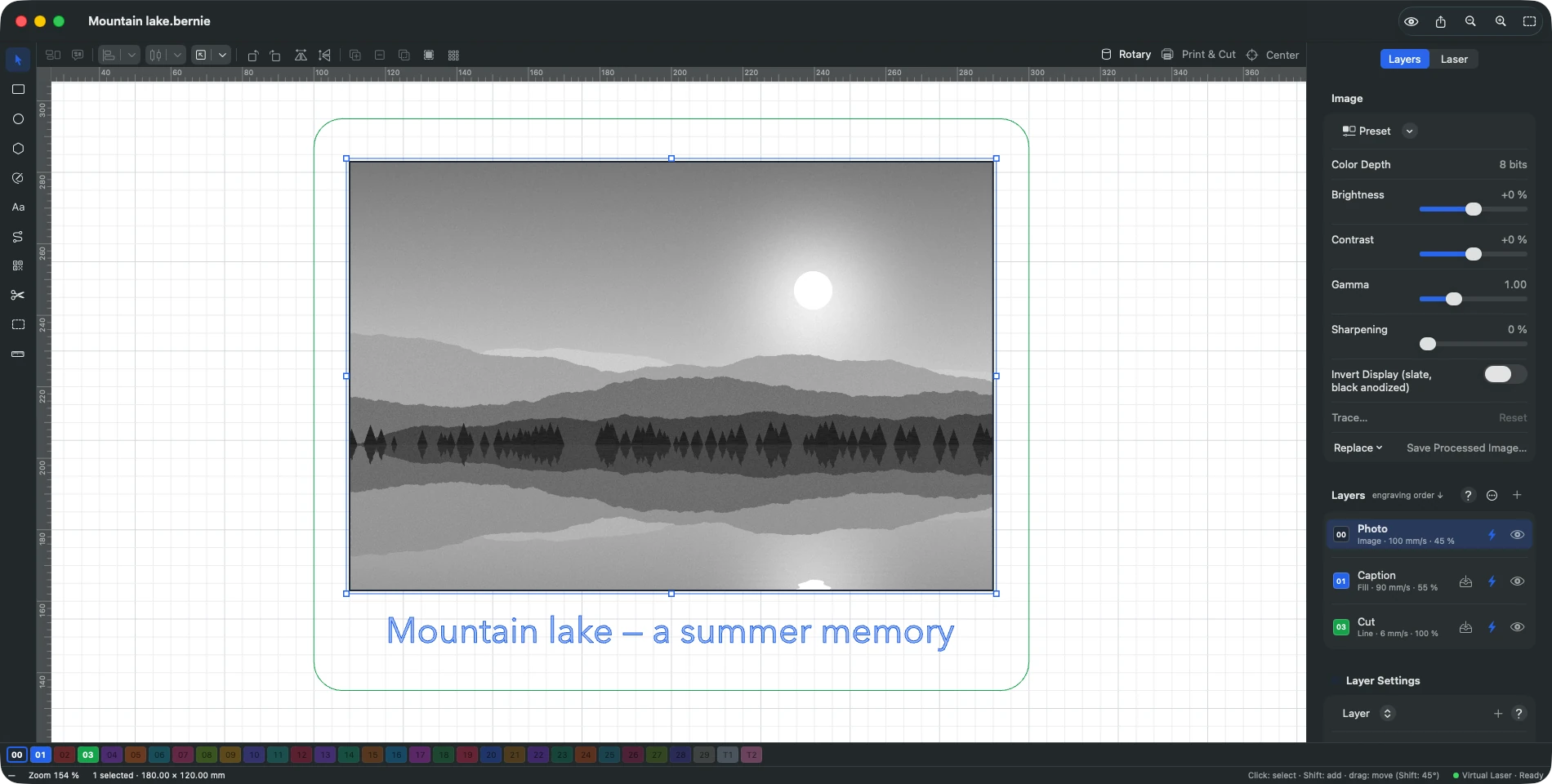
- Import the photo. PNG, JPEG, BMP, GIF, WebP or TIFF, kept at its original resolution (16-bit included). Put it on a layer in Image mode, the mode dedicated to photos and dithering.
- Follow the photo engraving assistant. Five guided steps: focus, speed and power, interval, dot correction, then the image settings.
- Adjust the image. Brightness, contrast, gamma and sharpening, with presets included or your own to import and export. Crop it, or mask it with a shape such as an oval.
- Choose the mode. Stucki, Floyd-Steinberg, Jarvis or Atkinson; halftone with adjustable cells per inch and angle, plus a newsprint screen; or sketch, threshold and grayscale, in positive or negative.
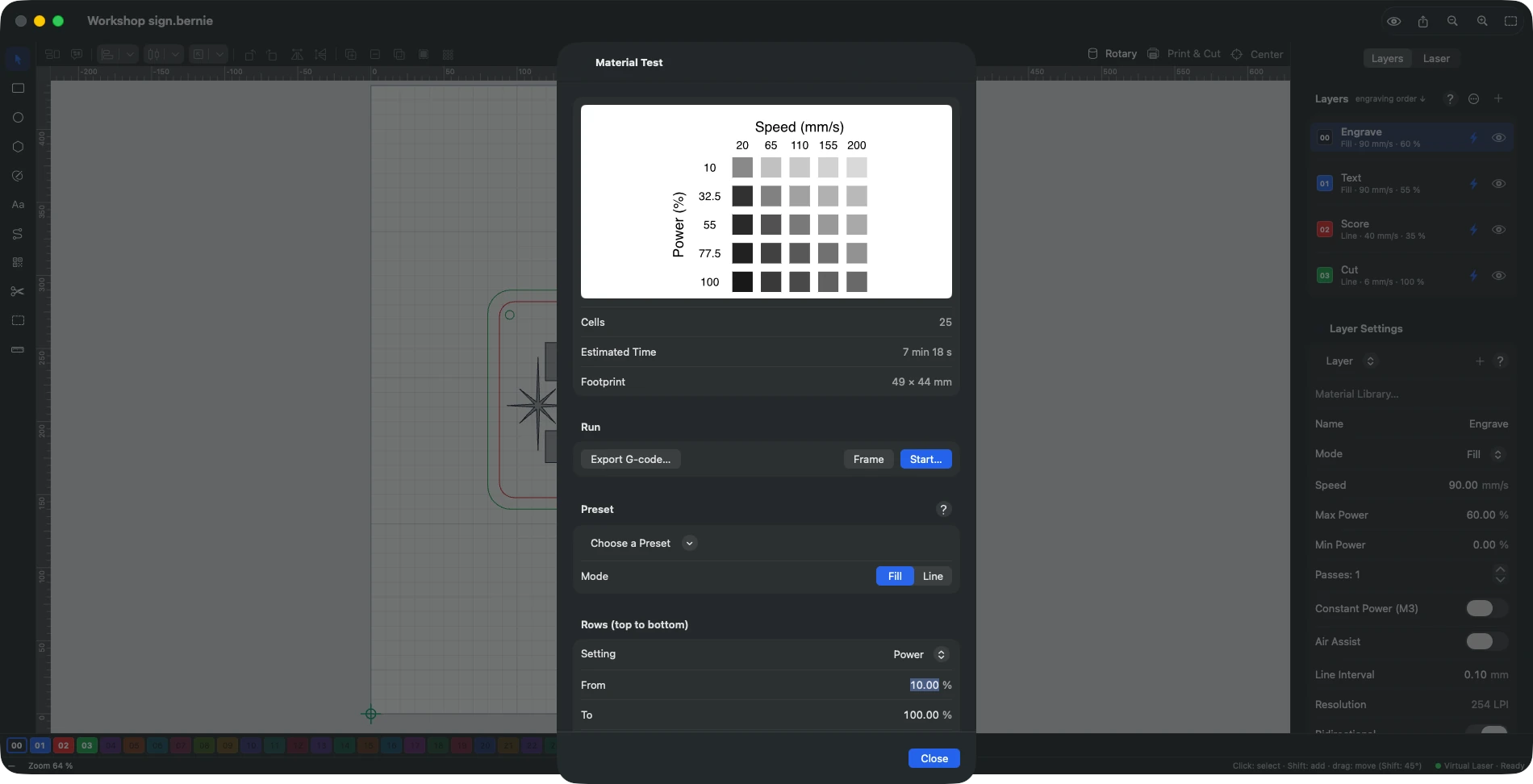
- Pick a setting. More than 1,800 material settings ship in 17 material libraries. For a new material, the Material test engraves a speed × power grid (or interval, or passes): keep the best square.
- Check the preview. The preview renders the job on the material (wood, slate, anodized aluminium and more) and estimates the time from your machine’s real accelerations. The pre-flight check blocks mistakes such as out of bounds or speed too high.
- Place it and check the result. With a camera, the image of the bed slides in under your design, so you can position the photo on an offcut. After the job, the result analysis flags banding or uneven tone, with the likely causes.
See compatible machines for how Bernie connects to your laser, and galvo and fiber if you mark photos on metal. No laser yet? The virtual laser lets you prepare and time a photo engraving, and our guide to choosing a diode, CO2, fiber or galvo laser helps you pick one.
Try it on your own photo
Bernie is free, with no account and no subscription. It runs today on Windows, Linux and in your browser with Bernie Studio; Mac, iPad and iPhone are coming soon.
Frequently asked questions
What is the best DPI for laser engraving a photo?
The one that matches your laser’s spot, so dots just touch. Start at 254 DPI (0.1 mm) on most diode lasers, 254–300 DPI on a CO2 with a 2 in lens, and 500 DPI or more on a fiber galvo. Higher values make dots overlap, which darkens the photo.
Grayscale vs dithering: which is better for laser engraving?
For most diode lasers and woods, dithering is more reliable: it fires at one power and builds tones from dots. Grayscale varies the power and can give smoother tones on a CO2 or on maple and leather. Test both on the same offcut.
Jarvis vs Stucki: which dithering should I use?
Both spread the rounding error over 12 neighbouring pixels. Stucki favours the closest ones, so it looks a little sharper; Jarvis gives slightly smoother gradients. Start with Stucki for portraits, Jarvis for soft skies and skin.
Can you laser engrave a photo on wood with a diode laser?
Yes, it is one of the most common diode projects. Choose a light, fine-grained wood such as maple, alder or birch plywood, dither at around 254 DPI and run a speed × power test on an offcut first. A 5 W diode works too, just more slowly.
Do I need to invert a photo for slate or glass?
Yes. On slate, black anodized aluminium and glass, the laser leaves light marks, so a photo engraved as is comes out as a negative. Invert it so the laser works where the photo is light.