Good laser engraver maintenance comes down to a few habits: keep the lens or protective window clean, keep the rails, wheels and belts clean and tight, and clear the smoke path. A CO2 laser adds its mirrors and its cooling water; a fiber galvo, its field lens. Plan these tasks by hours of use rather than by the calendar: a machine that runs every evening needs them far sooner than one used twice a month.
Below: why hours work better than dates, a schedule by laser type with the intervals manufacturers publish, what to do for diode, CO2 and fiber machines, how to have free software count the hours and remind you, and a checklist to print.
Why plan maintenance by hours of use
Smoke and resin settle on the optics while the laser fires, and the mechanics wear while the head moves. Both depend on how long the machine runs, not on the date. That is why several manufacturers state their intervals in hours: Ortur asks for a lens cleaning every 50 hours on the Laser Master 2 S2, Glowforge cleans the lens and windows every 40 hours of use, and xTool’s M2 FAQ calls for cleaning the protective lens after 42 hours of work.
Two counts matter. Firing hours, with the laser on, dirty the lens and mirrors. Work hours, the whole job including moves, wear the rails, wheels and belts, and age a CO2’s cooling water. A dirty lens is also one of the first causes of a laser that suddenly stops cutting through: our guide to a laser not cutting through walks through the others.
Laser engraver maintenance schedule by type
Your machine’s manual comes first: intervals vary by model, and some makers contradict each other. As a starting point, here is what manufacturers publish, next to the default reminders in Bernie’s hour counter.
| Task | What manufacturers say | Default reminder in Bernie |
|---|---|---|
| Lens or protective window | Every 50 h (Ortur LM2 S2); every 40 h of use (Glowforge); weekly with frequent use (Creality); hourly in smoky, intensive work (xTool 20 W module) | Every 20 h of firing |
| CO2 mirrors | Head mirror daily, the others weekly or monthly (OMTech, Trotec) | Every 20 h of firing (CO2) |
| CO2 cooling water | Distilled water; chiller water every 3 months, monthly in a dusty shop (TEYU) | Every 100 h of work (CO2) |
| Rails, wheels and belts | Weekly (Epilog), every 2 weeks (OMTech), every 15 days to 2 months depending on use (xTool P2) | Every 50 h of work |
| Fiber field lens | When marking gets weaker (xTool F1), at least monthly (xTool F2 Ultra UV) | Every 100 h of firing (galvo) |
| Honeycomb, exhaust and ducts | Honeycomb after each material (xTool P2), exhaust every 6 months (Epilog) | Add your own reminder |
Diode laser maintenance
Lens and protective window
Creality lists the signs of a dirty lens: weaker cuts, darker burns, uneven engraving and visible residue. Clean it with isopropyl alcohol of at least 90 %, a lens tissue or a cotton swab, in small circles, and let it dry before you fire. A cracked, cloudy or burnt lens does not come back: replace it. Air assist keeps smoke off the optics, so you clean less often with it on.
Rails, wheels and belts
A loose belt shows up as wavy or doubled lines (xTool). Creality’s check is simple: pressed in the middle, the belt should flex only slightly. On machines with V-wheels, Sculpfun adjusts the eccentric nut a quarter turn at a time, until the wheel just touches the profile. Wipe dust and resin off the rails at the same time.
To grease or not to grease?
Makers disagree on diode lasers. Creality warns against greasing belts, pulleys or parts not designed for it, while Ortur recommends a monthly grease with its own product. Follow your machine’s manual, and never use motor oil where the manual does not ask for it.
Fan, air assist and honeycomb
Brush the dust off the module fan, check that the air assist nozzle is clear, and scrape the resin off the honeycomb or slats. Residue that builds up under the work is fuel: Epilog calls the buildup of cutting and engraving debris dangerous, and Trotec advises cleaning the machine before a job.
CO2 laser maintenance, K40 included
Lens and mirrors
A CO2 beam travels through three mirrors before the lens, and each one loses power when dirty. OMTech’s routine checks the third mirror, the lens and the water every day, mirrors 1 and 2 and the alignment every week. Use optical tissue with isopropyl or denatured alcohol, and put the lens back with its curved side up. Trotec’s rule is to look every day and clean as soon as dirt appears: wood and rubber dirty the optics fastest.
Cooling water
- Distilled water, not tap water: minerals and algae build up in the cooling circuit.
- Temperature: OMTech gives 16 to 21 °C as ideal, and warns never to run with water at 24 °C or more, or below 10 °C.
- Change it: TEYU, which makes many of the chillers sold with CO2 lasers, changes it every three months, monthly or even every two weeks in a dusty shop. A bucket and pump setup needs cleaning at least monthly, even if the water looks clear (OMTech).
- Additives: OMTech allows antifreeze with a bucket and pump, but in a chiller only distilled water, with no additive, or the tube warranty is void. Drain the system if the machine sits unused in a freezing room.
Tube and current
A glass CO2 tube on a hobby machine lasts about 1,500 to 4,000 hours, according to OMTech, which suggests replacing it when it falls to around 65 % of its rated power. Running it above its rated current shortens that life. On a K40, where power comes from the panel knob, the MeerK40t setup guide advises staying below about 15 mA. If your K40 still has its stock board, our guide to K40 M2 Nano software explains how to drive it without replacing the board.
Rails and exhaust
OMTech cleans and greases the X and Y rails every two weeks with white lithium grease, and checks the belts for wear; Epilog cleans its rails weekly with isopropyl alcohol. Clear the exhaust fan and ducts too: Epilog schedules them every six months.
Fiber galvo maintenance
A fiber galvo has no rails or belts to look after, but its field lens takes the smoke. xTool cleans the F1’s lens with a lint-free cloth and absolute ethanol when marking gets weaker, and the F2 Ultra UV’s field lens and mirrors at least once a month, the mirrors only if they are dirty. Power off and remove the safety key first. Before a long stop, JPT advises cleaning the lenses and fitting their caps.
How to track maintenance hours in Bernie
Bernie, the free laser software, counts the hours of each machine and reminds you when a task is due. It works on every laser it drives, from a diode to a K40 or a galvo, on the Mac, on Windows, on Linux and in the browser with Bernie Studio.
- Open the counter. Choose Laser › Hour Counter and Maintenance…, or the button at the bottom of the Laser panel; in Bernie Studio, it is in the Laser panel, under tests and settings. The window shows the active machine.
- Read the counts. Work hours, Firing hours, Jobs and Distance engraved add up since commissioning or the last reset. Each job is counted when it ends, a stopped job for the part done; virtual laser jobs do not count.
- Check the reminders. By default: clean the lens every 20 h of firing, clean the rails and check belts and wheels every 50 h of work. A CO2 adds the mirrors (20 h of firing) and the cooling water (100 h of work); a galvo cleans its lens every 100 h of firing.
- Match your manual. Edit Reminders… changes an interval, adds a task — the honeycomb or the exhaust, for example — or removes one.
- Do the maintenance when it is due. An orange banner appears at the top of the Laser panel. Once the job is done, click Done next to the reminder: the date is kept and the count restarts from zero.
- Start again after a big change. Reset… sets the counters back to zero for a new machine or a new tube; the reminders stay.
- Share the count. A laser shared through Bernie Link keeps its own counter, whichever device sends the jobs, and Done is recorded there for everyone.
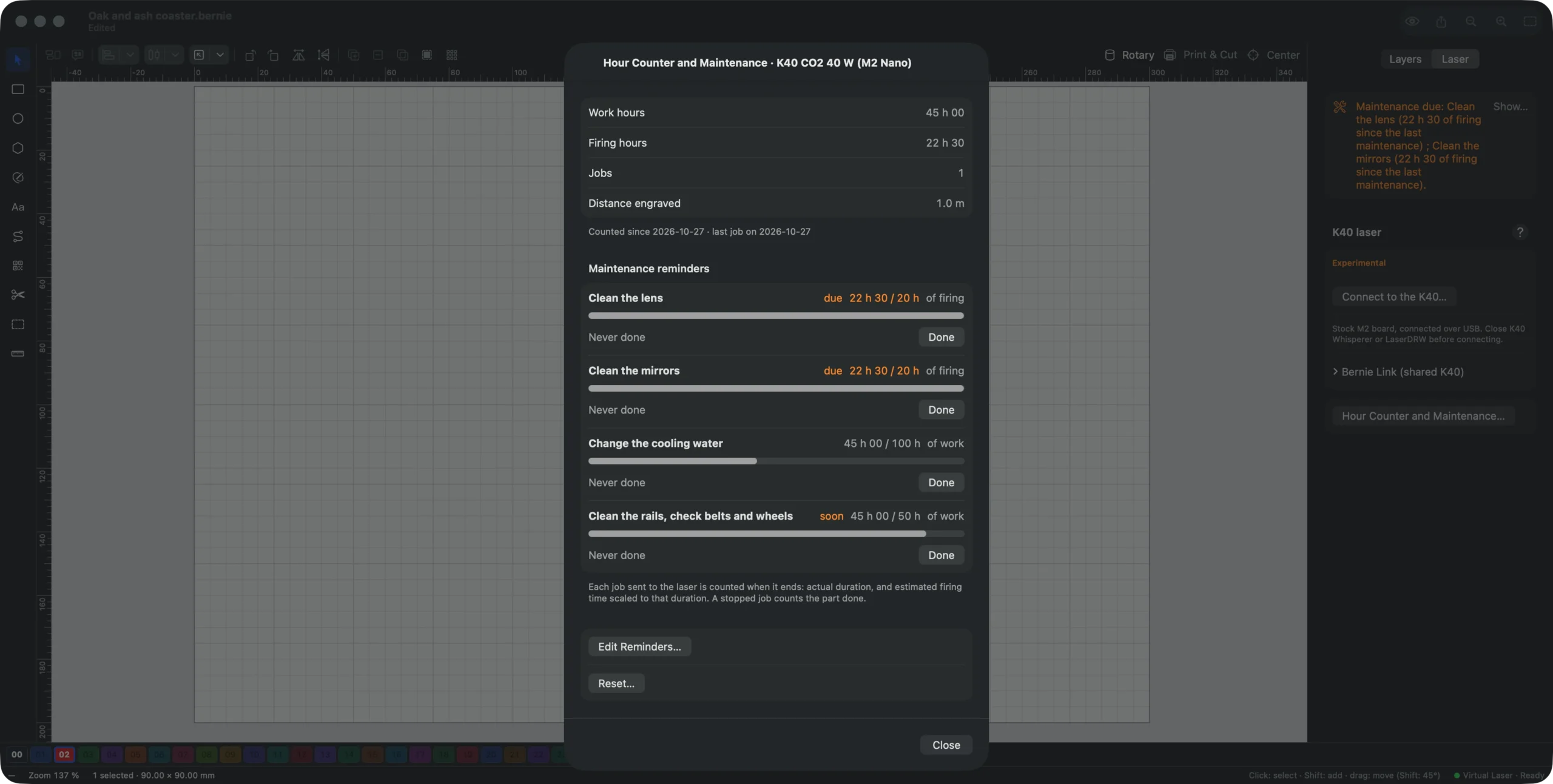
The manual’s hour counter and maintenance section explains how each hour is counted.
Get maintenance reminders for free
Bernie counts your laser’s hours and tells you when to clean the lens or change the water. It is free, with no account and no subscription, on Mac, Windows, Linux and in your browser with Bernie Studio.
Protect clamps and accessories with no-go zones
Maintenance also means not damaging the machine. A clamp, a stop, the rotary left in a corner or the frame of the honeycomb should never meet the beam, and a tall clamp should never meet the head. Bernie lets you mark those places as no-go zones, per machine:
- Draw a rectangle, a circle or any closed outline over the part to protect, placed to the millimetre with the inspector, and select it.
- In the device settings, in the No-go zones section, click Add the Selection. You can then delete the drawn shape: the zone stays, hatched in red on the bed.
- Tick Moves forbidden too for a part the head could hit: the head then never goes there, framing included, and the zone is cross-hatched.
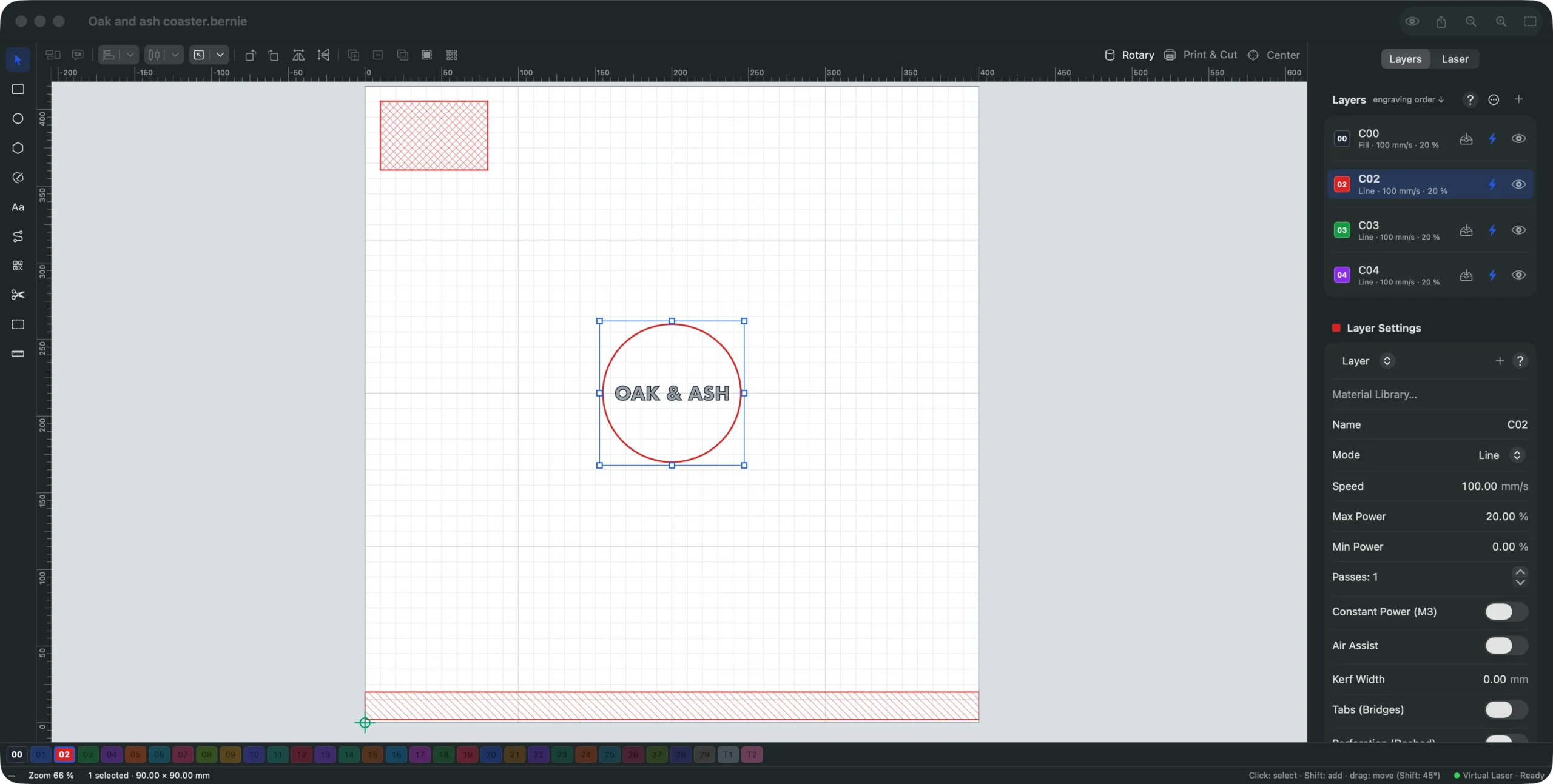
Every job, framing, material test and G-code file is then checked against the zones, placement at the head included, and refused with the name of the zone it would enter. The K40 respects them too, and Bernie Link checks the jobs it receives against the zones of the device it keeps. Zones are not checked with the rotary on, nor on galvo lasers. Details are in the manual’s no-go zones section, and the preview and safety page lists the other checks Bernie runs before a job.
A laser maintenance checklist to print
Before each session
- Lens or window clean, nozzle clear, air assist running.
- CO2: water flowing, between about 16 and 21 °C, before the tube fires.
- Exhaust on, ducts connected, no debris under the honeycomb.
- Goggles rated for your laser’s wavelength, extinguisher at hand, someone watching the machine.
About every 20 hours of firing
- Clean the lens or protective window; CO2: clean the mirrors.
- Fiber galvo: inspect the field lens, clean it if marking gets weaker.
- Scrape resin off the honeycomb or slats.
About every 50 to 100 hours of work
- Clean the rails, check belt tension and the wheels, as your manual says.
- CO2: change the cooling water, clean the bucket or the chiller filter.
- Brush the module or exhaust fan, check the ducts and the air assist filter.
- Run a material test on a known material: a drop in depth reveals dirty optics or a tiring source.
Never cut PVC or vinyl, whatever the state of the machine: they release chlorine, toxic for you and corrosive for the rails and optics. To check your settings after a cleaning, our laser settings guide gives starting values by material, and the compatible machines page shows which lasers Bernie drives.
Frequently asked questions
How often should I clean my laser lens?
It depends on the machine and on what you burn. Manufacturers range from every 40 to 50 hours of use (Glowforge, Ortur) to weekly with frequent use (Creality), and up to every hour in smoky, intensive work. Clean it as soon as cuts get weaker or engraving gets uneven, with isopropyl alcohol of at least 90 %.
What water should I use in a CO2 laser?
Distilled water. Keep it between about 16 and 21 °C, never run with water at 24 °C or more, and change it every few months, more often in a dusty shop. In a chiller, add nothing: some makers void the tube warranty if you do.
How long does a CO2 laser tube last?
A glass tube on a hobby machine lasts about 1,500 to 4,000 hours according to OMTech, less if you run it above its rated current or with warm water. Plan a replacement when it drops to around 65 % of its rated power.
Should I lubricate the rails of my laser engraver?
Follow your manual: makers disagree. Some CO2 machines get white lithium grease on their rails every two weeks, Ortur greases its diode lasers monthly, and Creality warns against greasing parts not designed for it. Clean off dust and resin in every case.
Can laser software remind me when maintenance is due?
Yes. Bernie, free laser software, counts the work and firing hours of each machine and shows an orange banner when a reminder is due: lens, rails and belts, and for a CO2 the mirrors and the cooling water. You set the intervals to match your manual.
Ten minutes of cleaning every few dozen hours keeps your laser cutting at full power and lowers the fire risk. Let Bernie count the hours for you: download Bernie, connect your laser, and open Laser › Hour Counter and Maintenance….