Good laser engraving settings start from a known range, not from zero. On a 5–10 W diode, wood engraves well around 50–80 mm/s at 40–70% power; a 40–60 W CO2 laser engraves it at 250–400 mm/s and 15–35%. Cutting 3 mm plywood takes full power, 3–4 mm/s and two or three passes on a 10 W diode, one pass at 10–20 mm/s on a CO2. The charts below give starting points for 13 materials, and a ten-minute test grid turns them into your own numbers.
Treat every value here as a place to begin: real optical power, the lens, focus, air assist, the age of the diode or tube and even the batch of plywood all change the result.
How laser engraving settings work together
Speed and power: energy per millimetre
What marks the material is the energy delivered to each millimetre, roughly power divided by speed: double the speed and you halve it. The pairs are not fully interchangeable, though: high power at high speed gives a crisp, shallow mark, while slow speed lets heat spread and char the edges.
Power is a percentage of what your laser really emits. A “10 W” diode should mean 10 W of optical output; some listings quote electrical input instead, which is why a “40 W” machine can behave like a 5 W one. Many diode programs show speed in mm/min: multiply mm/s by 60 (100 mm/s = 6,000 mm/min).
Passes, line interval and DPI
Passes repeat the job. For cutting, two fast passes often leave a cleaner edge than one slow pass, because the smoke clears in between. For engraving, a second pass goes deeper rather than darker.
Line interval is the gap between fill lines; DPI is the same idea upside down (interval in mm = 25.4 ÷ DPI, so 0.1 mm is 254 DPI). A tighter interval overlaps the lines: darker, smoother, slower. The engraving values below assume 0.08–0.1 mm. Photos follow their own rules, covered in our guide to engraving a photo with a laser.
Focus and air assist
A focused beam is a dot a fraction of a millimetre wide; a few millimetres off, the same power spreads and fades. Focus on the surface for engraving; for thick cuts, focus slightly into the material or lower the head a little on each pass.
Air assist blows smoke and flame out of the cut: full flow for cutting (cleaner edges, fewer flare-ups, a cleaner lens), a gentle flow for engraving to limit smoke stains.
Diode laser settings: speed and power chart (5–10 W and 20 W)
Starting points for 455 nm blue diode modules with air assist, focus on the surface and a 0.08–0.1 mm interval. Within each range, the slower speed or higher power suits the lower wattage. If your machine cannot reach a listed speed, slow down and lower the power in proportion.
| Material | Engrave, 5–10 W | Engrave, 20 W | Cut, 5–10 W | Cut, 20 W |
|---|---|---|---|---|
| Solid wood (basswood, poplar) | 50–80 mm/s, 40–70% | 80–100 mm/s, 30–45% | 3 mm: 3–5 mm/s, 100%, 1–3 passes | 3 mm: 7–10 mm/s, 100%, 1 pass |
| Plywood (birch, poplar) | 50–80 mm/s, 35–70% | 80–100 mm/s, 30–40% | 3 mm: 3–4 mm/s, 100%, 2–3 passes; 6 mm: about 2 mm/s, 4 passes | 3 mm: 6–8 mm/s, 100%, 1 pass; 6 mm: 3–4 mm/s, 1–2 passes |
| MDF | 50–80 mm/s, 40–70% | 80–100 mm/s, 30–50% | 3 mm: 2–3 mm/s, 100%, 2–4 passes | 3 mm: 4–6 mm/s, 100%, 1–2 passes |
| Bamboo | 50–80 mm/s, 40–70% | 80–100 mm/s, 35–45% | 3 mm: 3–4 mm/s, 100%, 2–3 passes | 3 mm: 6–8 mm/s, 100%, 1 pass |
| Vegetable-tanned leather | 50–80 mm/s, 20–35% | 80–100 mm/s, 15–25% | 1.5 mm: 6–12 mm/s, 100%, 1–2 passes | 1.5 mm: 12–20 mm/s, 100%, 1 pass |
| Corrugated cardboard | 80–120 mm/s, 15–30% | 100–150 mm/s, 10–20% | 3 mm: 8–15 mm/s, 100% | 3 mm: 15–25 mm/s, 80–100% |
| Paper and thin card | 80–120 mm/s, 10–25% | 100–150 mm/s, 8–15% | 25–50 mm/s, 80–100% | 50–80 mm/s, 50–80% |
| Cork sheet | 80–120 mm/s, 15–30% | 100–150 mm/s, 10–20% | 3 mm: 6–10 mm/s, 100%, 1–2 passes | 3 mm: 12–20 mm/s, 100% |
| Acrylic, dark opaque only | 40–80 mm/s, 50–90% | 60–100 mm/s, 30–50% | Not recommended: thin sheet, about 2 mm/s, 2–4 passes | About 2 mm/s, 1–3 passes; never clear |
| Slate | 50–100 mm/s, 40–80% | 80–150 mm/s, 30–60% | — | — |
| Glass, coated only | 25–50 mm/s, 80–100% | 50–80 mm/s, 60–90% | — | — |
| Anodized aluminium | 10–40 mm/s, 80–100% | 40–100 mm/s, 40–70% | — | — |
| Stainless steel, with marking spray | 10–20 mm/s, 100% | 20–40 mm/s, 80–100% | — | — |
CO2 laser settings (40–60 W) and fiber for metals
The 10.6 µm beam of a CO2 laser is absorbed by almost every organic material, clear acrylic and glass included, so it engraves several times faster than a diode. Use the slow end of each range for a 40 W tube and the fast end for 60 W. Many owners keep glass tubes below about 80% to make them last.
| Material | Engrave | Cut 3 mm (1/8 in) | Cut 6 mm (1/4 in) |
|---|---|---|---|
| Solid wood | 250–400 mm/s, 15–35% | 12–25 mm/s, 50–70% | 5–10 mm/s, 60–80% |
| Plywood | 250–400 mm/s, 15–35% | 10–20 mm/s, 55–75% | 4–8 mm/s, 65–85% |
| MDF | 250–400 mm/s, 15–30% | 6–12 mm/s, 60–80% | 3–6 mm/s, 70–85% |
| Bamboo | 250–400 mm/s, 20–35% | 10–20 mm/s, 60–75% | 4–8 mm/s, 70–85% |
| Vegetable-tanned leather | 300–500 mm/s, 12–25% | 8–20 mm/s, 40–60% | — |
| Corrugated cardboard | 300–500 mm/s, 10–20% | 15–40 mm/s, 30–60% | 10–20 mm/s, 50–60% |
| Paper and card | 300–500 mm/s, 8–15% | 100–300 mm/s, 10–25% (thin sheet) | — |
| Cork sheet | 300–500 mm/s, 15–25% | 20–50 mm/s, 30–50% | 10–20 mm/s, 40–60% |
| Acrylic, clear or coloured | 300–450 mm/s, 15–30% | 8–15 mm/s, 60–85% | 3–6 mm/s, 70–85%, or 2 passes |
| Slate | 300–500 mm/s, 20–40% | — | — |
| Glass | 150–300 mm/s, 15–35% | — | — |
| Anodized aluminium | 300–500 mm/s, 15–30% | — | — |
| Stainless steel, with marking spray | 40–120 mm/s, 60–90% | — | — |
Metals: fiber laser starting points
CO2 light bounces off bare metal, and a diode barely darkens stainless steel. A 1064 nm fiber laser marks it directly; pulse frequency matters as much as power. For a 20–30 W fiber, try:
- Stainless steel, light mark: 800–1,200 mm/s, 35–65%, 30–40 kHz, 0.05 mm interval.
- Stainless steel, dark mark: 100–300 mm/s, about 40%, 60–80 kHz, 0.01–0.02 mm interval.
- Anodized aluminium: 500–1,000 mm/s, 20–60%, 20–40 kHz, 0.01–0.03 mm interval.
Colours on stainless steel need a MOPA source, whose pulse width can be adjusted. Galvo machines add their own jump and delay settings: see galvo and fiber marking in Bernie.
Material notes the charts cannot show
Laser settings for wood
Density does most of the work: basswood and poplar engrave fast and evenly, while walnut, oak and maple need more energy for the same tone. Pine’s hard and soft growth rings burn at different rates, so fills look striped. Masking tape keeps smoke stains off the surface.
Laser cutting settings for plywood and MDF
In plywood, the glue decides the cut: two sheets of the same thickness can need very different speeds, and plywood sold for lasers, with fewer voids, is more predictable. MDF cuts cleanly but slowly, with a dark edge and heavy smoke.
Leather, cork, cardboard and paper
Use vegetable-tanned leather: chrome-tanned leather and PVC faux leather give off toxic fumes. Leather marks with very little power. Cardboard, paper and cork catch fire easily: keep air assist on and lower the power before slowing down. White paper reflects much of a blue diode’s light; darker paper marks far more easily.
Acrylic: engrave on a diode, cut on a CO2
A blue diode beam passes straight through clear acrylic, and through most light or blue sheets, so it cannot cut or engrave them directly. It engraves dark opaque acrylic well, but clean cuts are a CO2 job. On a CO2, cast acrylic engraves to a frosty white, while extruded acrylic cuts with a flame-polished edge.
Slate, glass and metal
Slate turns light grey; more power only flakes it, so stay moderate, use a 0.1–0.15 mm interval and wipe on a drop of oil. A CO2 frosts glass best through a damp paper towel or a film of dish soap, which limits chipping; a diode needs a coating such as paint or marking spray, washed off afterwards. On anodized aluminium the laser removes the dye (black gives the best contrast), and a metal-marking spray fuses a dark layer onto stainless steel.
How to run a laser material test grid
A test grid is the quickest way from a chart’s guess to a setting you trust. Ten minutes on an offcut beats an evening of ruined boards.
- Use the real material. Same sheet, same finish, same thickness, with focus and air assist exactly as for the real job.
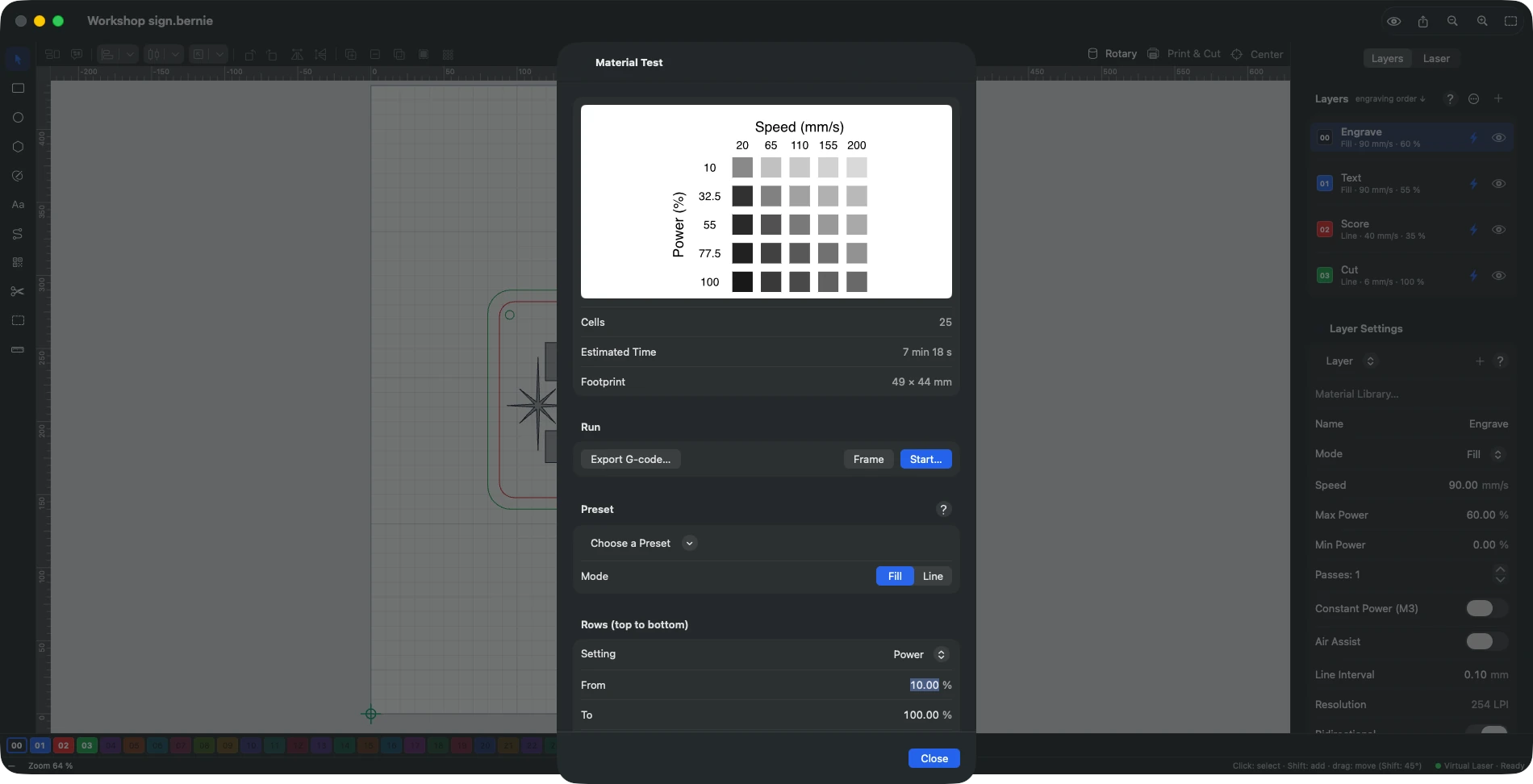
- Pick two variables. Usually speed across the columns and power down the rows, with interval and passes fixed. Take the range from the chart and stretch it a little.
- Keep it small. A 5 × 5 grid of 8–10 mm squares fits on a coaster-sized offcut.
- Go from low to high energy. Fast, weak squares first, so you can stop before anything flares.
- Read it in daylight. Wipe off the soot and pick the square with the tone you want and clean edges; on wood, the darkest is rarely the best.
- Refine. Run a tighter grid around the winner, or test interval or passes the same way.
- For cutting, cut small squares at decreasing speeds, keep the fastest one that drops out on its own, then slow down by about 10% as a margin.
Write down with every setting
- Material, supplier and thickness
- Machine, laser module or tube, lens
- Speed, power, passes and line interval
- Air assist and focus offset
- The date, and a photo of the grid
Materials you must never laser, and basic safety
- PVC and vinyl, including many faux leathers: they release chlorine compounds that form hydrochloric acid, harmful to you and corrosive to the machine.
- Polycarbonate: it discolours, catches fire and cuts badly.
- ABS: it melts rather than cuts and gives off toxic fumes, hydrogen cyanide among them.
- HDPE and polystyrene foam: they melt and ignite easily.
- PTFE (Teflon), fiberglass, carbon fiber, treated wood: toxic fumes or dust.
If you cannot identify a plastic, do not laser it.
Safety, every time
Wear goggles rated for your laser’s wavelength: about 450 nm for a diode, 10,600 nm for CO2, 1,064 nm for fiber. Glasses made for one do not protect against another.
Extract the fumes outdoors or through a proper filter, keep a CO2 fire extinguisher within reach and never leave a job running unattended.
Finding and saving your settings in Bernie
Bernie, our free laser engraving software, is built around that cycle: start from a known setting, test, save.
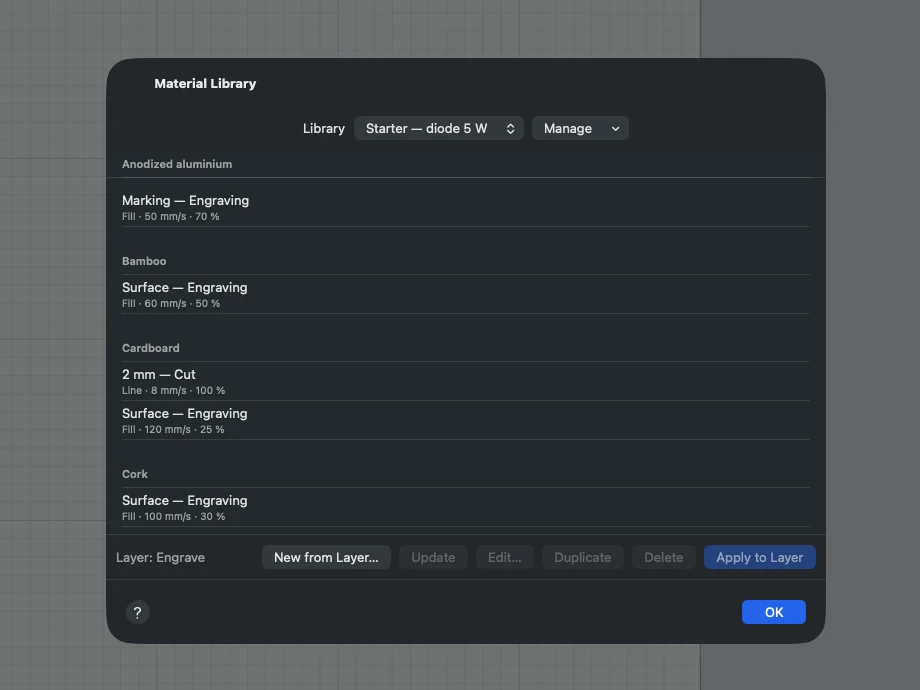
- Start from the library. More than 1,800 settings come in 17 libraries: general diode and CO2 settings, per-machine libraries (Creality Falcon2, Elegoo Phecda, Snapmaker Ray, xTool D1…) and MOPA fiber. Set up your laser from the catalog of 17 machines or with “Find My Laser”, and the material library is linked to it: see the compatible machines.
- Apply it in one click. Settings are sorted by material and thickness, reapplied instantly and tied to your machine. Each of the 30 layers carries its own speed, power, passes and air assist: details on the layers and material libraries page.
- Bring your LightBurn libraries. .clb libraries import and export, frequency, Z and ramps included.
- Test a new material. The material test engraves a speed × power grid (or interval, or passes) by increasing energy. Spot the best square, and “keep this square” saves it for next time. A shared folder on iCloud Drive or the network keeps one library on all your computers.
- Check before you burn. The preview renders the job on the material (wood, plywood, cardboard, leather, slate, black acrylic, anodized aluminium), estimates the time and, with “Why this line?”, shows the layer, speed and power behind any line. The pre-flight check blocks mistakes such as a speed that is too high.
For photos, a five-step assistant covers focus, speed and power, interval, dot correction and the image settings: see images and photos. If a result disappoints, the built-in help “My job is…” goes from the symptom (offset, burnt corners, too faint…) to the causes and the fixes; it is part of the files and built-in help features.
Free, with no account
The material libraries and the test grid are included for everyone. Bernie runs today on Windows, Linux and in the browser with Bernie Studio; Mac, iPad and iPhone are coming soon.
Still choosing a machine? Compare diode, CO2, fiber and galvo lasers and what each one can cut.
Laser engraving settings: frequently asked questions
What are the best laser settings for wood?
On a 5–10 W diode, start around 50–80 mm/s at 40–70% power; on a 20 W diode, 80–100 mm/s at 30–45%. A 40–60 W CO2 laser engraves wood at 250–400 mm/s and 15–35%. Hardwoods need more energy than basswood, so confirm with a test grid on the same board.
What speed and power cut 3 mm plywood?
A 5–10 W diode needs full power at 3–4 mm/s and two or three passes; a 20 W diode usually cuts it in one pass at 6–8 mm/s. A 40–60 W CO2 laser cuts it at about 10–20 mm/s and 55–75% power. The glue varies from sheet to sheet, so run a short cut test first.
Can a diode laser cut clear acrylic?
No. The blue beam of a diode laser passes straight through clear acrylic, and through most light or blue sheets. A diode can engrave dark opaque acrylic, but clean acrylic cutting is a job for a CO2 laser.
How do I make a laser material test grid?
Engrave small squares on an offcut of the same material, speed changing across the columns and power down the rows, from the lowest energy to the highest. Pick the best square, refine with a tighter grid, and write the values on the back of the swatch.
Should I use mm/s or mm/min?
They measure the same thing: 1 mm/s equals 60 mm/min. GRBL diode software often shows mm/min, while CO2 controllers and most charts use mm/s. Check the unit before typing a value, or you will be 60 times off. Bernie lets you work in either.