To convert an image to vector for laser cutting, you trace it: the software finds the edges between dark and light areas and turns them into outlines the laser can follow. Start from a high-contrast picture, set the threshold so the shapes you want are solid black, ignore the small specks, smooth the curves a little, then check that every outline is closed before you cut. A laser can engrave a photo as it is, but to cut a shape out, or to engrave a crisp logo fast, it needs vectors.
Below: when you need a vector and when you don’t, which images trace well, what each tracing setting does, a complete tutorial in free software, and how to get the traced paths ready for the cut.
Raster or vector: what your laser actually needs
A raster image (PNG, JPEG, a photo, a screenshot) is a grid of pixels. A vector file (SVG, DXF, PDF, AI) is a set of paths: lines and curves with exact coordinates. Laser software reads both, but it uses them differently.
| What you want | What the laser does | File you need | Layer mode |
|---|---|---|---|
| Cut a shape out | Follows the outline once (or a few passes) | Vector, closed paths | Line |
| Score or mark a thin line | Follows the path at low power | Vector | Line |
| Engrave a logo or text, solid | Scans back and forth inside the shapes | Vector (or a clean image) | Fill |
| Engrave a photo with tones | Fires dot by dot, line by line | Raster image | Image |
So you only need to convert an image to vector when the laser must follow an edge: cutting, scoring, or a fill that you want sharp at any size. A traced logo can be scaled from a keychain to a door sign without blurring, and filling it is often faster than engraving the same picture as an image, because the laser skips everything outside the shapes.
Which images convert to vector well
Tracing works by splitting the picture into ink and background. The cleaner that split, the cleaner the vector. Before you open any tracing tool, look at the source.
A good image to trace
- Two tones: black on white, or any dark shape on a light background.
- Clean edges: a logo, a silhouette, a stencil, lettering, a pen drawing.
- Enough pixels: about 1,000 pixels across for a 100 mm (4 in) part; small JPEG thumbnails give lumpy curves.
- Even lighting if it is a photo of a drawing: no shadow of your phone across the page.
- No heavy compression: JPEG artefacts around edges become tiny bumps in the outline.
Photos of people, pets or landscapes do not trace into good cut files: their shapes are made of soft gradients, and a tracer turns them into hundreds of blobs. For those, engrave the photo as an image (see our guide on how to laser engrave a photo), or redraw the subject as a silhouette first.
Quick fixes before tracing
- Crop to the part you need, so the tracer does not waste effort on the background.
- Raise the contrast in any photo editor until the background is close to white and the ink close to black.
- Remove colour: tracing looks at brightness, so a yellow logo on white is nearly invisible. Convert to grayscale and check that the shape is still dark.
- For a PNG with a transparent background, keep the transparency: some tracers can follow the outline of the opaque area directly.
Image to vector for laser: the settings that matter
Every tracing tool, free or paid, has the same few controls under different names. Learn them once and you can trace anything.
Threshold (and cutoff)
The threshold decides which pixels count as ink. Brightness runs from 0 (black) to 255 (white); with a threshold of 128, every pixel darker than mid-grey is traced. Raise it and lighter greys join the shape, so thin lines thicken and gaps close. Lower it and only the darkest areas stay, so a dirty background disappears. A second limit, often called cutoff, lets you trace only a band of greys, for example a mid tone without the black.
Ignore small specks
Dust, paper grain and JPEG noise become tiny closed shapes. Each one is a separate pierce and cut for the laser, which wastes time and can leave burn dots. A minimum area, measured in pixels, drops every shape smaller than that. A few pixels is usually enough; raise it for scans and photos of paper.
Simplification and smoothing
Traced edges follow the pixel staircase. Simplification removes nodes that add nothing, within a tolerance of a fraction of a pixel. Smoothing turns runs of short segments into curves. Too little, and circles look like polygons and the head shakes through thousands of tiny moves; too much, and sharp corners get rounded. Keep sharp corners for lettering and mechanical parts, more smoothing for organic shapes.
Outline tracing vs centerline tracing
Most tracers draw the outline of the ink: a 2 mm pen stroke becomes a long thin closed shape with two edges. That is what you want for cutting a stencil or filling a shape. Centerline tracing instead draws one path down the middle of each stroke, which suits handwriting scored with a single line. If your tool only traces outlines, score the drawing as a fill, or use a single-line font for text.
How to convert an image to vector in Bernie
Bernie is free laser software, funded by donations, and image tracing is part of its Images & photos tools. Here is the whole job, from a scanned drawing to a cut, with the badge you see in the screenshots.
- Import the image. Choose File › Import… (⌘I) or drop the file on the window: PNG, JPEG, BMP, GIF, WebP or TIFF. It lands on a layer in Image mode. Set its final size in the inspector before tracing, so the outlines come out at the right size.
- Open the tracing window. With the image selected, choose Tools › Trace Image… (⌥⌘T), or click Trace… in the Image section of the inspector. The preview shows the outlines found in red over the faded image, and Shapes counts them.
- Set the traced levels. Move From black up to (threshold), 128 by default, until the shapes you want are complete; leave From at 0 unless you want to drop the darkest tones. To keep only part of the picture, drag a rectangle in the preview; Whole Image brings back the full frame.
- Clean up. Under Cleanup and Smoothing, raise Ignore specks smaller than … px until the dust disappears and the Shapes count drops to the real parts. Adjust Simplification and Smoothing if curves look jagged or corners look soft.
- Use the special modes when they fit. Trace Transparency follows the opaque area of a cut-out PNG. Sketch (Uneven Lighting) keeps the lines darker than their surroundings, for a drawing photographed with shadows; the threshold then becomes a sensitivity.
- Trace. Tick Delete the Image Afterwards if you no longer need the picture, then click Trace. The new shapes go on a vector layer, separate from the image.
- Set the layer. Click the layer of the traced shapes and choose its Mode: Line to cut or score, Fill to engrave the shapes solid. Pick a speed and power from the material library, or run a material test on an offcut.
- Get the paths ready to cut. Shapes › Optimize Shapes… reduces the node count, Shapes › Close Paths… closes ends that almost meet, and Delete Duplicates removes stacked lines. In the layer settings, enter your Kerf Width and switch on Tabs (Bridges) if small parts should stay in the sheet.
- Preview, frame and cut. Turn on the preview (eye button, ⇧⌘P) to see the paths and the estimated time; the pre-flight check flags open shapes on a fill layer, duplicates or a job out of bounds. Frame the job on the material, then start it from the Laser panel.
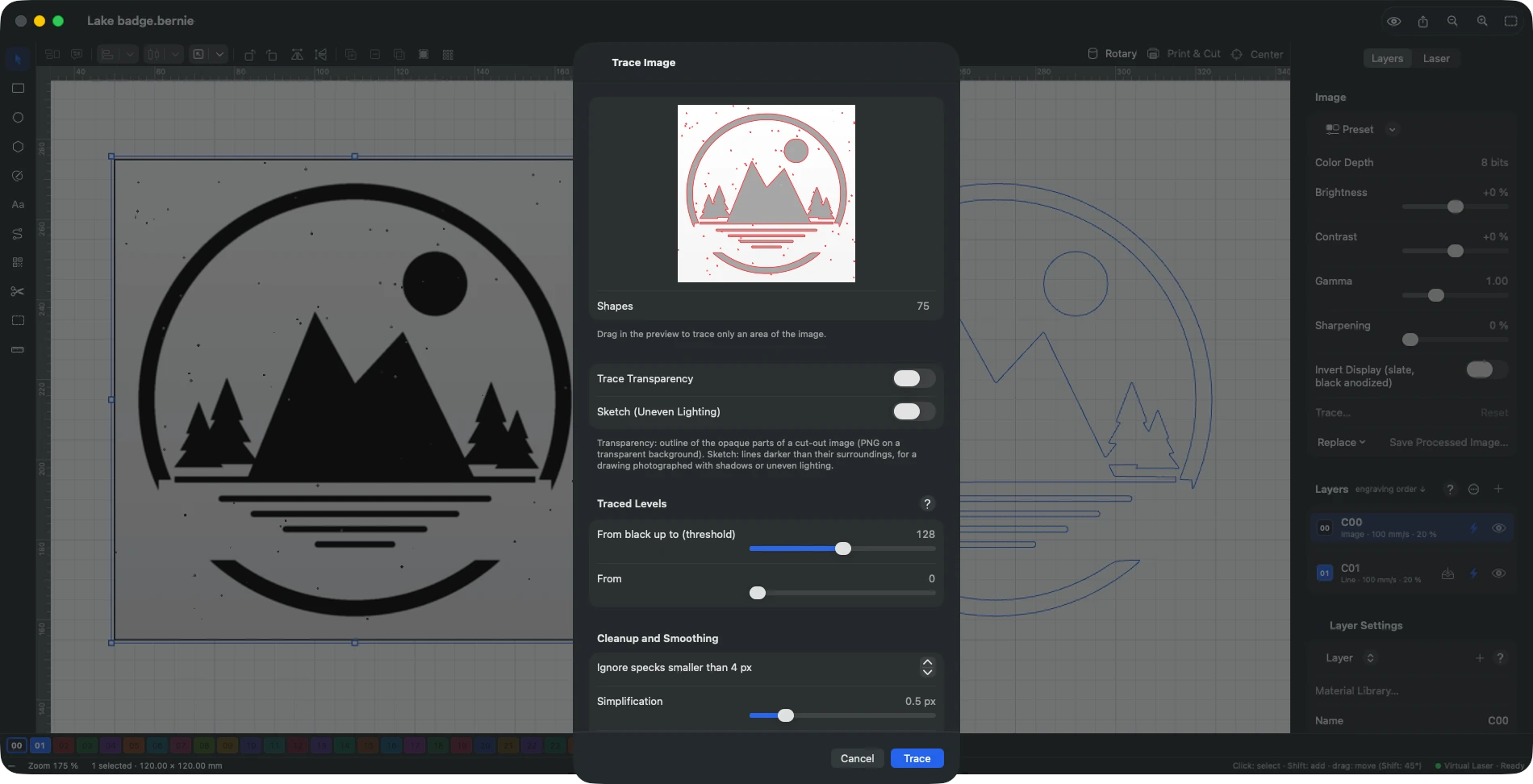
In the example, the default settings find 75 shapes: the parts of the badge plus every speck of dust on the scan. That is what Ignore specks smaller than … px is for: raise it until only the parts you want to cut are left, as in the traced badge below.
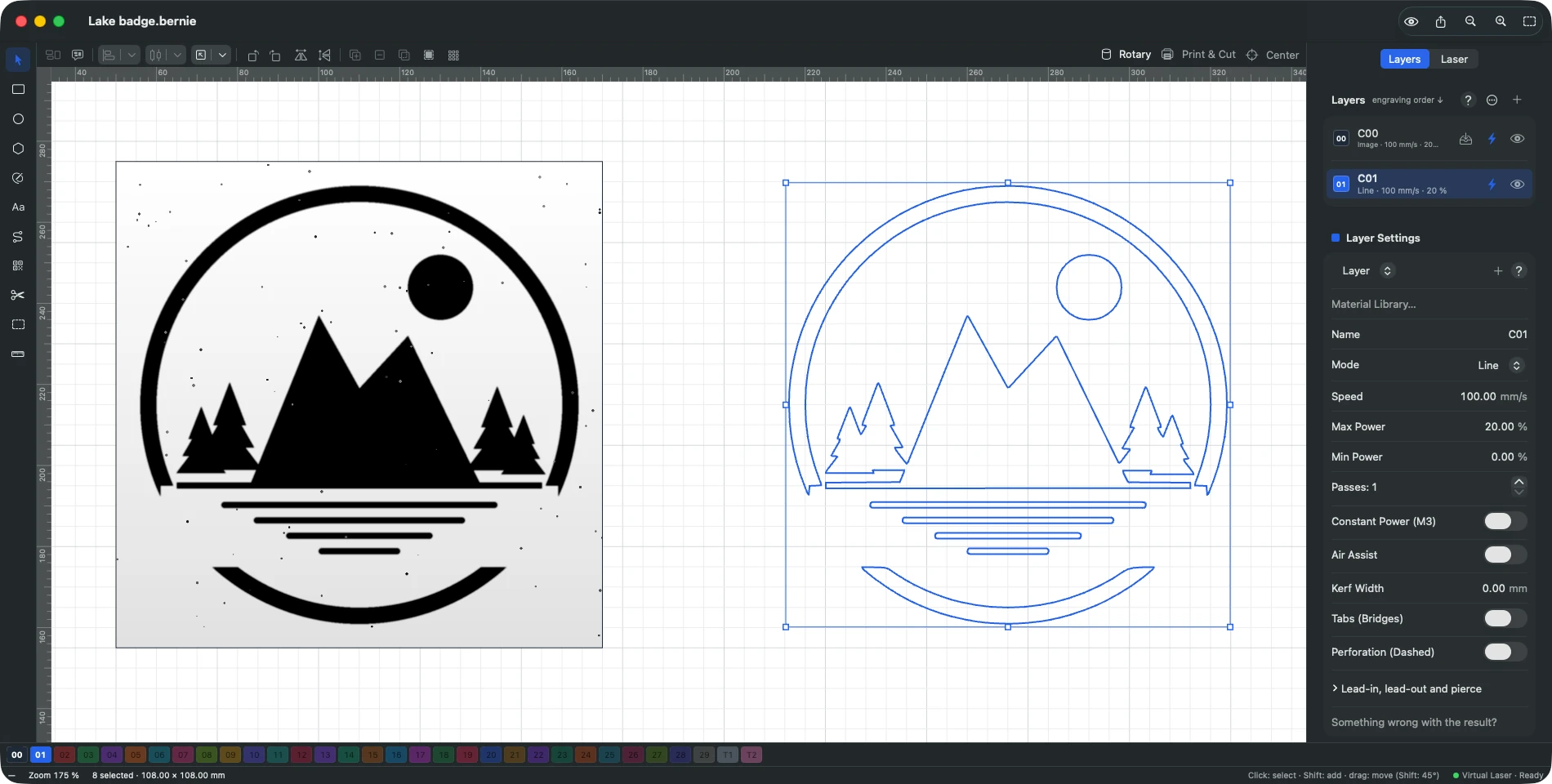
Once traced, the vector is an ordinary drawing: export it as SVG or DXF to reuse it elsewhere, or keep the Bernie project. To convert a whole folder of logos in one go, File › Trace Images… traces each file with the default settings and writes one SVG per image. The same tracing window is in Bernie on Windows and Linux and in Bernie Studio, under the Trace… button of the image panel.
Trace your own image for free
Repeat these steps on your own logo or drawing: Bernie is free, with no account and no subscription. It runs today on Windows, Linux and in your browser with Bernie Studio; Mac, iPad and iPhone are coming soon.
Prepare the traced vector for laser cutting
A trace that looks right on screen can still cut badly. These checks take two minutes and save the sheet.
Closed paths and islands
Only a closed outline drops a part out of the sheet. Zoom in on the corners: a gap of a tenth of a millimetre is enough to leave the piece hanging. Then think about islands, the parts inside other parts: the centre of an O, an A or a ring falls out when you cut a stencil. Either keep them with small bridges, choose a stencil font, or accept that they will be loose pieces.
Kerf, tabs and cut order
The beam removes material: about 0.1–0.2 mm on most diode and CO2 lasers in thin wood, more in thick stock. For parts that must fit together, compensate the kerf so outer shapes grow and holes shrink by half that width; a kerf test plate tells you the exact value. Tabs keep small parts from tilting into the honeycomb and catching the head. And cut inner shapes before outer ones, so the part does not move before its holes are done; most laser software does this by default.
Size and line count
Check the final size in millimetres, not pixels, and look at the node count: a clean logo has hundreds of nodes, not tens of thousands. If the preview time looks absurd for a simple shape, simplify again.
Safety first
Never cut PVC, vinyl or anything that may contain chlorine: it releases a toxic, corrosive gas. Extract the fumes, wear goggles rated for your laser’s wavelength, keep a fire extinguisher at hand and never leave the machine running unattended, especially when cutting.
Common tracing problems and how to fix them
| Problem | Likely cause | Fix |
|---|---|---|
| Hundreds of tiny shapes | Dust, paper grain, JPEG noise | Raise the speck filter; clean the image |
| Thin lines break into pieces | Threshold too low, image too small | Raise the threshold; use a larger source |
| Shapes merge into a blob | Threshold too high, dark background | Lower the threshold; raise the contrast first |
| Wobbly circles, jagged edges | Low resolution, little smoothing | More pixels; more smoothing |
| Rounded corners on letters | Too much smoothing | Less smoothing; less simplification |
| Double lines on a pen drawing | Outline tracing of a stroke | Fill it, or use centerline tracing or a single-line font |
| Part does not drop out | Open path or tiny gap | Close paths; check the corners |
Other ways to convert an image to vector
Any good laser workflow can trace. Inkscape, the free vector editor, has Trace Bitmap with a brightness cutoff mode and a centerline mode; it is a fine choice when you want to redraw parts of the trace by hand before exporting an SVG. LightBurn has its own Trace Image tool with threshold, cutoff, ignore and smoothness settings, much like the ones above. Online converters work too, but check the licence of the image you upload, and expect to clean up the result.
Doing it inside your laser software saves a round trip: you trace, set the layer and cut in one place, and the outlines stay at the size you chose. If you are weighing a move from a paid tool, our free LightBurn alternative comparison covers the rest of the workflow, and the compatible machines page tells you whether Bernie drives your laser.
Frequently asked questions
How do I convert an image to vector for laser cutting for free?
Use a tracing tool: Bernie’s Trace Image or Inkscape’s Trace Bitmap, both free. Import a high-contrast image, set the threshold so the shapes are solid, filter out small specks, then put the outlines on a Line layer to cut them.
What file format does a laser cutter need?
To cut, a vector format such as SVG, DXF, PDF or AI, with closed paths. To engrave a photo, a raster image such as PNG or JPEG is fine. Most laser software opens both and lets you assign each to a layer with its own mode.
Can you convert a photo to vector for laser engraving?
You can, but a photo of a person or a landscape traces into a mess of blobs. Engrave it as an image with dithering instead, or redraw the subject as a simple silhouette and trace that.
Why does my traced image have so many shapes?
Every speck of dust, grain of paper or JPEG artefact becomes a tiny closed shape. Raise the minimum area (Ignore specks in Bernie, Ignore less than in LightBurn) and clean the image before tracing.
What resolution should an image be before tracing?
Aim for about 10 pixels per millimetre of final size, so roughly 1,000 pixels across for a 100 mm part. Fewer pixels give lumpy curves; enlarging a small image does not add real detail.
Tracing is a two-minute job once you know the four controls: threshold, specks, simplification and smoothing. Try it on your own logo with Bernie, free on Windows, Linux and in the browser, and if it saves you time, consider supporting its development.